The MissionControl portal is only accessible to users with the SAAS Owner role.
In this article:
Adding Default Pages
- In the left-side navigation bar, tap into 'Company' and select 'MissionControl'.
- If you'd like to edit one of your child or grandchild accounts, that can be selected in the top right.
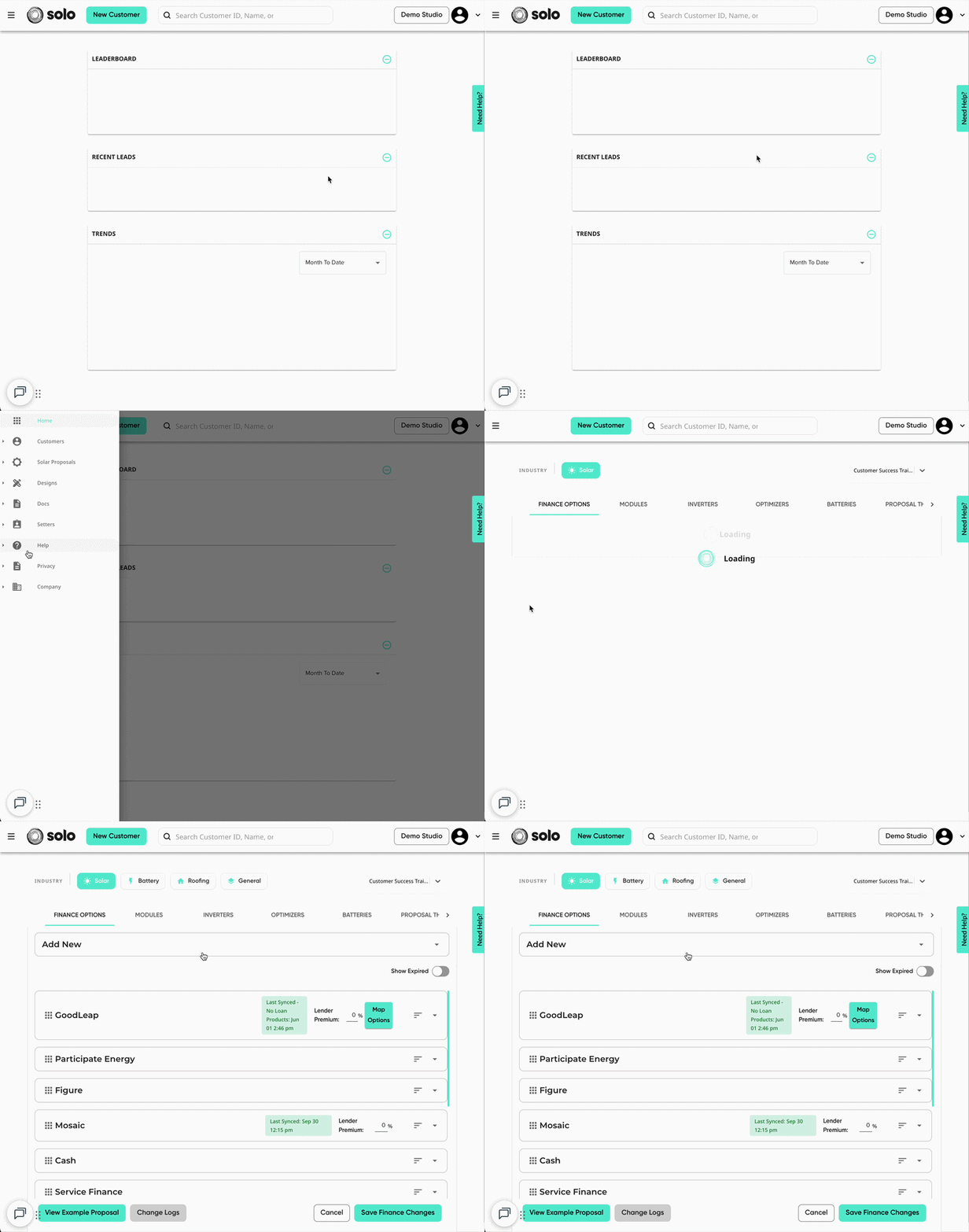
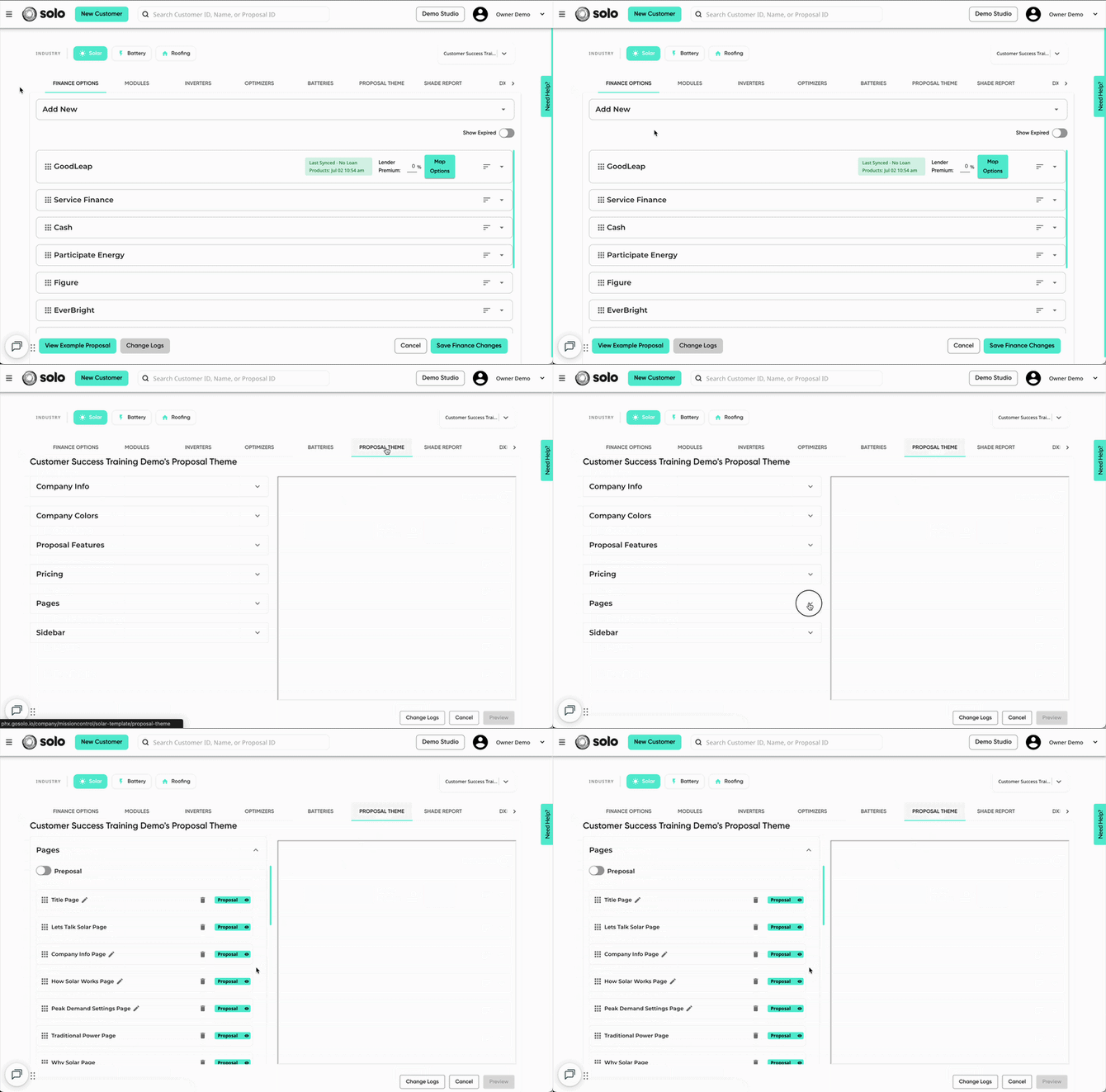
- Using the menu at the top, open the 'Proposal Theme' tab. Then, open the 'Pages' dropdown.
- Scroll down to the bottom of the section and click 'Add Page'. Then click 'Existing Page'.
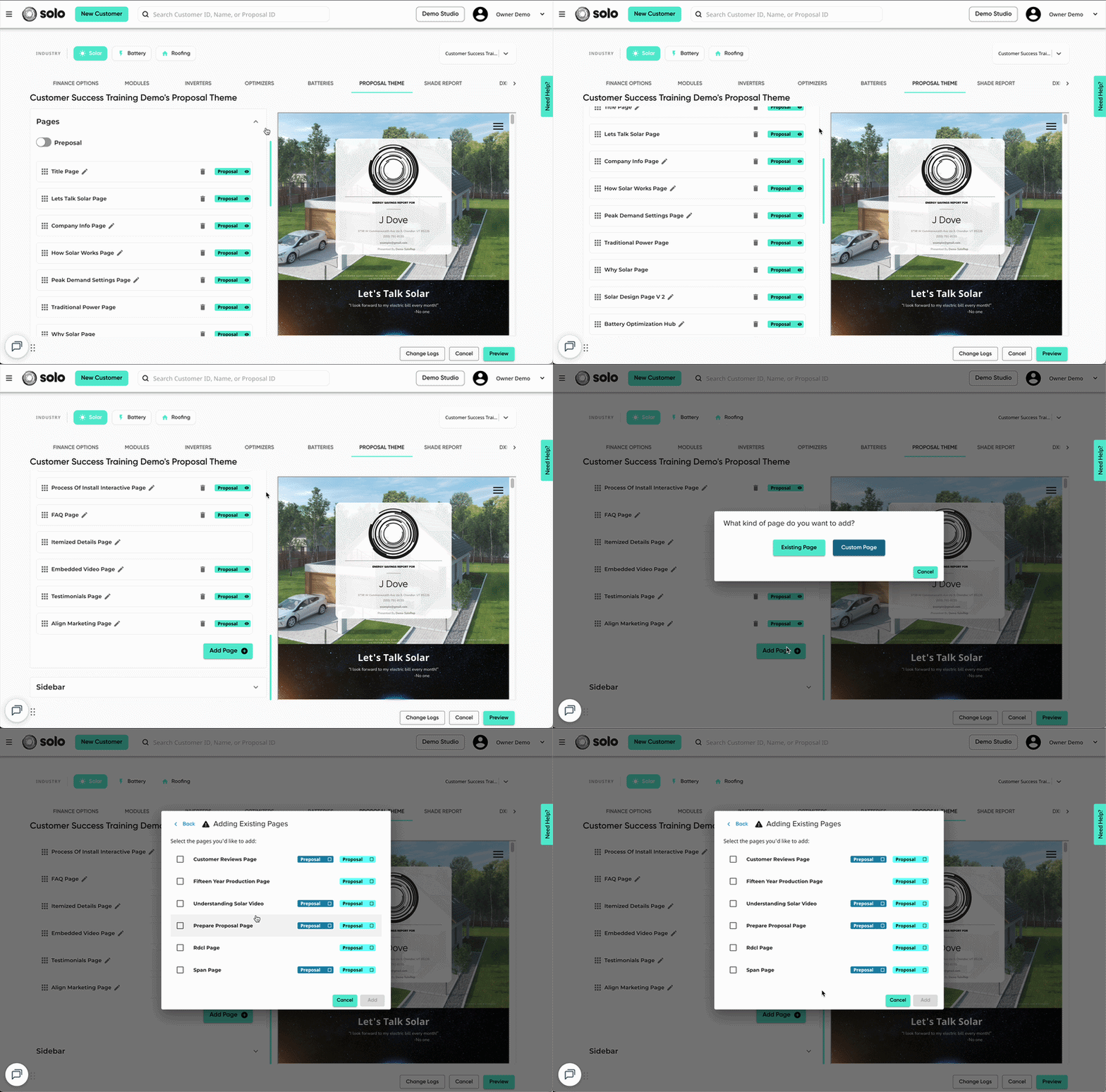
- Using the checkboxes, select which default pages you'd like to add to your proposal. Then click 'Add'.
- Once the page(s) are added, click the 'Proposal' checkbox on the right to ensure the page will be available for proposals.
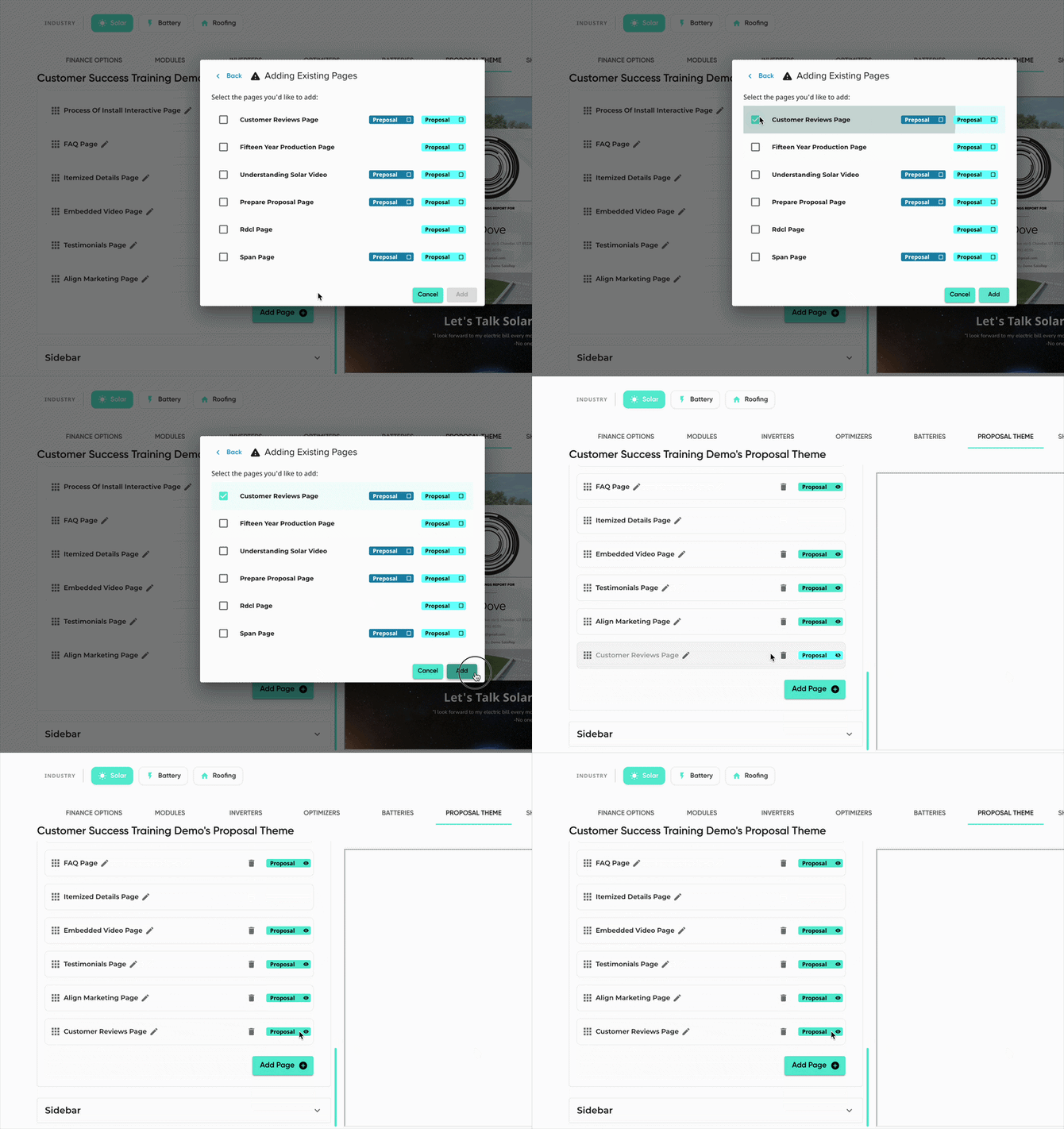
- If the page has settings you'd like to customize, click the pencil icon.

- Once all pages are added and configured to your needs, Preview and Save!
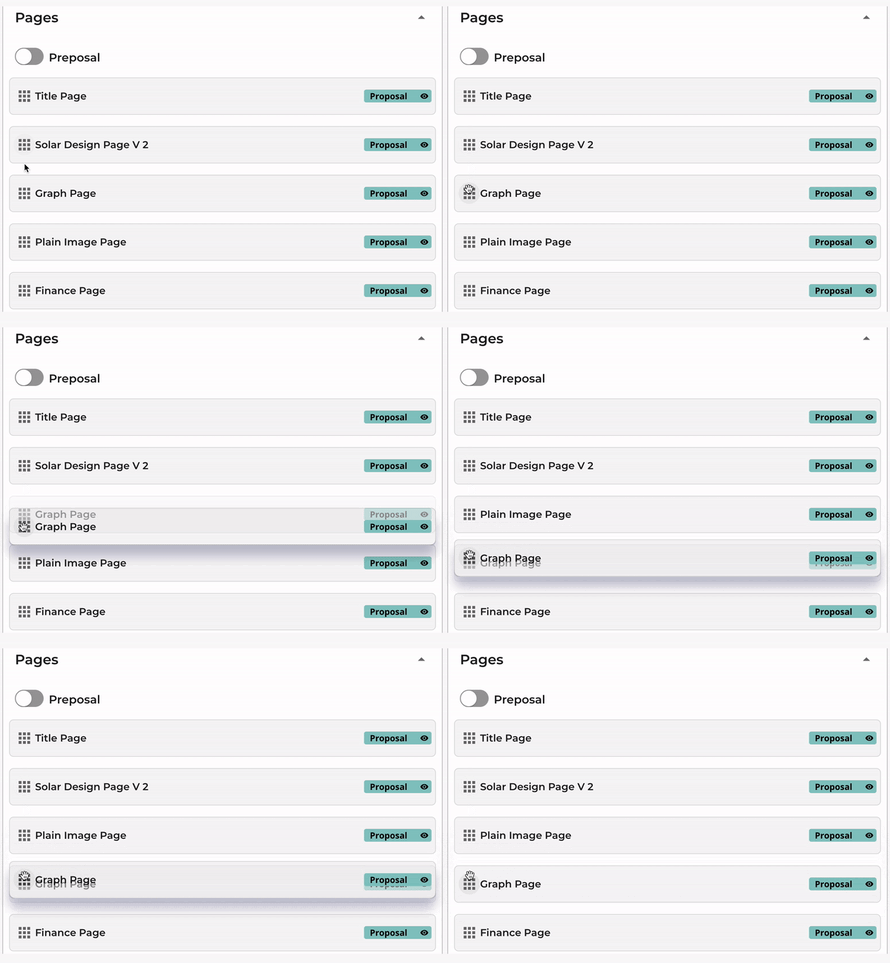
If you'd like the page to be in a specific spot on the proposal, you can reorder the pages by clicking and dragging the nine-box icon on the left.
Adding a Custom Page
When adding a custom page, please keep in mind that the file must be the following:
- Static Image*
- a JPG or PNG file type
- sized at 1200 x 851
*A video page can be added to your proposals using the 'Embedded Video Page', which is added as an existing page.
- In the left-side navigation bar, tap into 'Company' and select 'MissionControl'.
- If you'd like to edit one of your child or grandchild accounts, that can be selected in the top right.
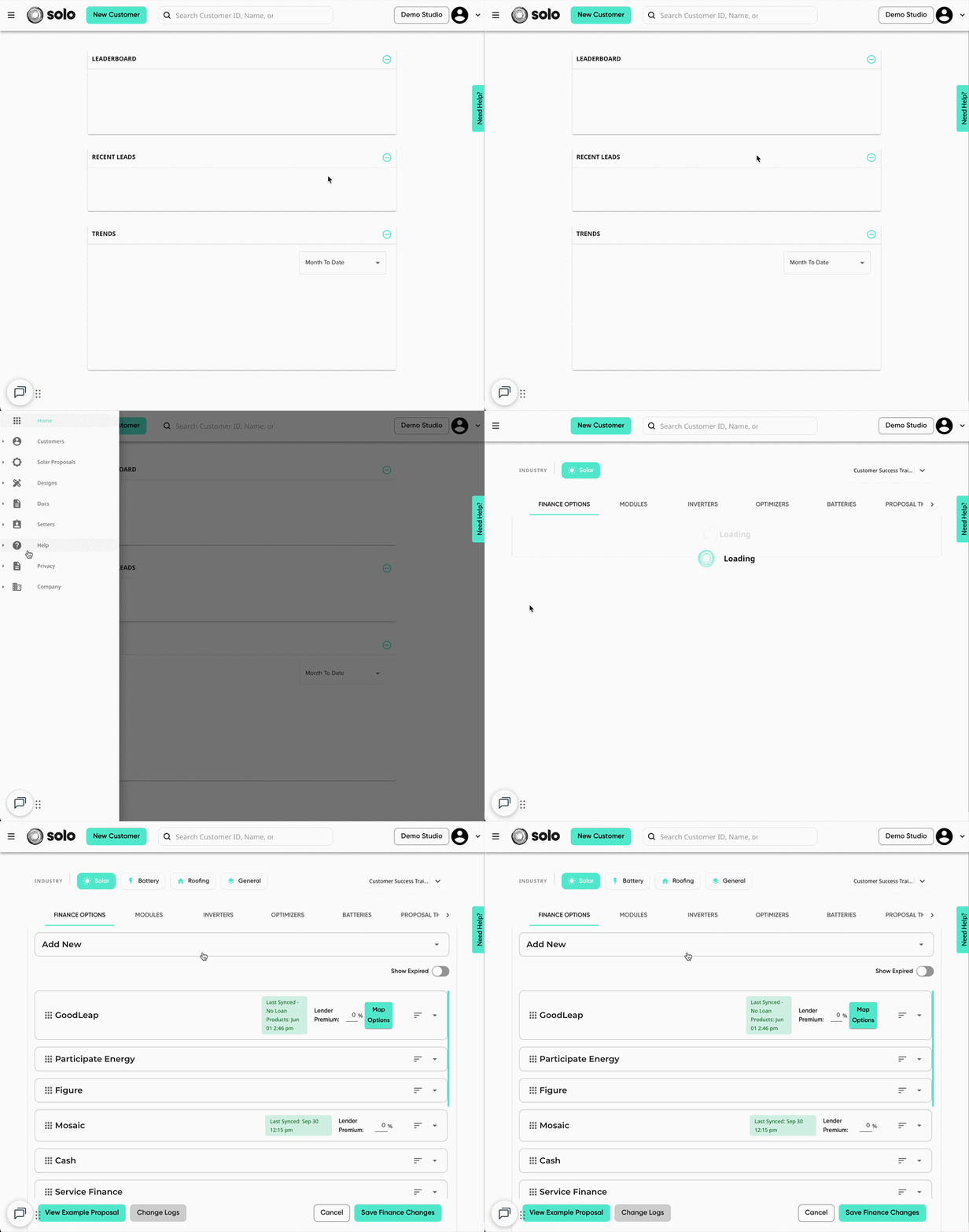
- Using the menu at the top, open the 'Proposal Theme' tab. Then, open the 'Pages' dropdown.
- Scroll down to the bottom of the section and click 'Add Page'. Then click 'Custom Page'.
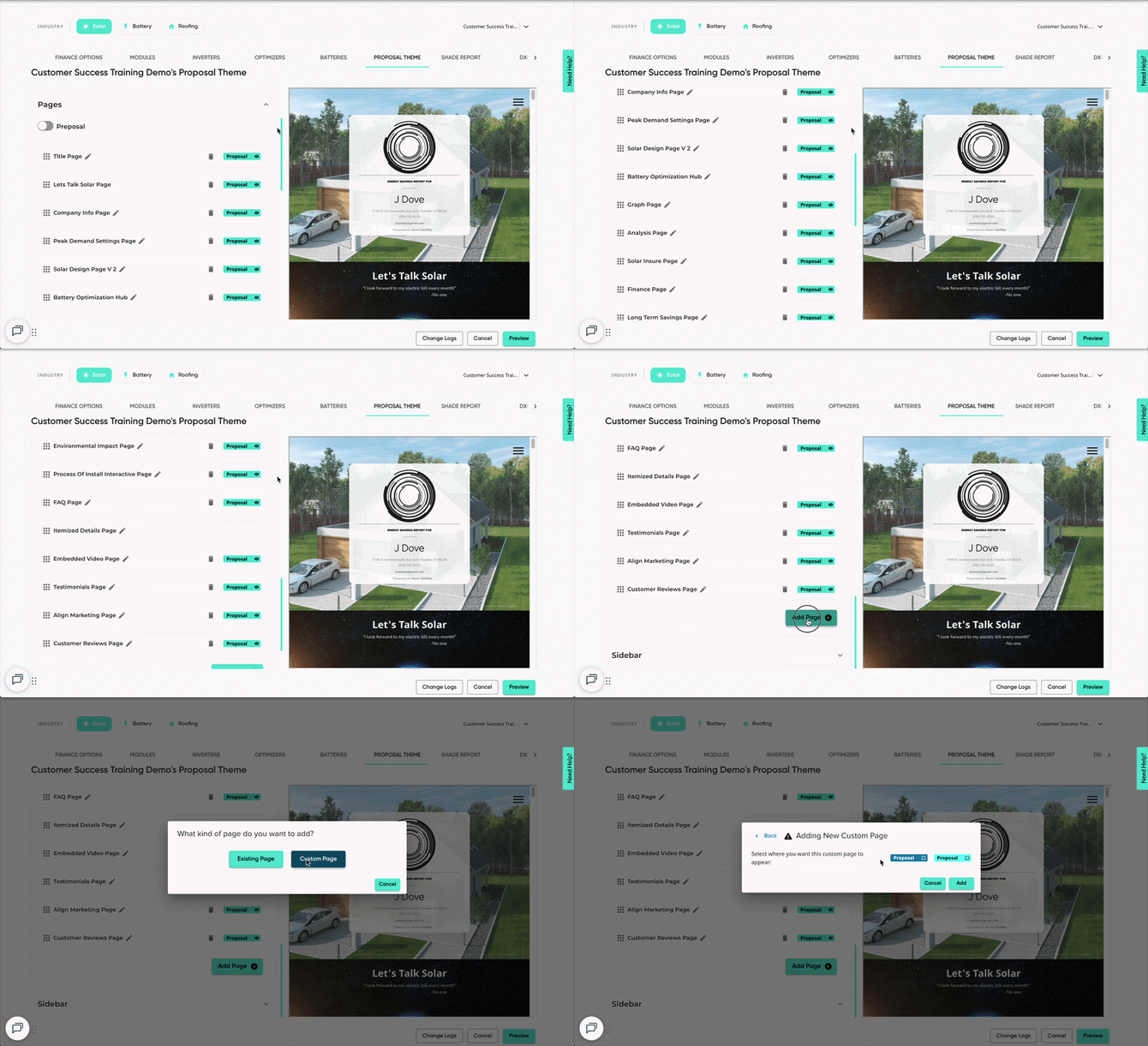
- Make sure select the 'Proposal' checkbox, then click 'Add'.
- The page will be added as an 'Image Page'. Click the Pencil icon to configure the page.
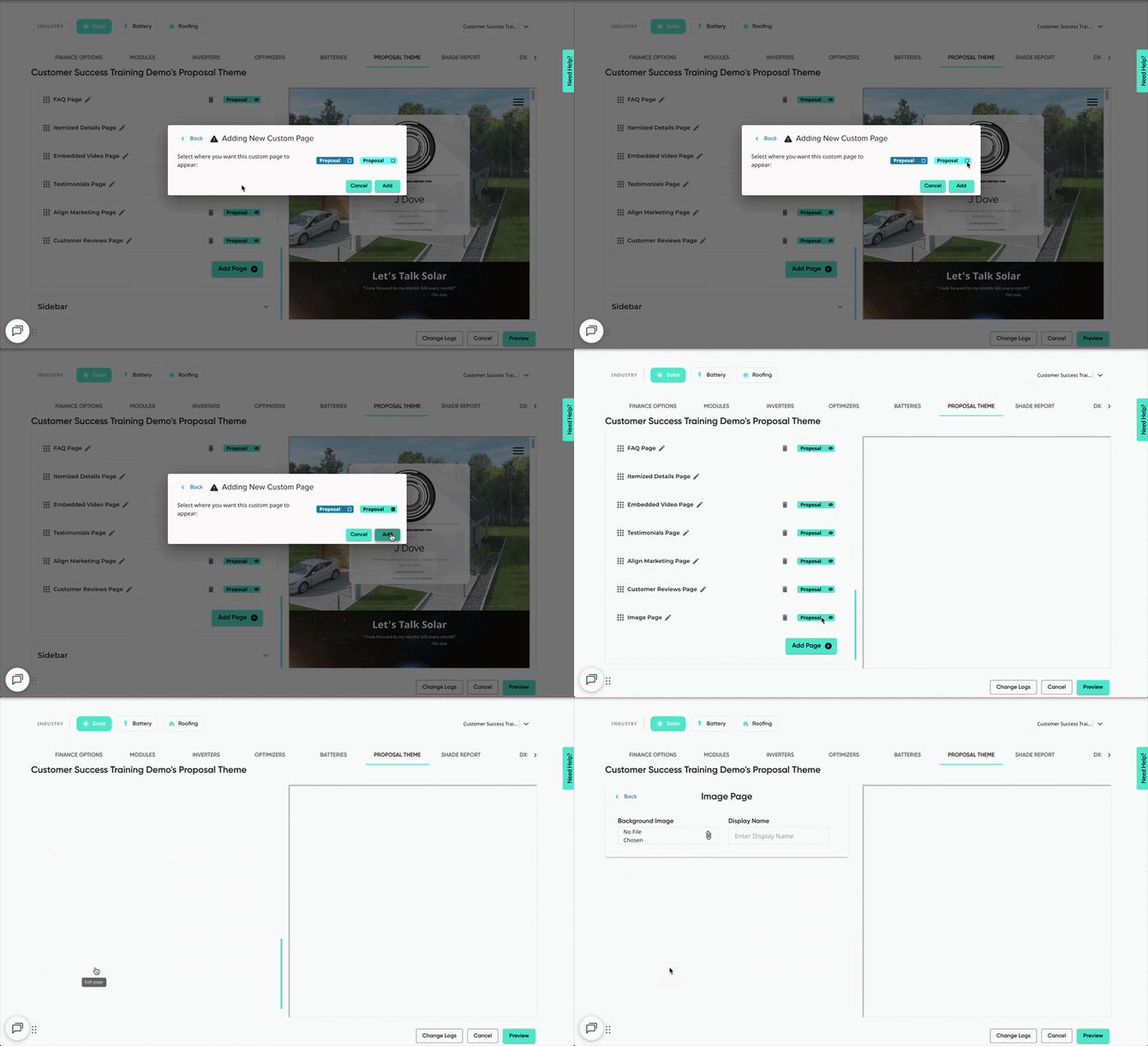
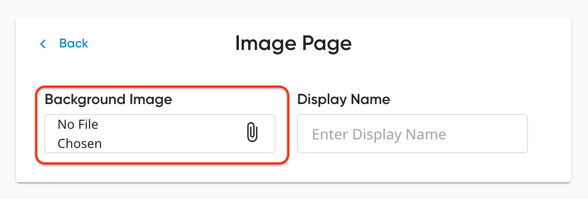
- Upload the page image in the 'Background Image' field.
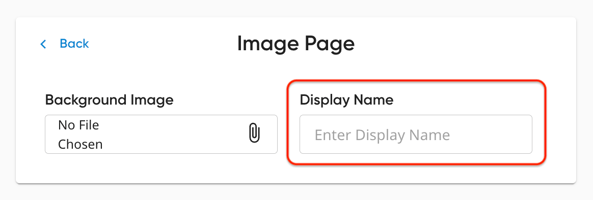
- Enter a name for the page in 'Display Name'.
- This field is optional, however, this will be visible in the proposal's page manager.
- Preview & Save!
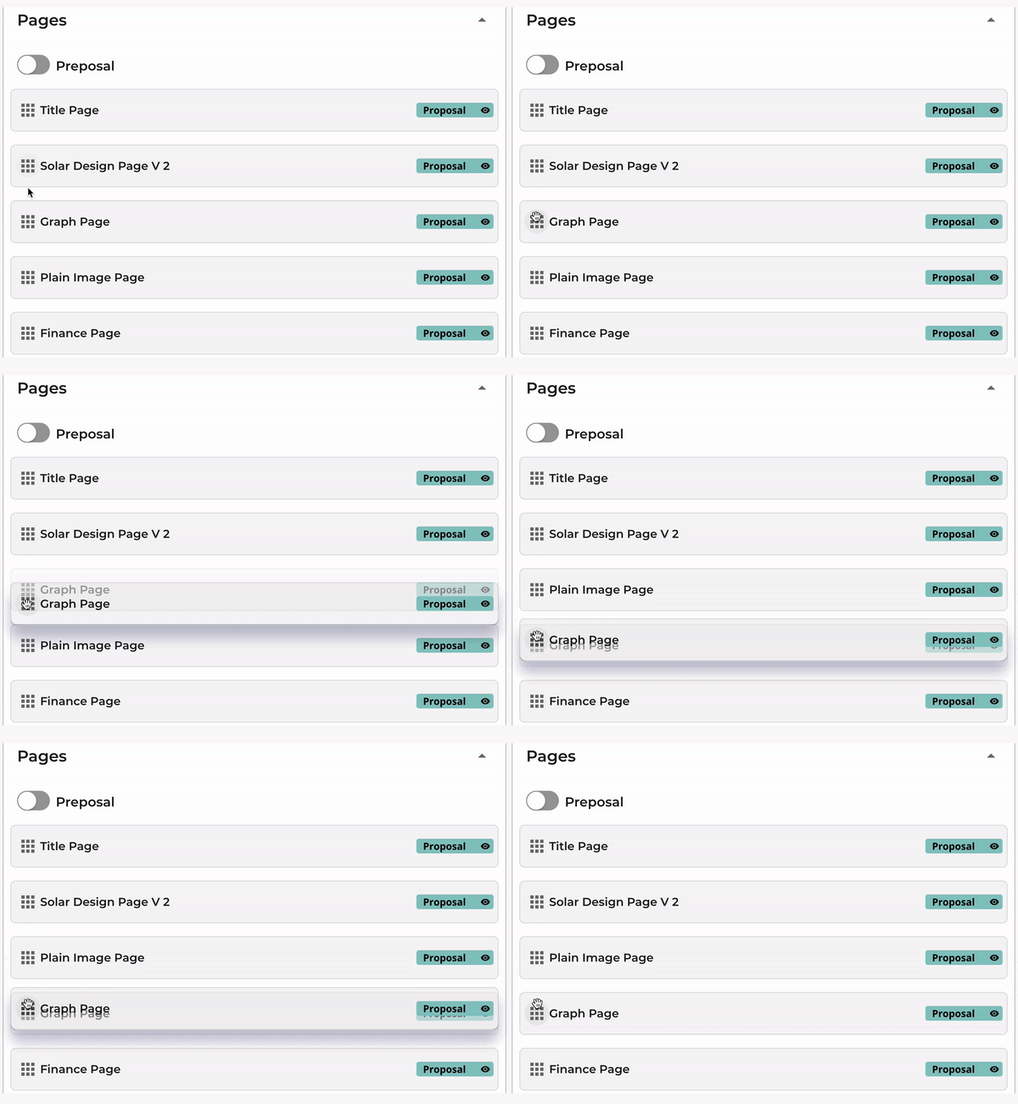
If you'd like the page to be in a specific spot on the proposal, you can reorder the pages by clicking and dragging the nine-box icon on the left.
Removing Pages from Your Solar Proposals
Pages can either be hidden or removed from the proposal:
Hiding Pages
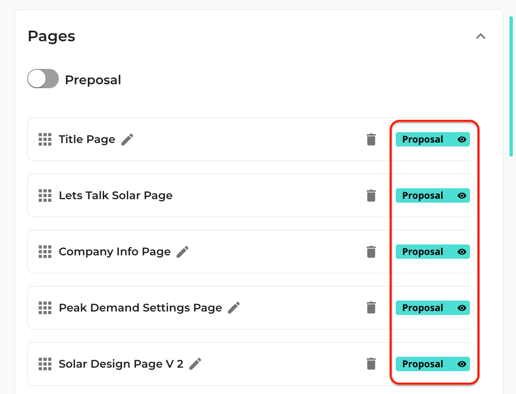
This will leave the page on your list of pages, but it will not appear on any proposals. This can be done by clicking on the eye icon to the right of the page name:
Deleting Pages
This will remove the page from all proposals (past and future). To see a deleted page on your proposals again, you will have to manually add it back.
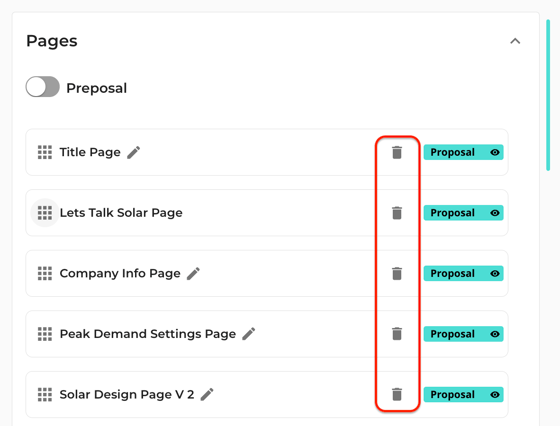
Deleting a page can be done by clicking the trash can icon to the right of the page name: