
This article covers the process of creating an initial solar project. To learn more about revisions and redesigns, please see this article.
Creating a new customer account will take you directly to the Projects page and the 'New Project Request'. Learn how to create a new customer account here!
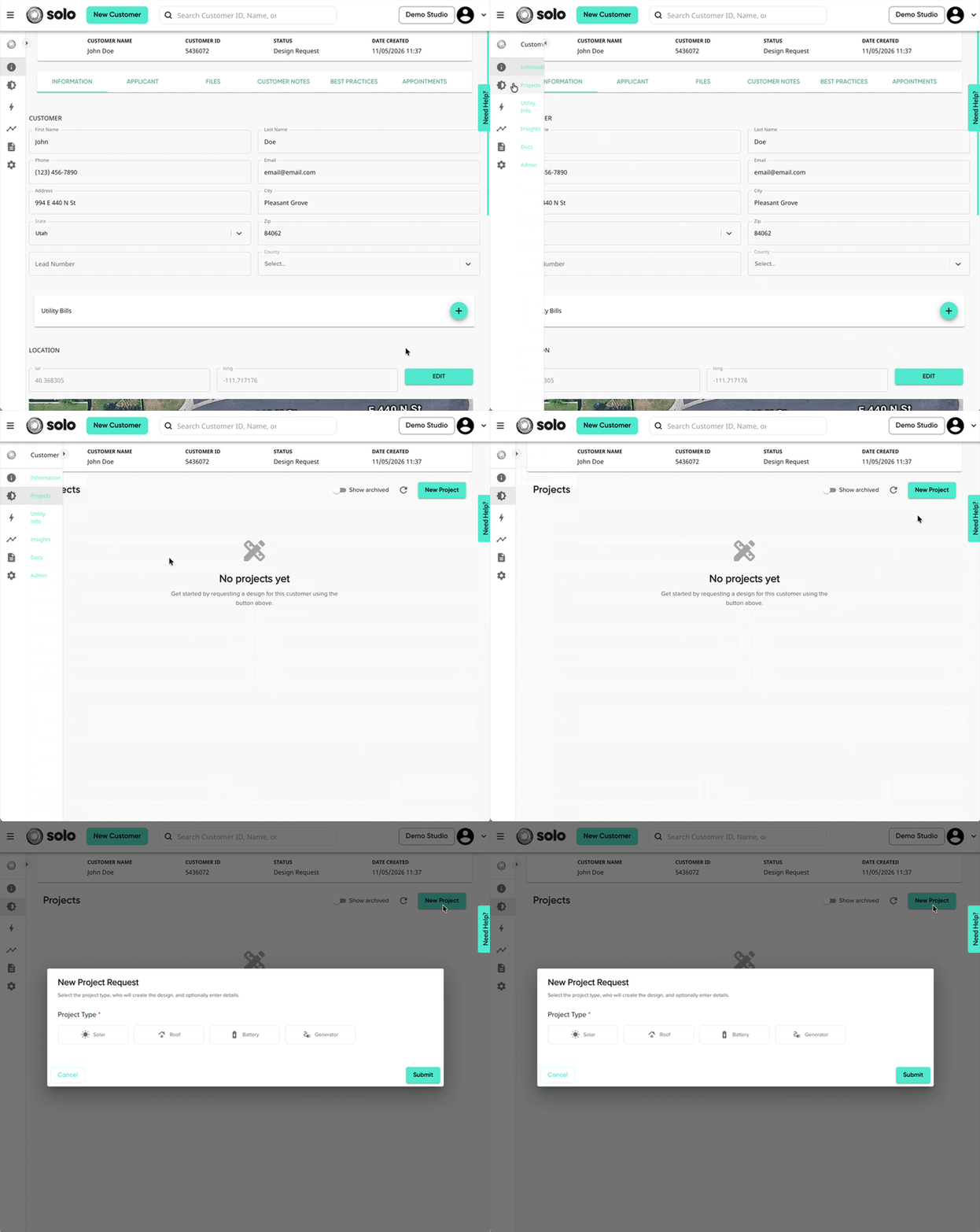
- In the 'Projects' tab of your customer, click 'New Project'.
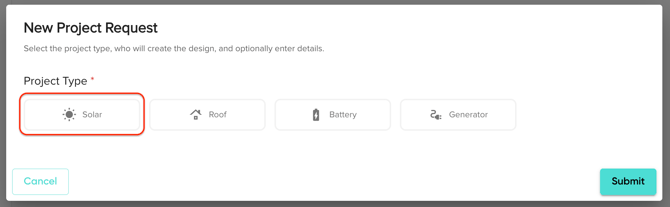
- Select 'Solar' as your project type.
- Select your preference for who will create the design then click 'Continue'.
- 'Assign to me'* will not enter the request into the Solo Managed Service queue, but will allow you to open Solo Studio to build the design yourself.
- 'Solo Managed Service' will enter the request into the Solo Managed Service queue to be created by a Solo Designer.
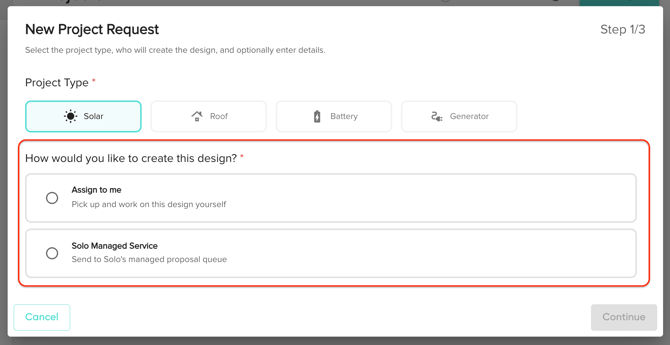
*This option is only available to users with the permission to use Solo Studio.
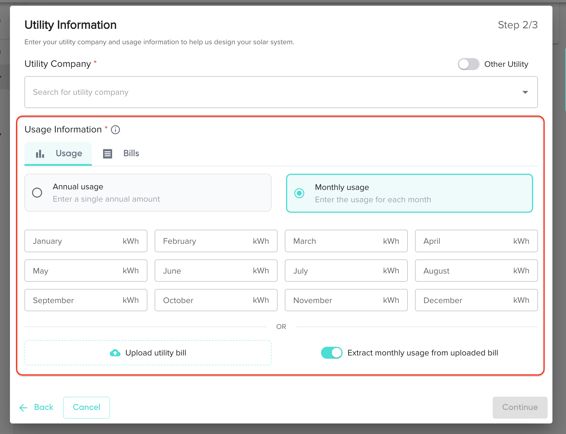
- Specify your customer's utility company using the dropdown.
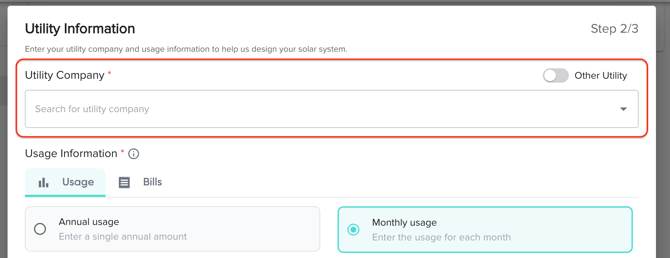
- Enter their utility usage data with one of the following options:
- Monthly Usage
- Annual Usage
- Average Monthly Bill Amount
- Monthly Bill Amounts
- Uploading Utility Bill & Extracting Monthly Usage
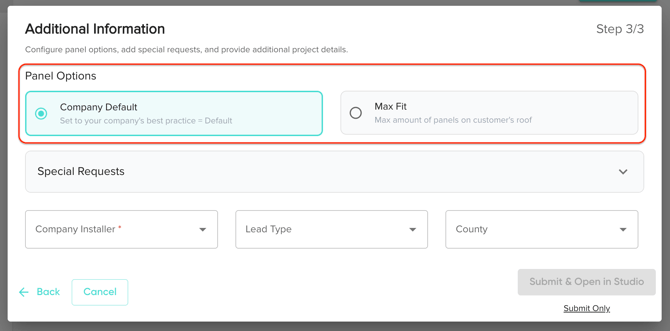
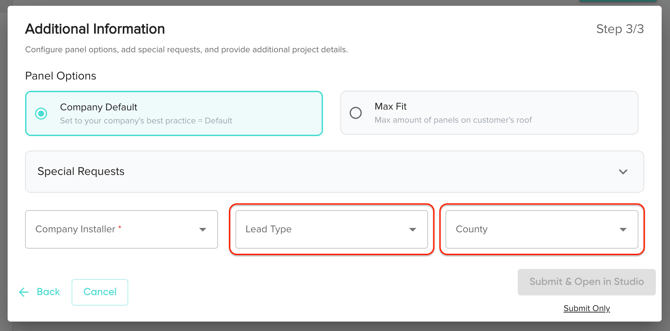
- Select Your Panel option for the customer. This question is required, however may only be relevant if you're requesting a design from Solo Managed Service.
- Use 'Company Default' and our designers will build up to your company’s preferred offset.
- Use 'Max Fit' if you'd like the maximum number of panels that fit on the customer's roof (within your company's design preferences)
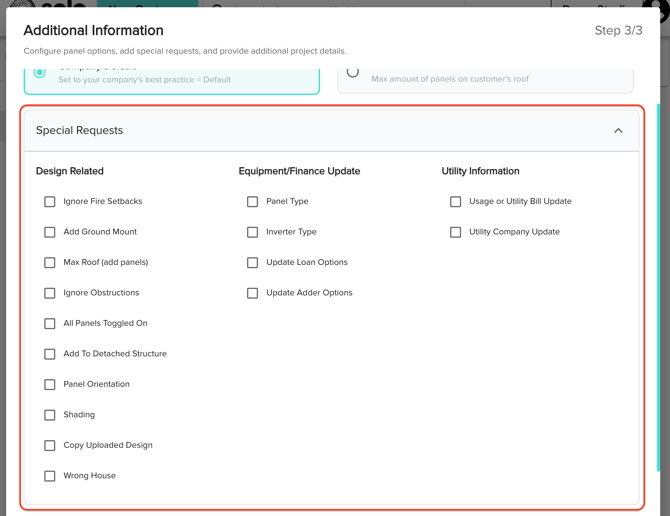
- If you are requesting a design from Solo's Managed Service, and you have specifications for how you'd like the design to be built, you can specify that under 'Special Requests'.
- (If applicable) Select which 'Company Installer' you'd like this customer to fall under.
- This selection is required for companies on the Installer Template or Hybrid Account Model. If you're unsure if this applies to you, please contact your manager.
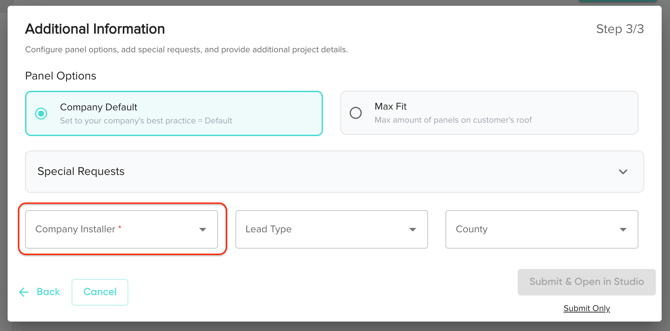
- (Optional) Select the 'Lead Type' and 'County' of the customer. These are not required fields.
- Submit your customer request!
- If you assigned the request to yourself, you will have the option to jump straight into the Studio tool to begin building your design. Click here for more information on creating a design in Solo Studio.
- If you requested the design through Solo's managed service, your design request will enter the queue and will be delivered within 15-20 minutes.