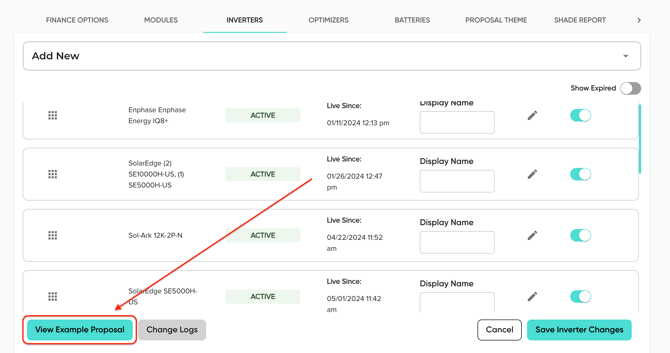
The MissionControl portal is only accessible to users with the SAAS Owner role.
In MissionControl, you're able to customize how each inverter option appears and behaves on your solar proposals.
- To edit an option, open MissionControl from the Solo sidebar, then navigate to the 'Inverters' section.
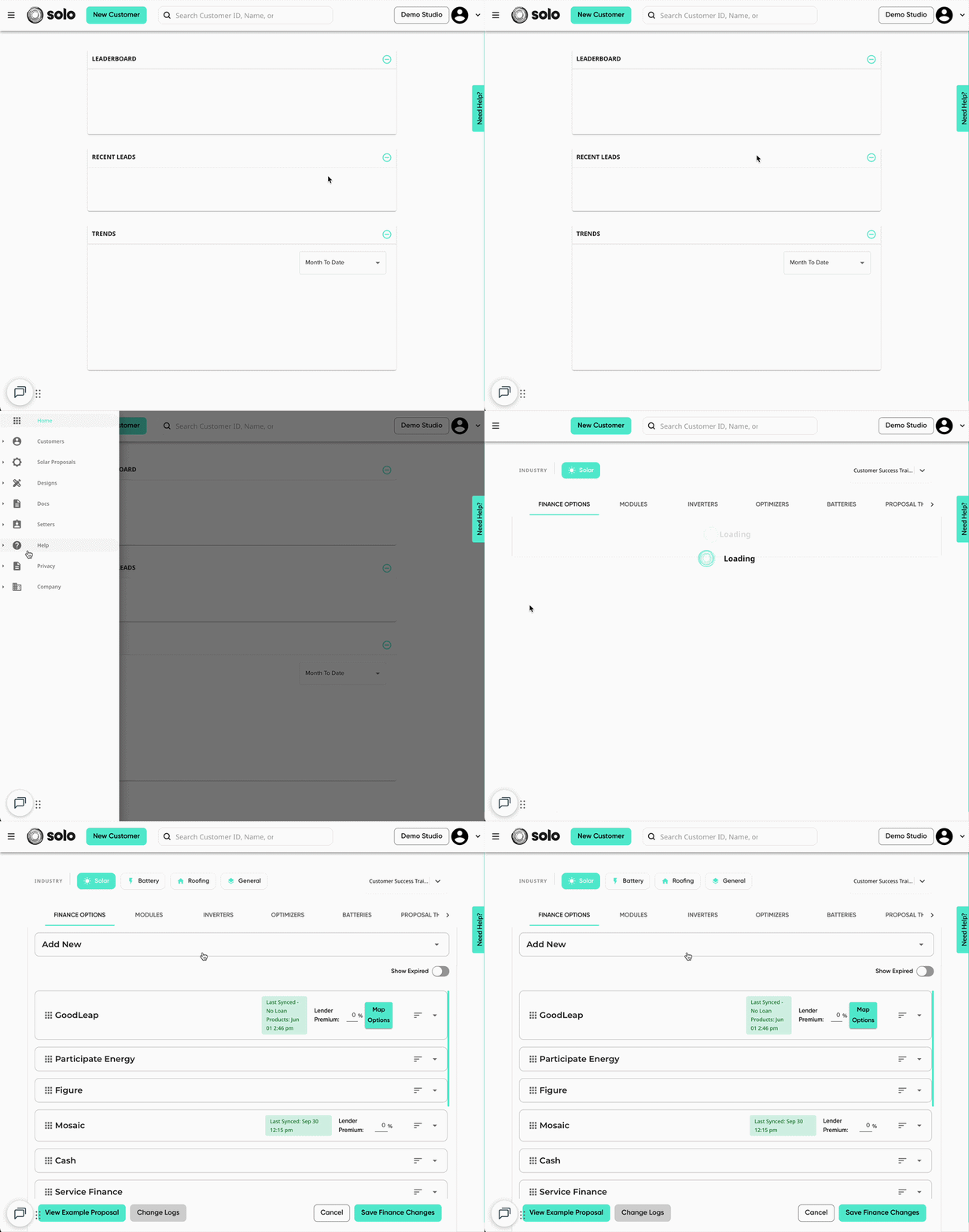
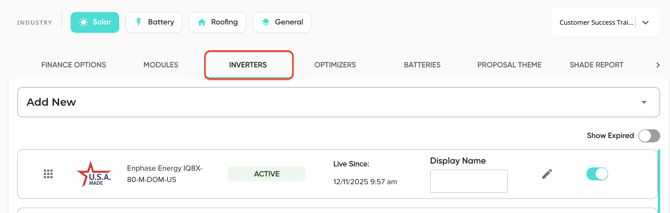
- Find the inverter that you'd like to edit, then click the pencil icon.
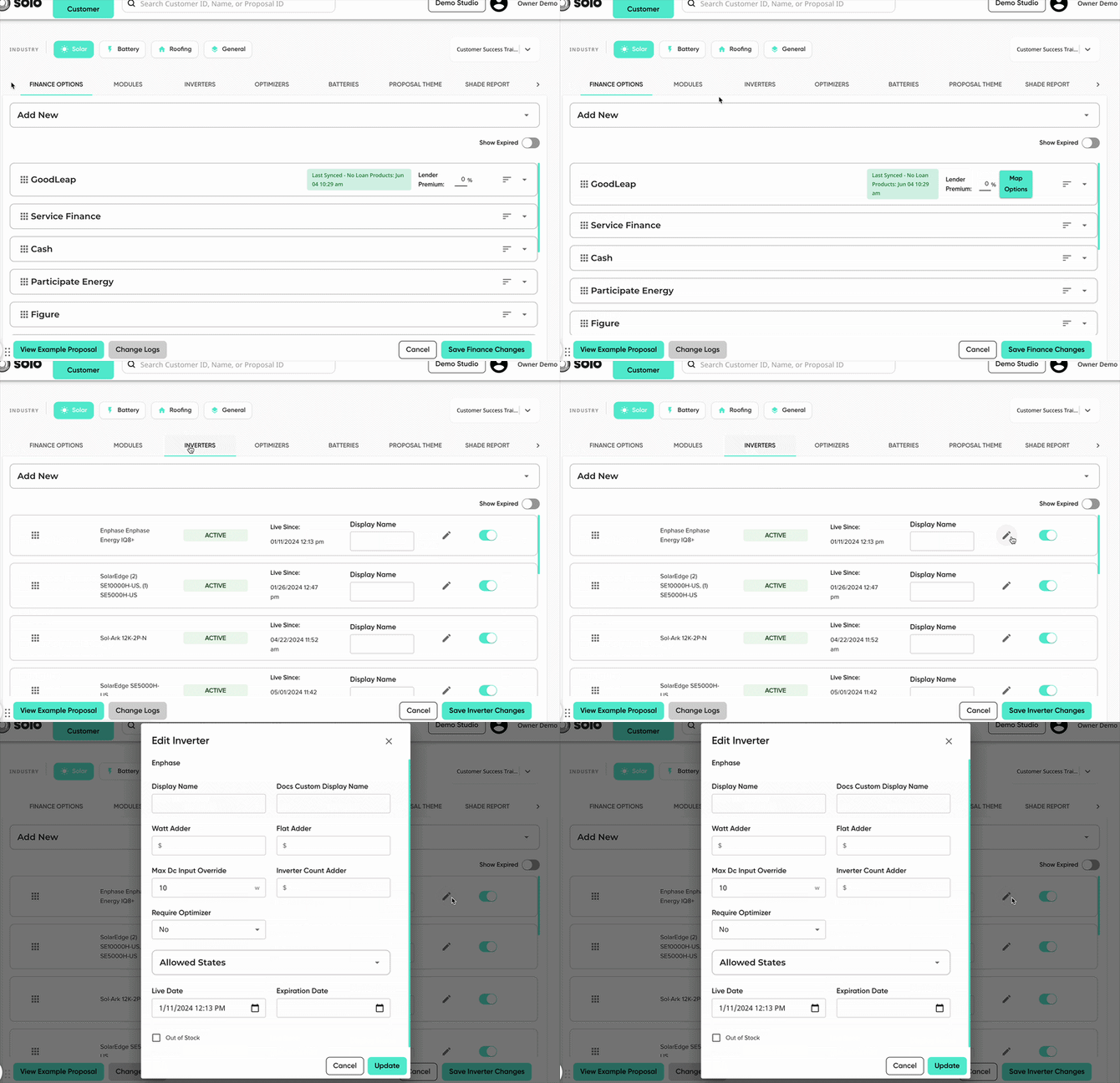
You will then be able to edit your inverter option. This includes the ability to edit the following:
- Display Name
- Docs Custom Display Name
- Inverter Adders
- Watt Adder
- Flatt Adder
- Inverter Count Adder
- Setting a Default Inverter
- Optimizer Requirements
- Allowed States
- Live & Expiration Dates
- Mark 'Out of Stock'
Click the links above to jump to the relevant section. Once you've made your desired changes, don't forget to review and save!
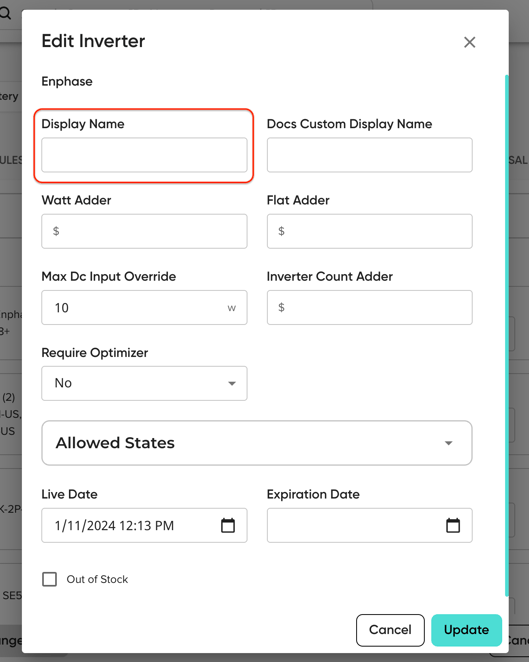
Display Name
The 'Display Name' field will change the name used for the inverter on the proposal. If left empty, the option will use the name that we have for the inverter in the system.
Docs Custom Display Name
This field will change the name that the inverter option appears with on your documents. This will have no effect on the proposal, only documents requested through SoloSign.
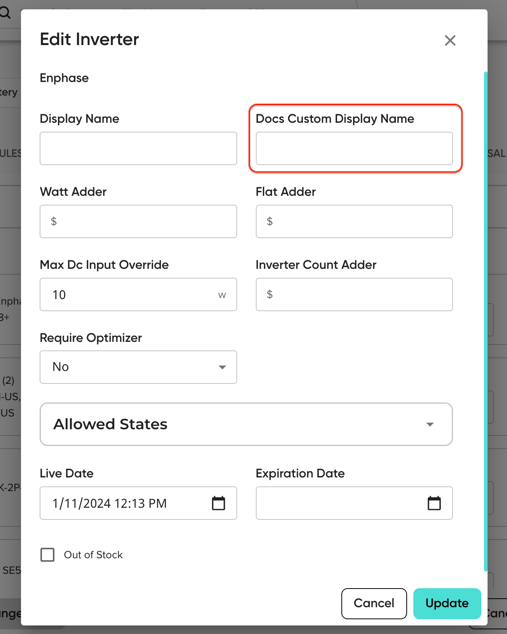
This will not affect documents sent through finance integration.
Learn more about the differences between Display Name and Docs Custom Display Name in this article!
Inverter Adders
There are three kinds of adders that can be added to an inverter. These will be automatically applied to the proposal pricing when the inverter is selected. :
- Watt Adder: an additional per-watt cost, will be calculated by multiplying the adder amount by the proposed system wattage.
- Flat Adder: an additional fixed amount charge that is unaffected by the number inverters. It will apply once, when the inverter is selected.
- Inverter Count Adder: an additional charge per inverter. For example, if this value is $15 and there are 10 inverters being used, the customer's inverter count adder would be $150 ($15 x 10).
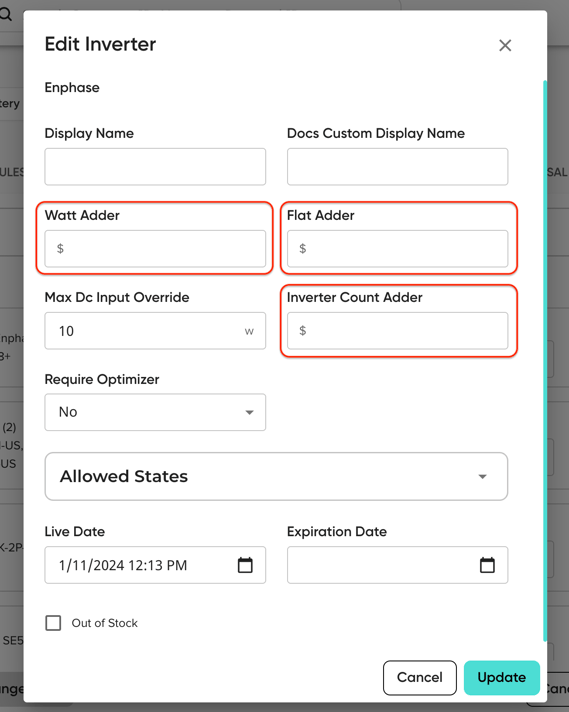
The value in these fields will be listed as an 'Inverter Adder' on the proposal, and will be added into the calculation for the final system cost.
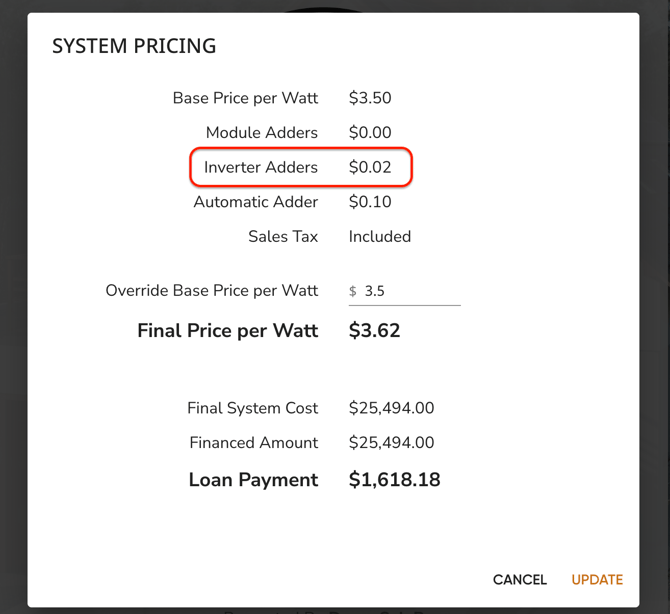
Note: Proposal pricing will always be broken down into per-watt prices for display purposes, regardless of the adder type. The price will still calculate correctly.
Setting a Default Inverter
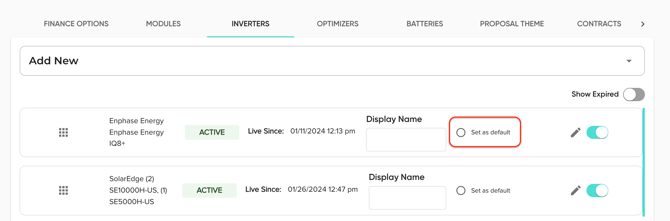
When you set an inverter option as the default, that means that all designs will default to using that option. To set an option as the default, click the 'Set as Default' button on the right of the option line item:
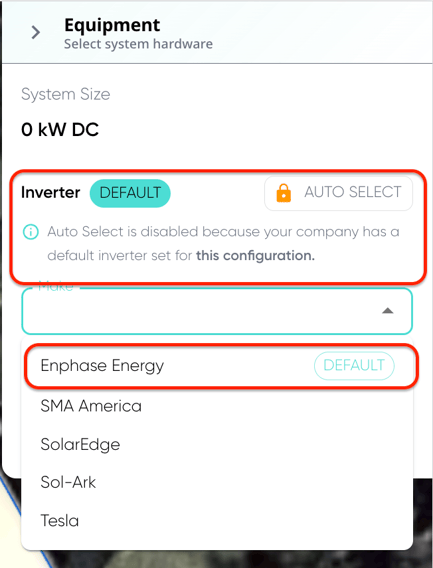
The default option will be used on all Solo-created designs, unless specified in the design request. When creating designs, auto-select will be disabled so the system can refer to the inverter default.
Optimizer Requirements
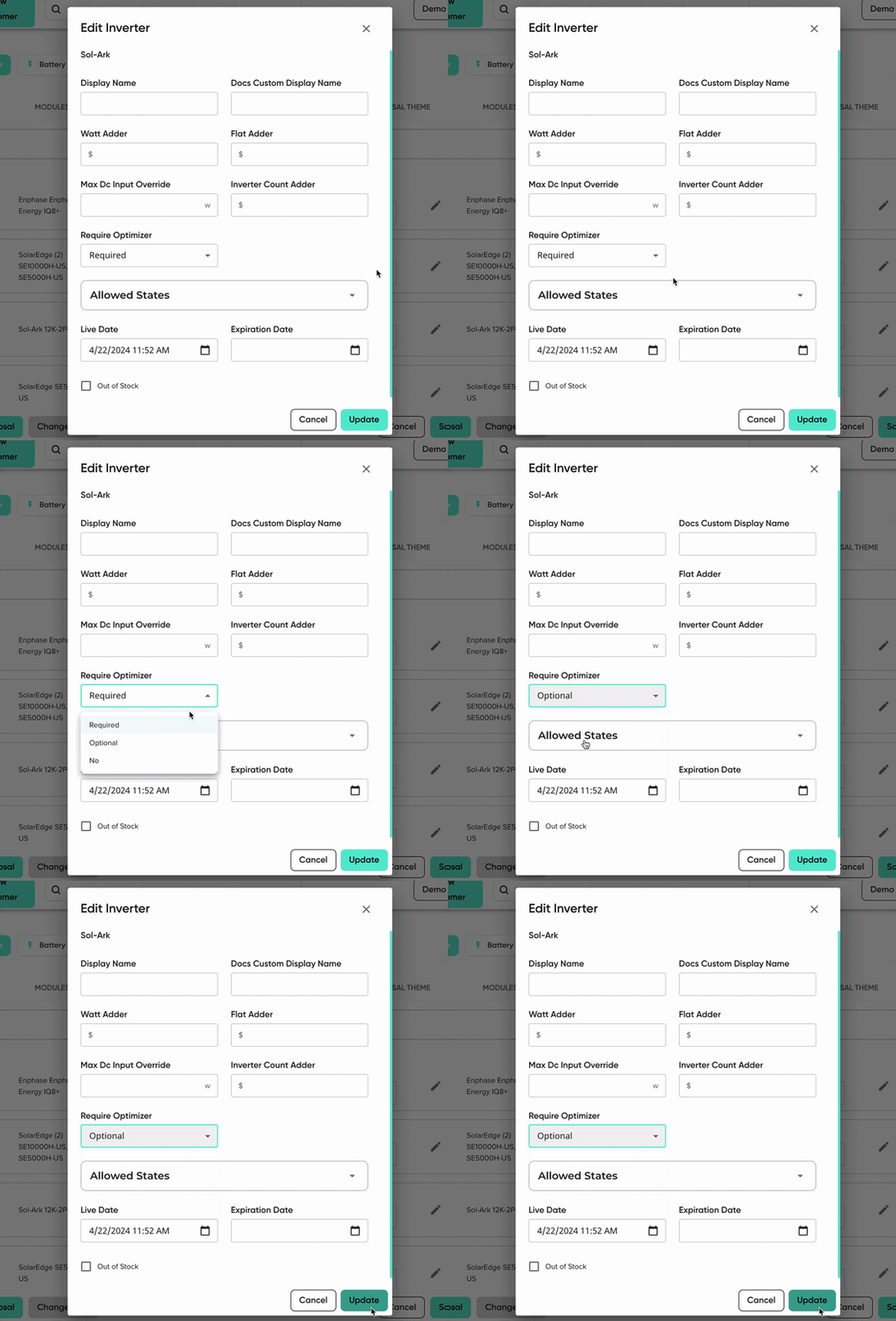
This setting will control whether or not the inverter will require an optimizer on the solar proposal. This includes three options:
- Required: When this inverter is selected on the proposal, an optimizer must be selected as well.
- Optional: When this inverter is selected on the proposal, the option to select an optimizer will be available, but will not be required.
- No: When this inverter is selected on the proposal, the optimizer selection field will not appear and no optimizer will need to be selected.
- Please Note - All microinverters will default to this option.
Don't forget to configure any inverter conditions in your optimizers to allow for options to show when this is 'Required' or 'Optional'!Learn more here!
Note: All SolarEdge inverters will default to 'Required' and will not be editable.
Allowed States
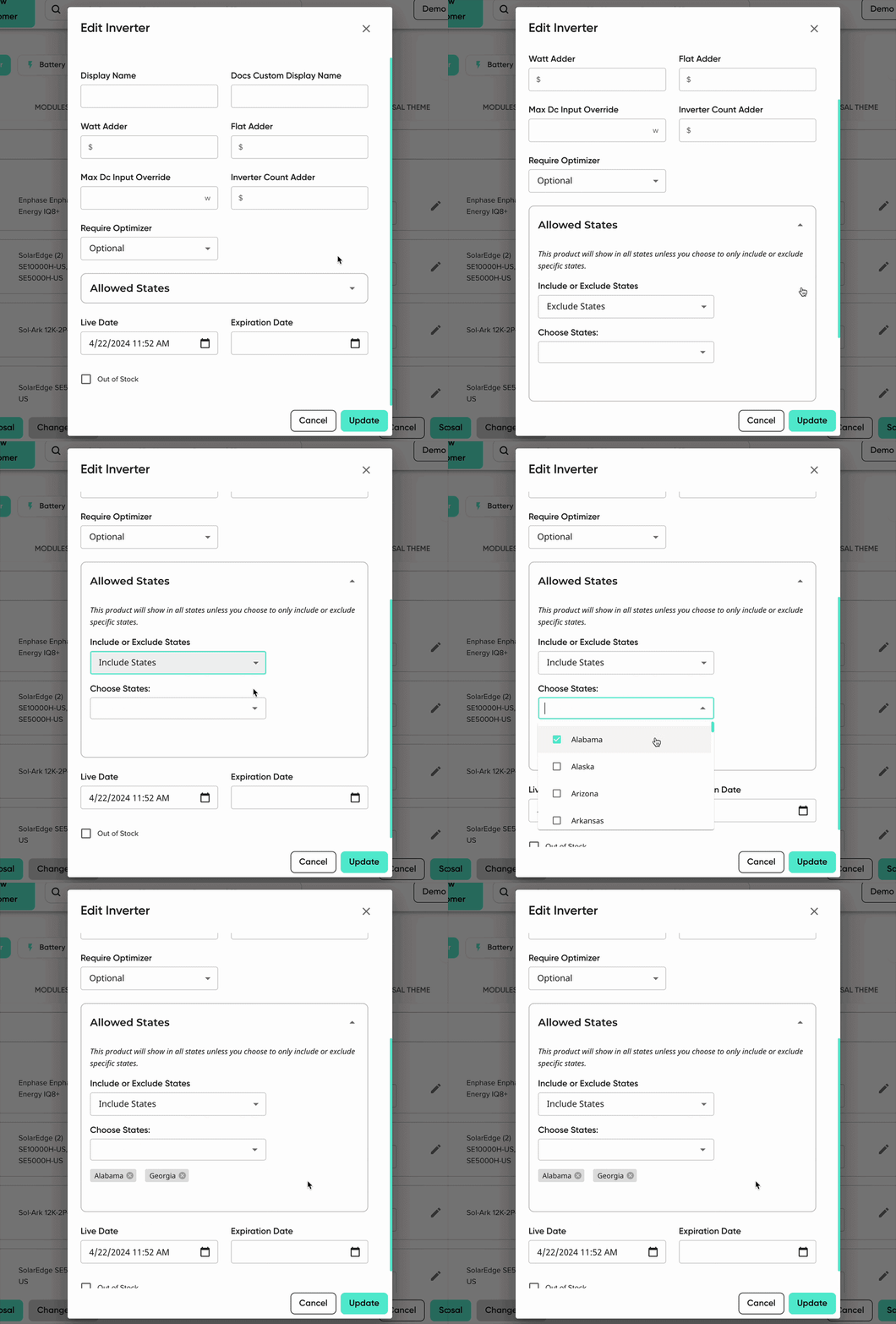
This section allows you to control which states the option appears in. This will reference the state that the customer/proposal is located in. This can be done one of two ways:
- Include States: This will make the option only appear in the states you select, and not appear in the rest.
- Exclude States: This will make the option appear in all states except the states you select.
Once you select whether you want to include or exclude states, use the 'Choose States' dropdown to select which states the option will appear/not appear in.
Live & Expiration Dates
Live and expiration dates allow you to control when/what proposals the option appears for.
- Live Date: Proposals made on or after this date/time will show the option.
- Expiration Date: Proposals made on or after this date will NOT show the option. Leave this empty if you'd like the option to appear indefinitely.
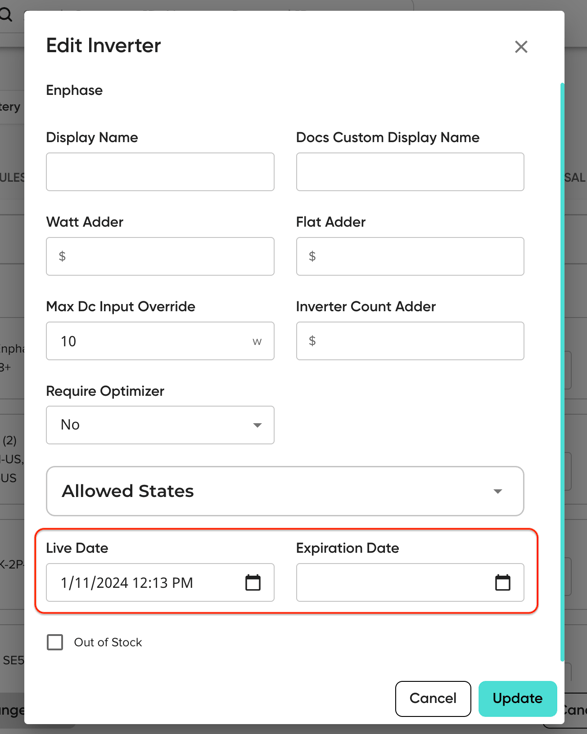
Learn more about live and expiration dates in this article!
Mark 'Out of Stock'
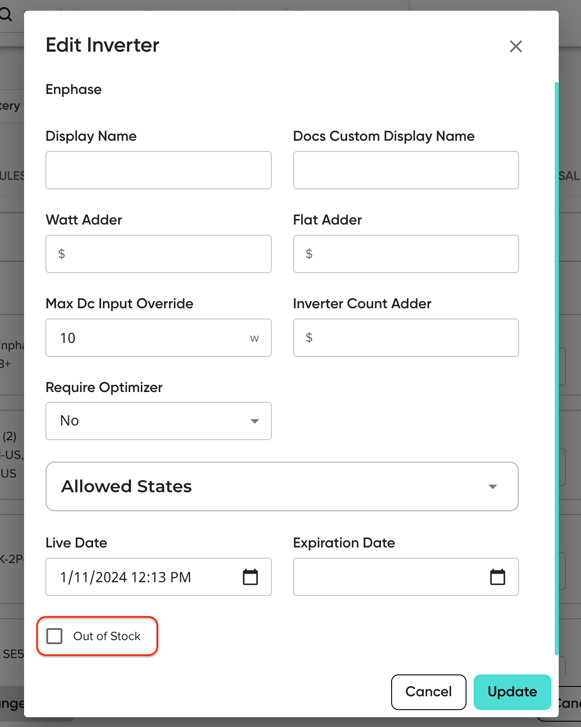
This checkbox allows you to hide the inverter from your proposals. This will ignore live and expiration dates and will hide the option from ALL proposals.
Saving & Reviewing Your Changes
Once you make your desired updates, don't forget to click 'Update'! Once you've made your changes to all options you wanted to edit, use the 'Save Inverter Changes' button in the bottom to publish!
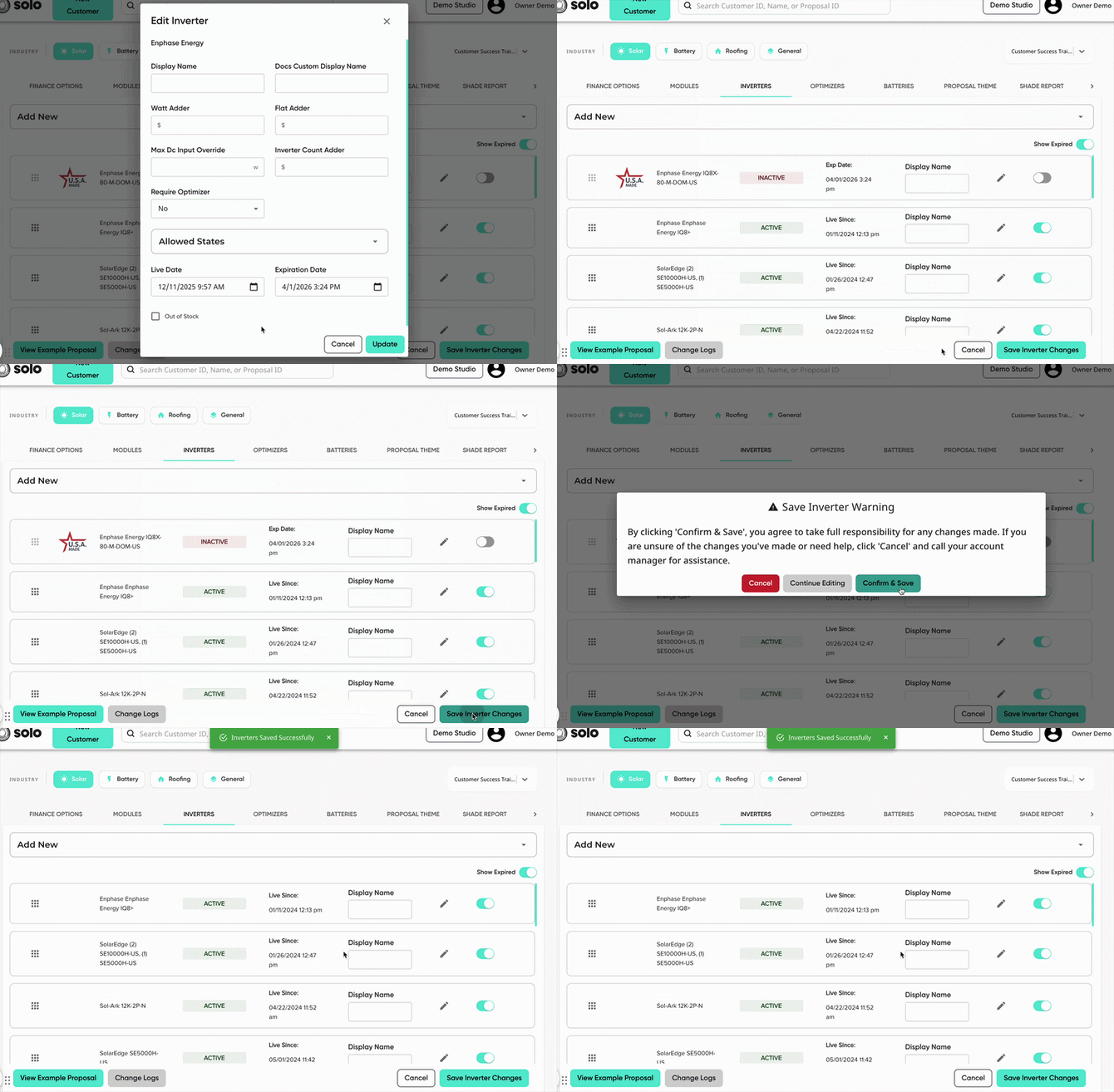
If you'd like to review your changes, you can click 'View Example Proposal' in the bottom left.