
Owner feature only!
This article goes over controlling what modules show up in your MissionControl portal. This includes the following:
- Adding an inverter option to your offering
- Expiring an inverter option + changing the expiration date
Click the links above to jump to the relevant section.
Adding an Inverter
- In the left side navigation bar, tap into 'Company' and select 'MissionControl'. Then, select the company account whose settings you'd like to adjust.
- If you'd like to edit one of your child or grandchild accounts, that can be selected in the top right.
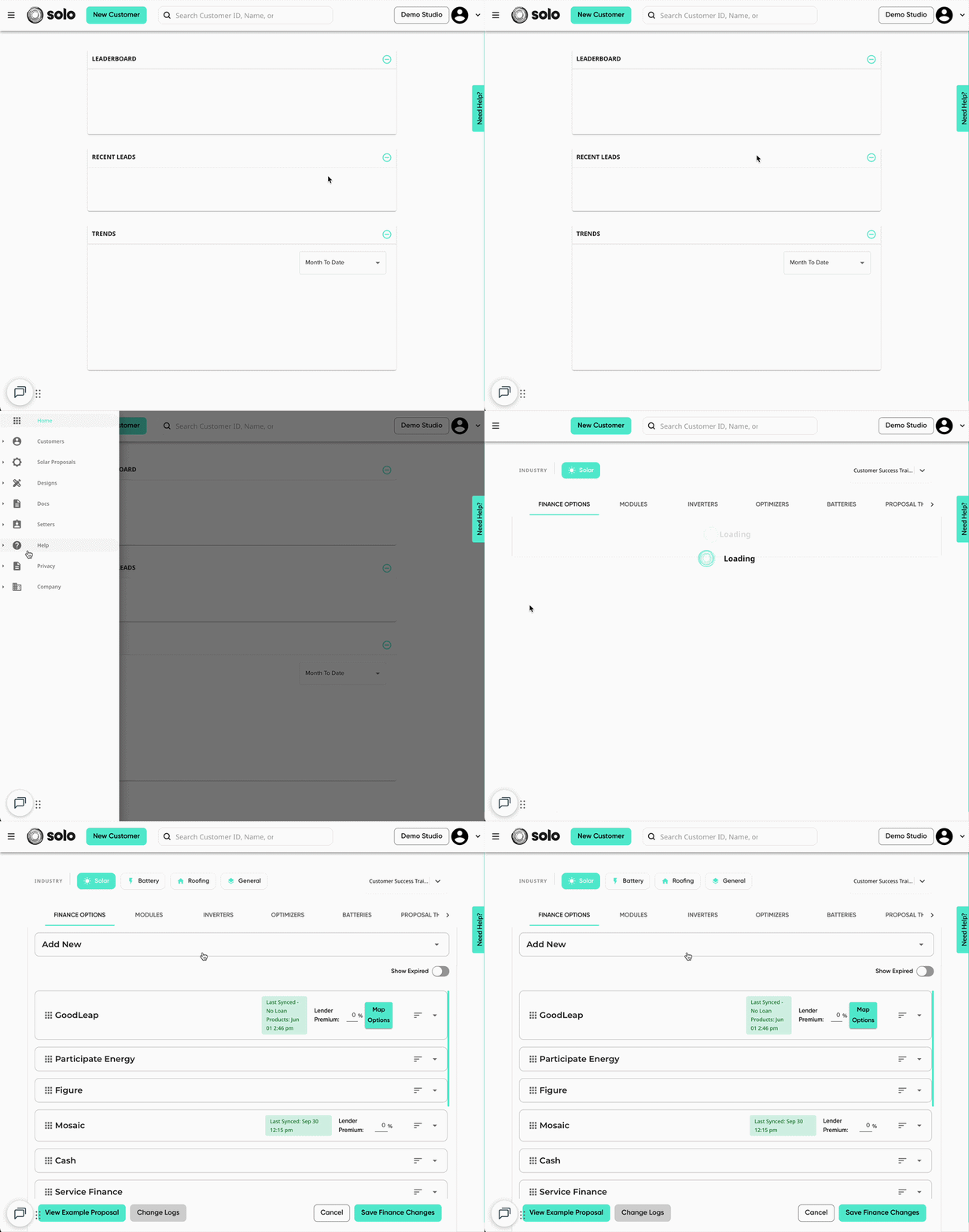
- Using the menu at the top, open the 'Inverters' tab.
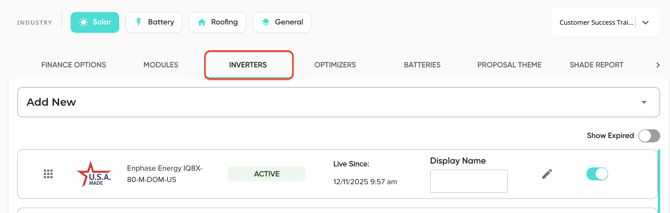
- Open the 'Add New' dropdown.
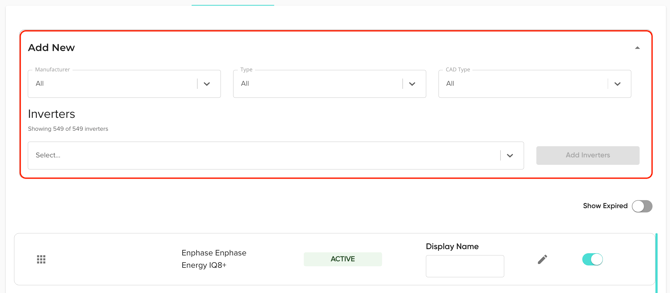
- Use the 'Manufacturer', 'Type', and 'CAD Type' dropdowns to filter your results to the desired categories.
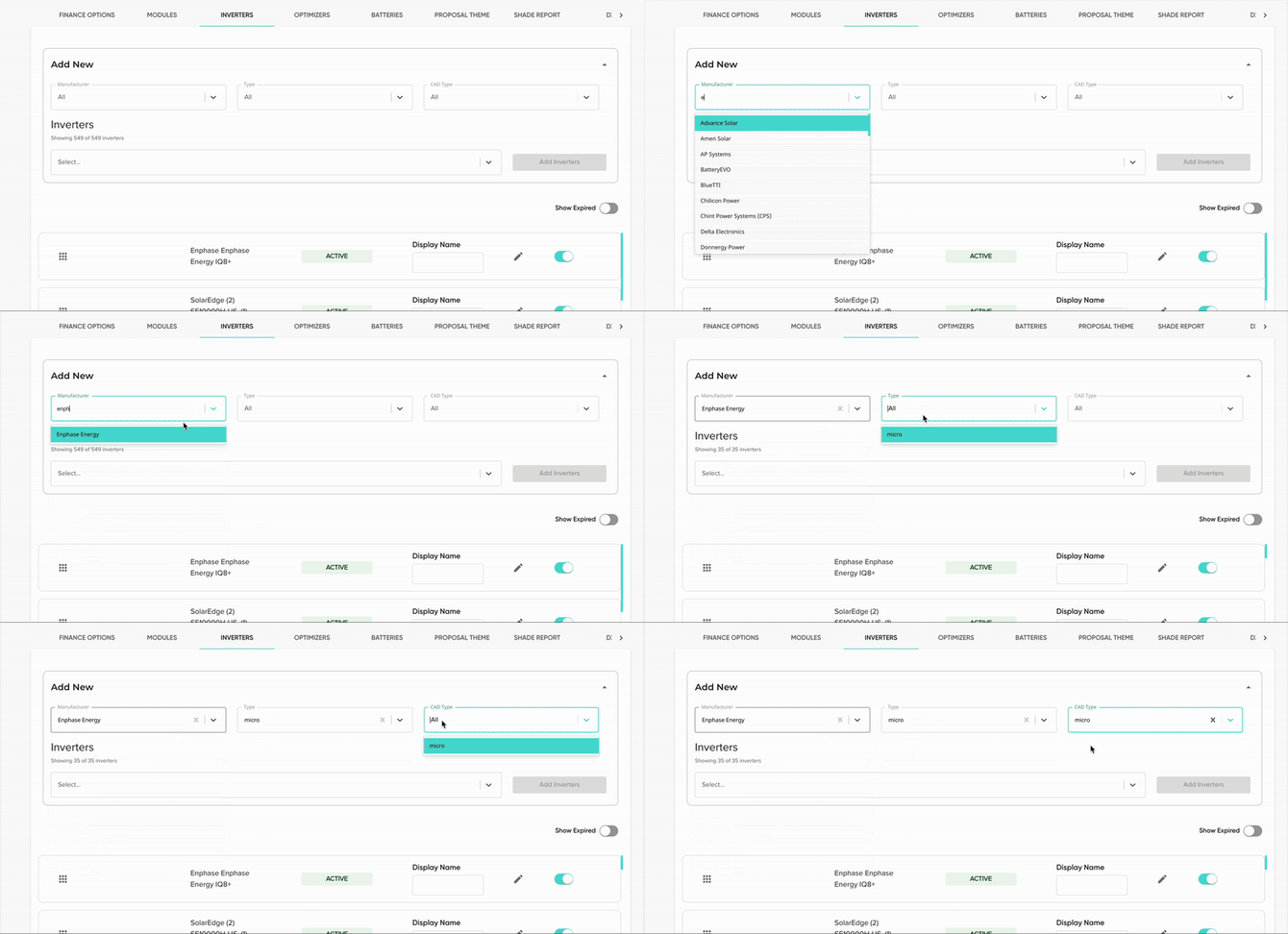
-
In the dropdown, search /or the inverter option(s) you want to add. Then click 'Add Inverters'.
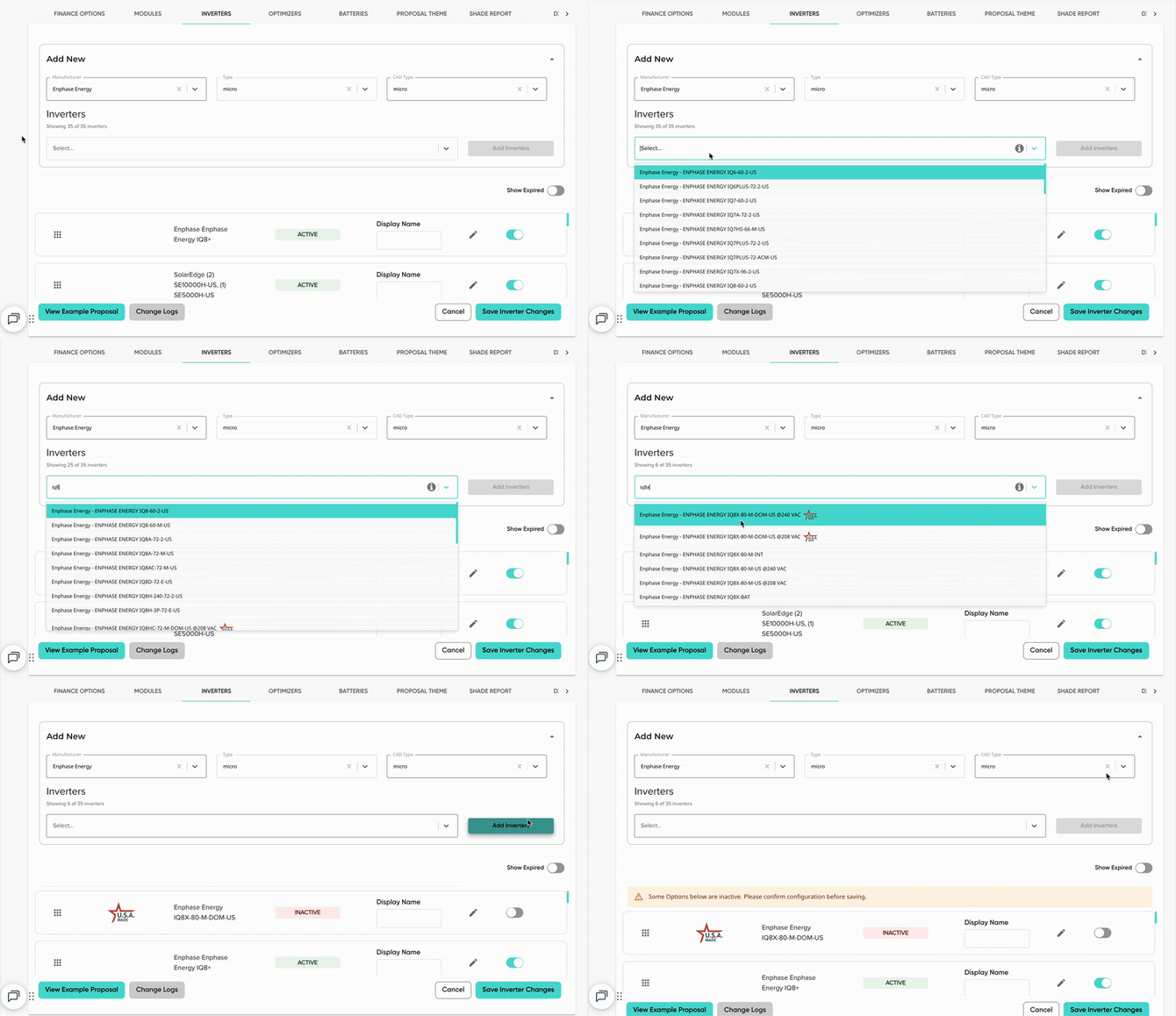
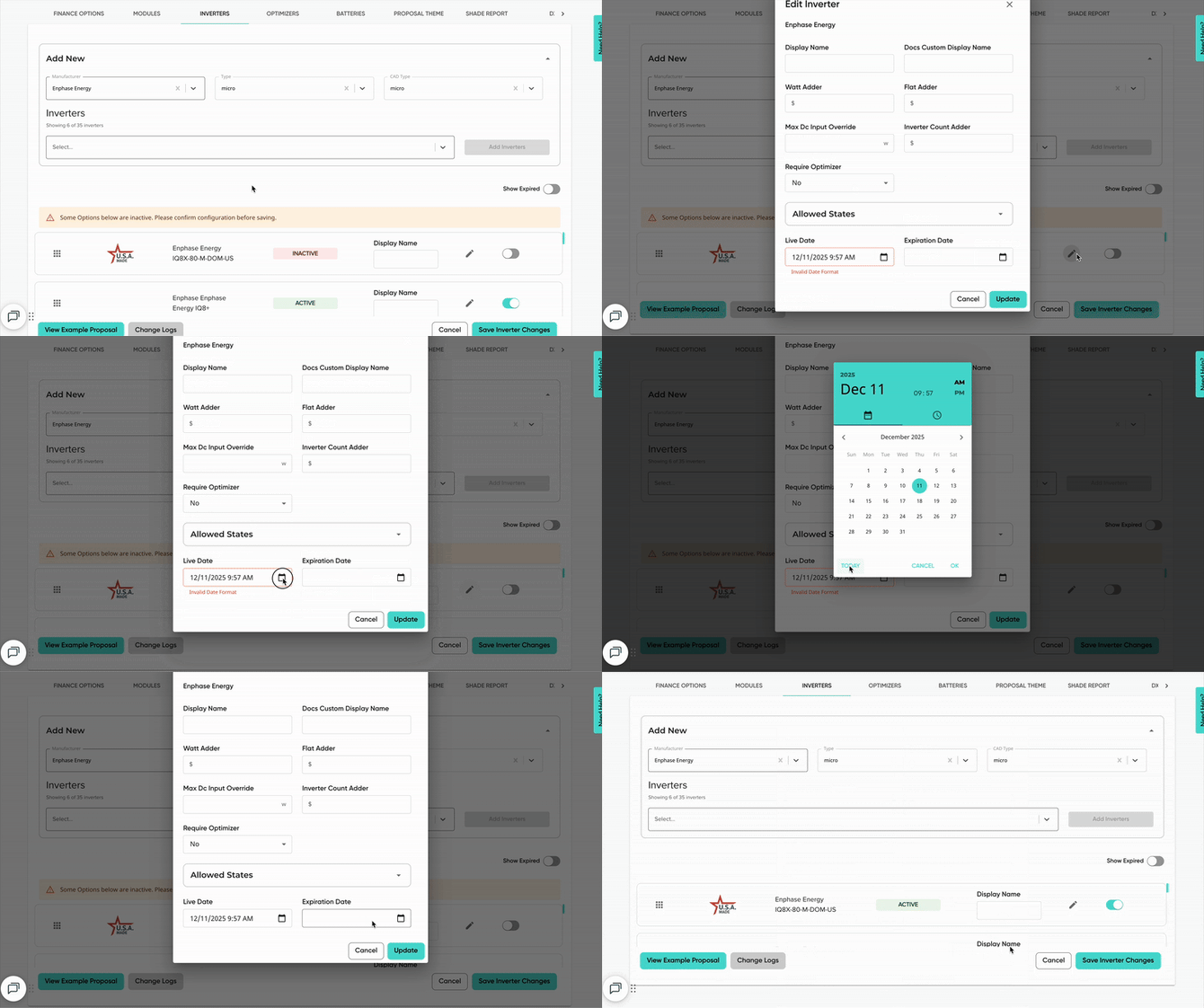
- When options are added, they will be added as inactive. Before saving, you must confirm the live date of the newly added option. This can be done from the inverter editor.
- Learn more about live and expiration dates here.
- There are additional fields you're able to edit on your inverter options. Learn more here!
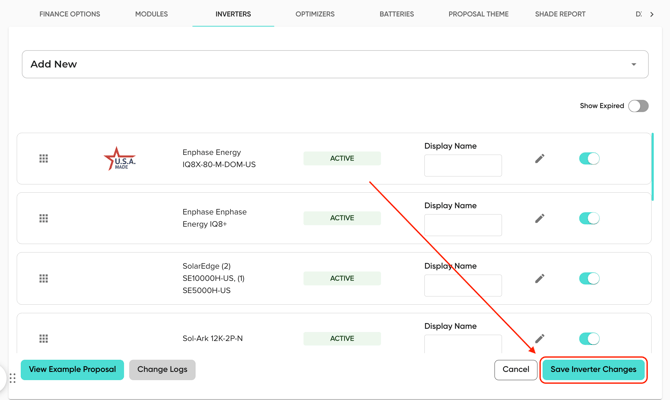
- Once all options are added and live dates are set, click 'Save Inverter Changes' in the bottom right.
If you're unable to see the inverter option you're trying to add, first check the following:
- Double check your filters and ensure the inverter your looking for fits the criteria.
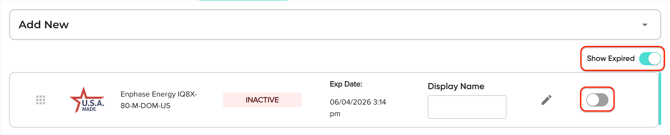
- If the option had been added to your list, but has since been expired, it won't appear in the dropdown. Instead, toggle 'Show Expired' and re-activate the option from the list of currently inactive inverters.
If you still do not see the option you're looking for, please contact our customer support team.
Expiring an Inverter
Expiring an inverter will remove that inverter from all future solar proposals.
- To expire an option, click the toggle on the right.
- This will immediately remove the option from the main view. To see the option you've just expired, toggle 'Show Expired'.
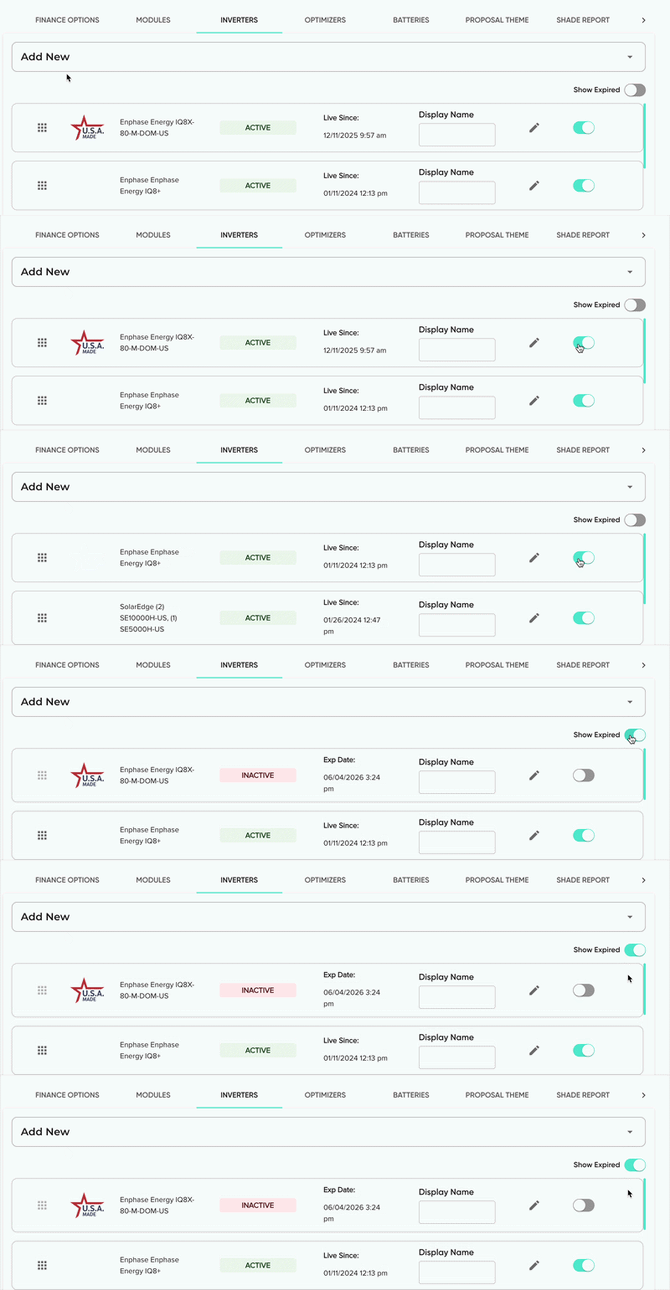
- Expiring an option will also set an 'Expiration Date', meaning any solar proposals created after this date will not show the expired option.
- If you'd like to backdate the change, or prevent the option from showing on earlier solar proposals, you can do that in the inverter editor.
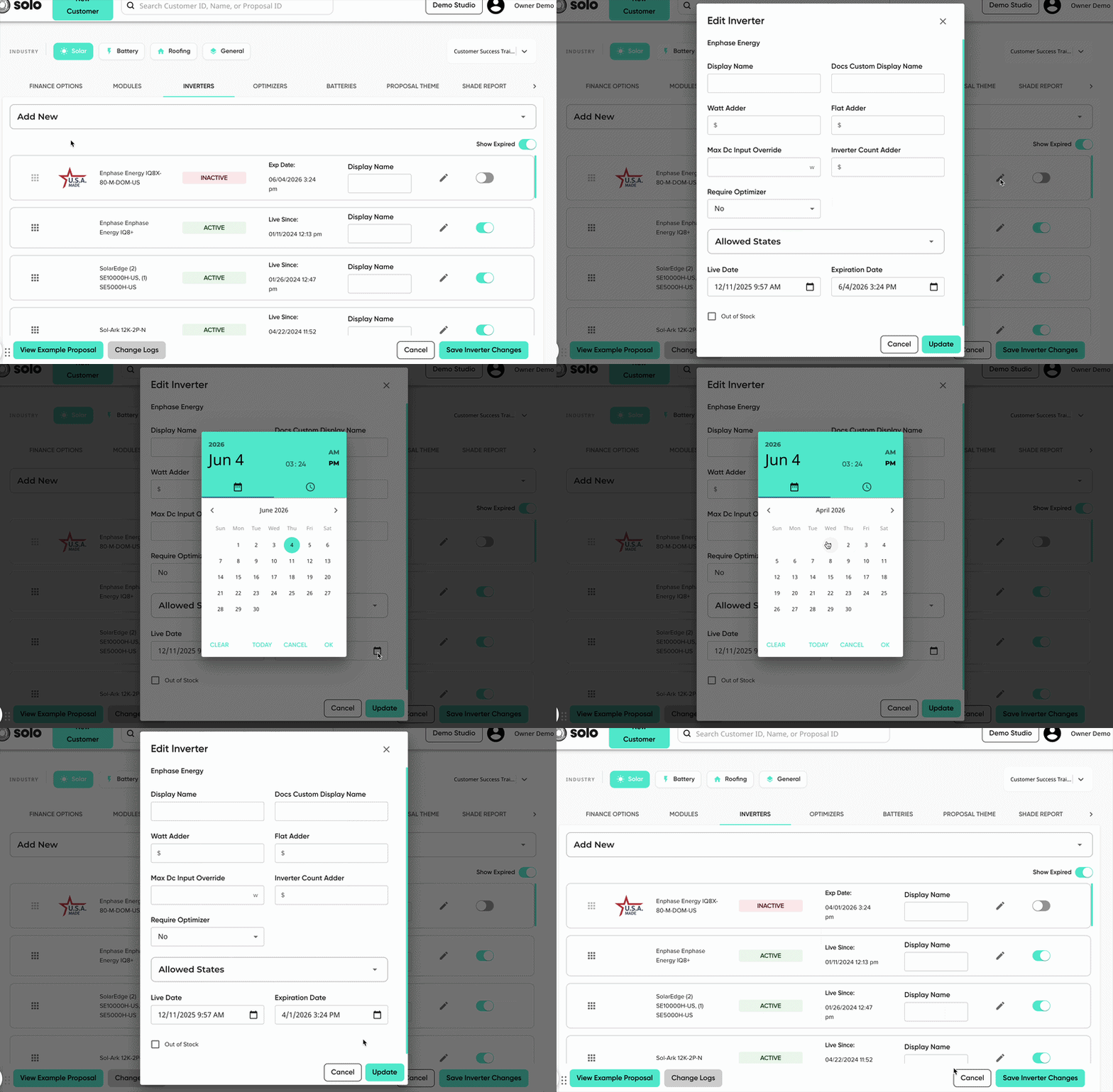
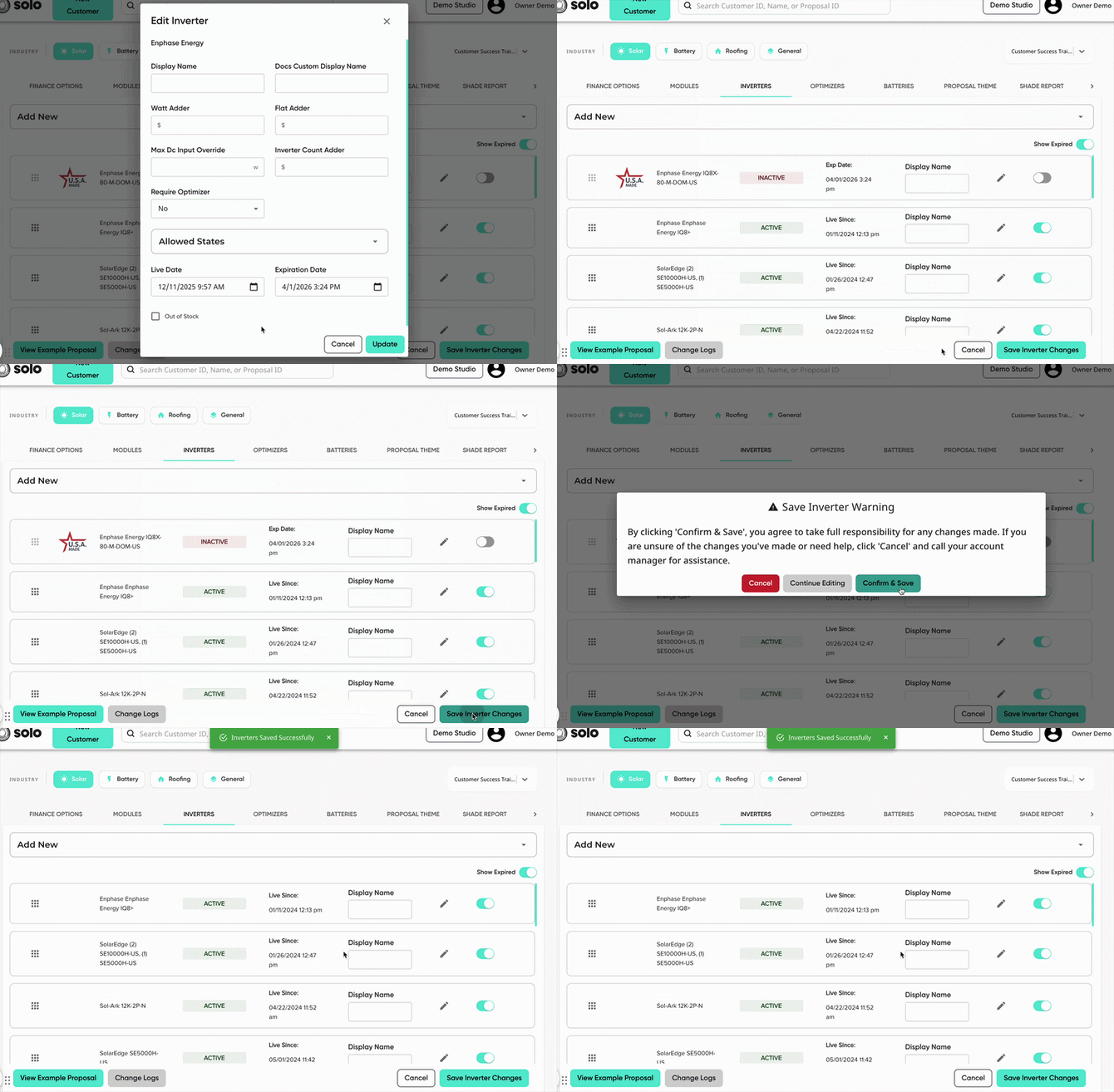
- Make sure to save your changes!
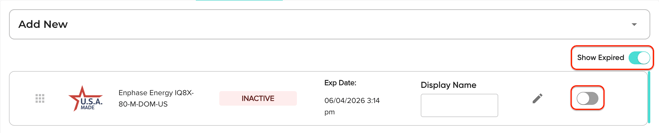
- You can always re-activate an option that you've expired by toggling 'Show Expired', then clicking the toggle on the right again.
- When an option is re-activated, the live date will populate the original date that the option had at the time that it was expired.
Looking to edit your inverter options? Check out this article!