
The MissionControl portal is only accessible to users with the SAAS Owner role.
This article refers to the Pricing section of Proposal Theme. To learn more about configuring your company's pricing (PPW), see this section here!
In this article:
Understanding Pricing Settings
This section of Proposal Theme deals with the general pricing functionalities within the proposal.
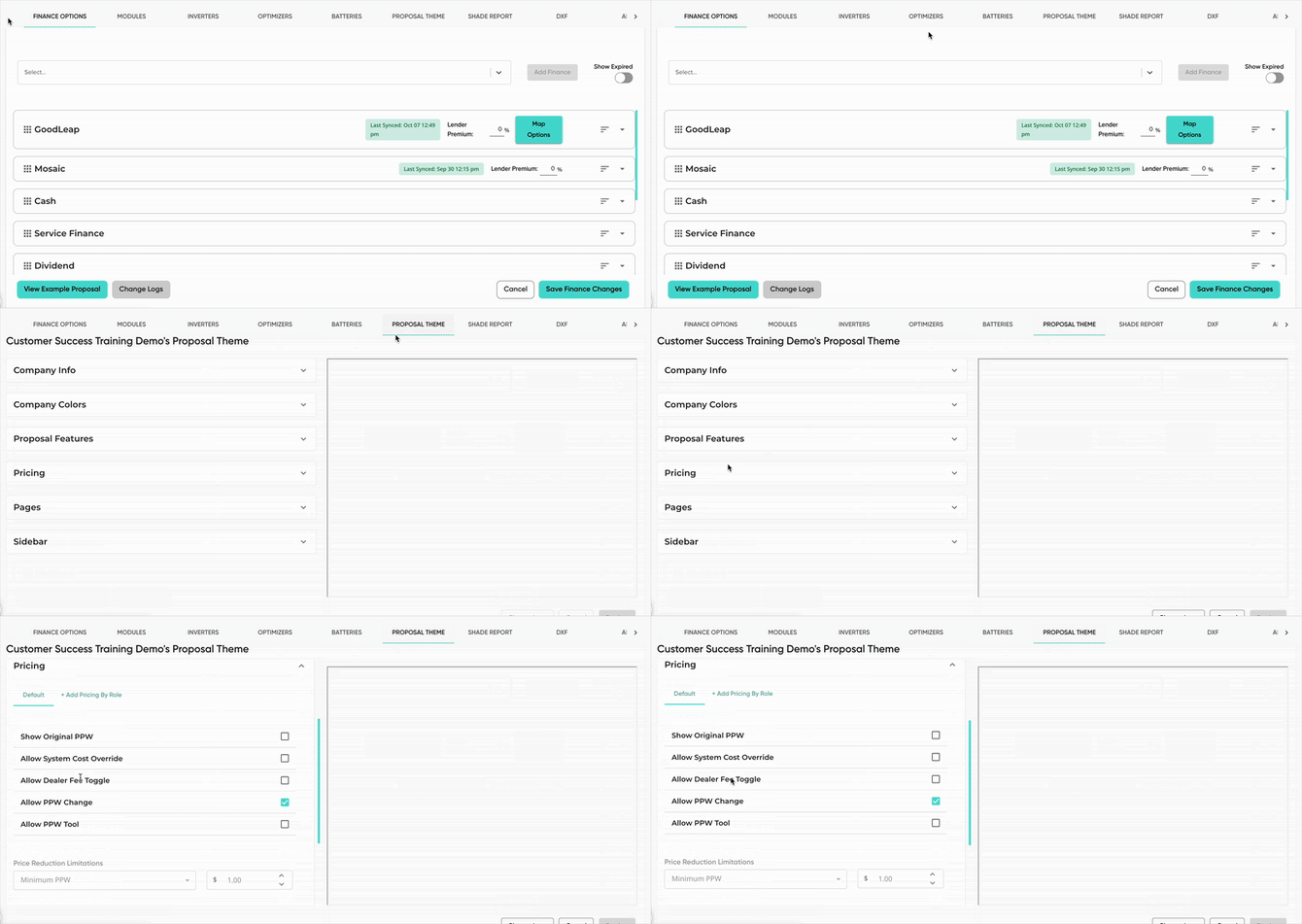
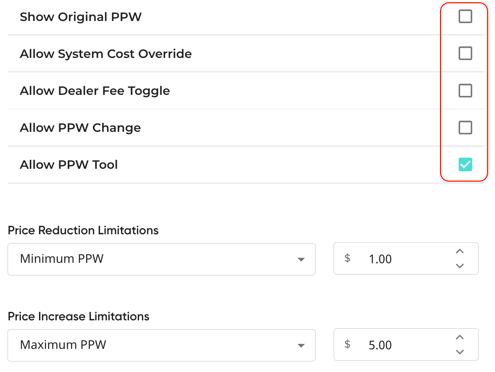
From here, you can restrict different settings, customizing the control your reps have over pricing configurations in the proposal. These settings can be set up for default pricing (all user roles) or by specific roles. This section includes the following settings:
Here is a breakdown of what each functionality in this section does:
Show Original PPW
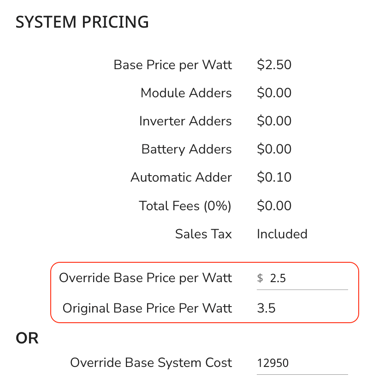
If checked, the original base PPW will be displayed on the pricing breakdown, whenever the PPW is overridden by the user. This is only applicable if the user is allowed to override the PPW (see "Allow PPW Change").
Allow System Cost Override
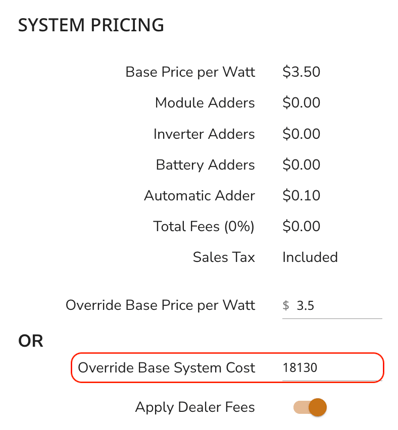
Allows users to input their own base system cost (system cost before equipment, adders, or finance fees are applied), overriding the one automatically calculated. This will automatically override the PPW to match.
Pair this setting with Price Reduction/Increase Limitations (listed below) to restrict how much a user can adjust the system cost.
Allow Dealer Fee Toggle
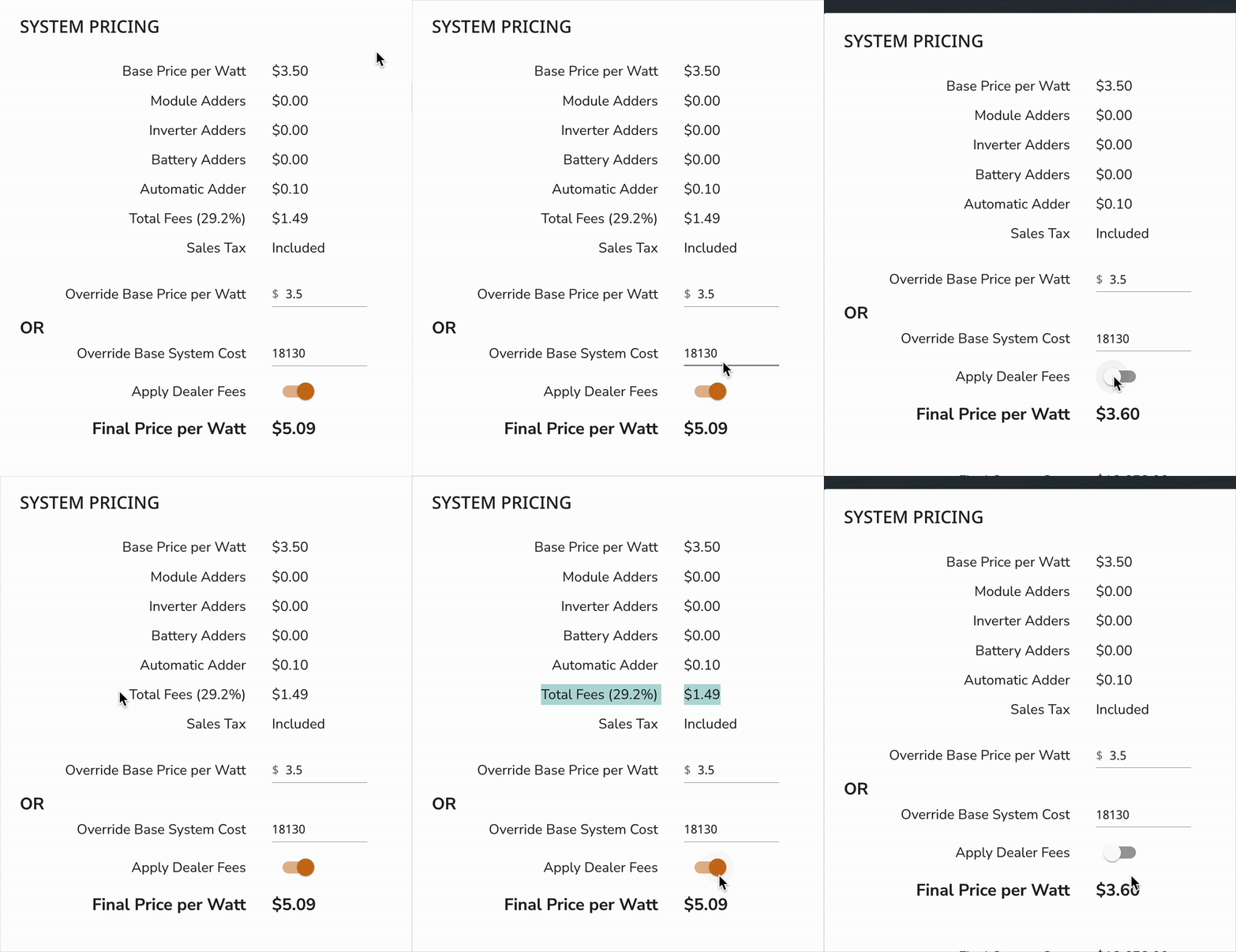
If checked, users can toggle on/off the dealer fees from within the pricing tab. This will remove the dealer fees from the calculations, in addition to hiding them on the page. For this to work, "Allow PPW Change" must also be checked on.
Allow PPW Change
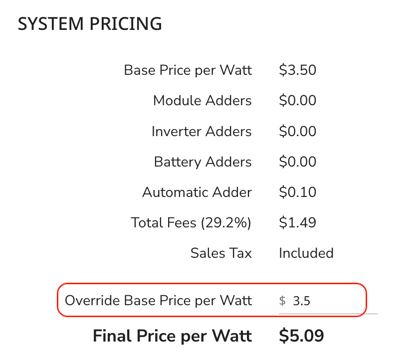
If checked, users can see and use the "Override Base PPW" tool. This allows them to override the base PPW set in Company Pricing, using the one they enter. Pair this with Price Reduction/Increase Limitations (listed below) to restrict how much a user can adjust the PPW.
Allow PPW Tool
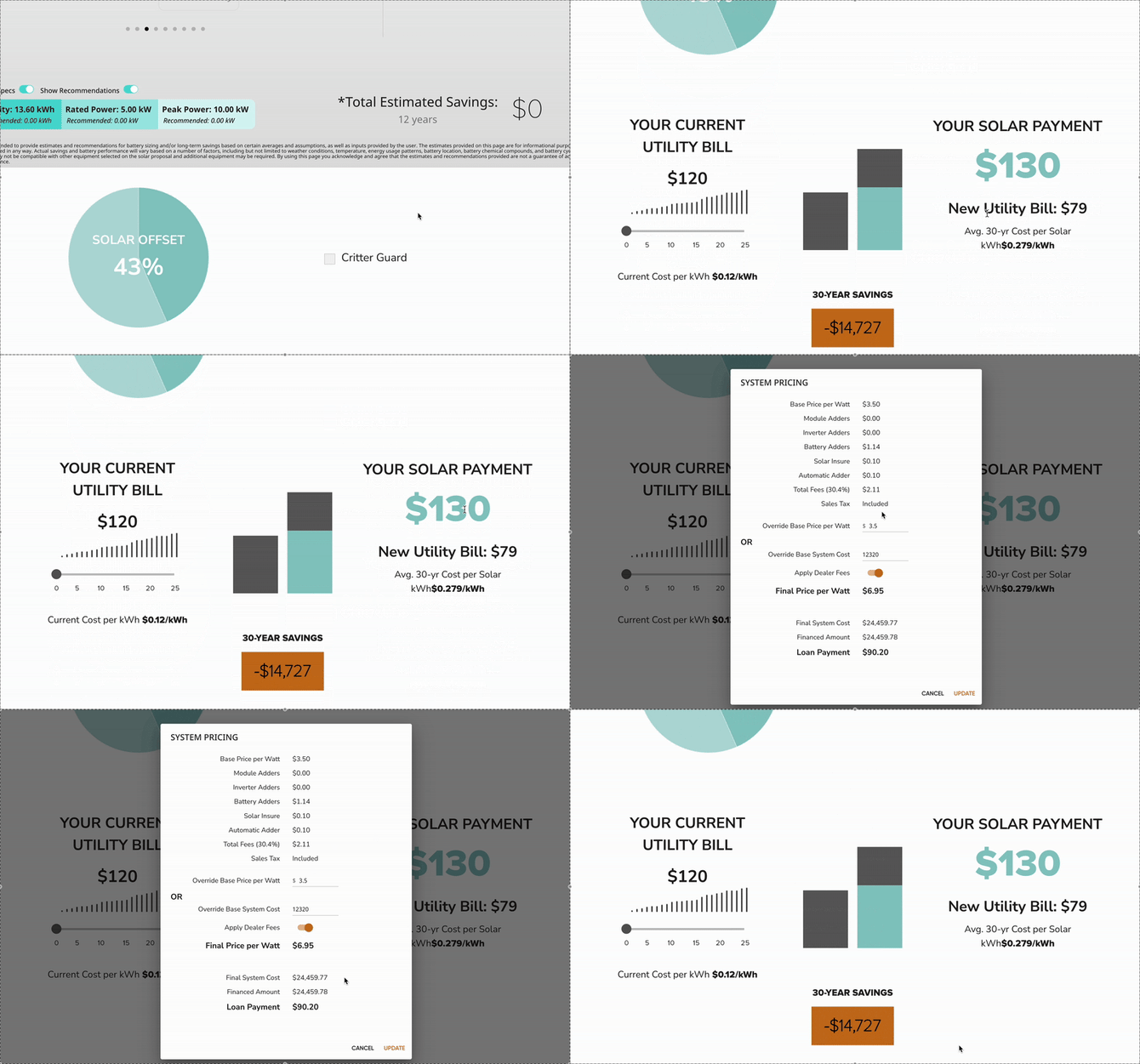
When this is toggled on, users have the ability to access the pricing tab by clicking on "Your Solar Payment" on the analysis page.
Price Reduction Limitations
These are used to dictate the settings for how much the base PPW can be reduced. There are three possible ways the settings can be set up:
-
Minimum PPW: Sets a value as the minimum that a PPW can be changed to.
-
Maximum PPW Reduction: Sets a value as the maximum amount that a PPW can be reduced by. For example, if this value is $1.00 the PPW can only be reduced within $1.00 below the base PPW amount.
-
Maximum PPW Reduction %: Sets a value as the maximum percentage of the PPW that the base PPW can be reduced by. For example, if this is 30%, and the base PPW is $3.00, it can only be lowered by $1.00 or less ($3.00 x 0.30 = $1).
Price Increase Limitations
These are used to dictate the settings for how much the base PPW can be increased. There are three possible ways the settings can be set up:
-
Maximum PPW: Sets a value as the maximum that a PPW can be changed to.
-
Maximum PPW Increase: Sets a value as the maximum amount that a PPW can be increased by. For example, if this value is $1.00 the PPW can only be increased within $1.00 above the default amount.
-
Maximum PPW Increase %: Sets a value as the maximum percentage of the PPW that the base PPW can be increased by. For example, if this is 30%, and the base PPW is $3.00, it can only be increased by $1.00 or less ($3.00 x 0.30 = $1).
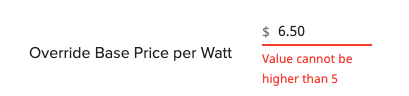
Note: To use the Price Increase/Reduction Limitations, the "Allow PPW Tool" feature must be toggled ON.
Restricting Pricing Settings Based on User Role
- In MissionControl, open the 'Proposal Theme' tab, then open the 'Pricing' dropdown.
- Settings in the 'Default' section will apply to all roles that are not already included in role-specific pricing settings.
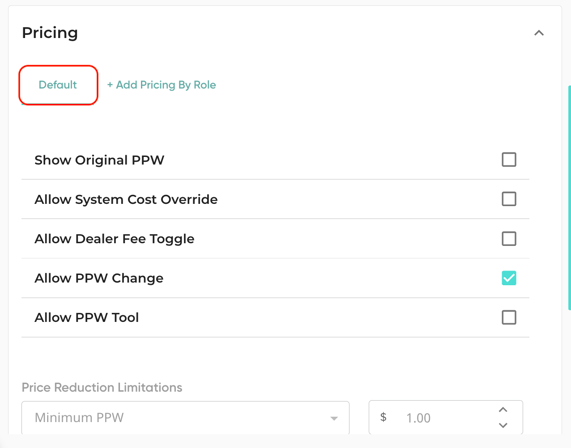
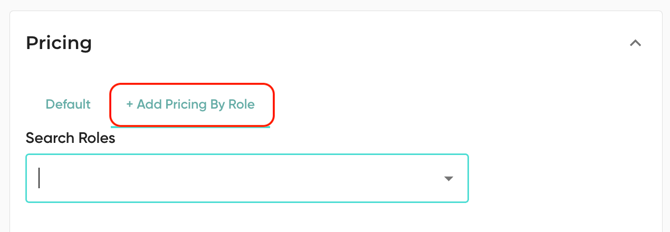
- Click '+ Add Pricing by Role' to begin creating role-specific settings.
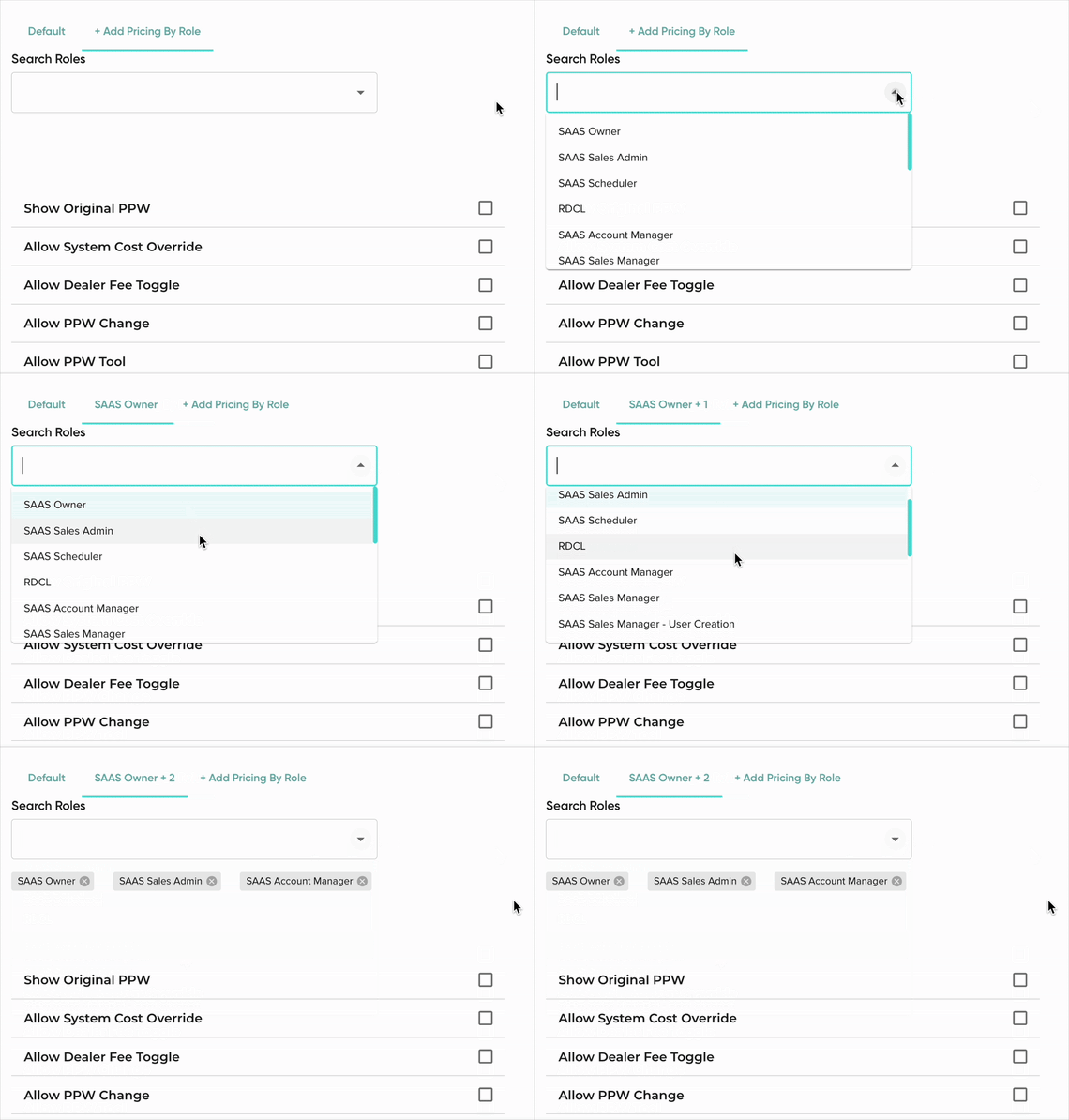
- Search and select the role(s) you would like to create specific settings for.
- Use the checkboxes and settings to enable different functionalities for the selected roles. Use the information in this article to learn about each functionality.
- Preview & Save your changes in the bottom left!