When a design request is submitted to your company's design queue or self-assigned, it will appear in the Design Management page. This page can be accessed in the Solo sidebar, under 'Designs':
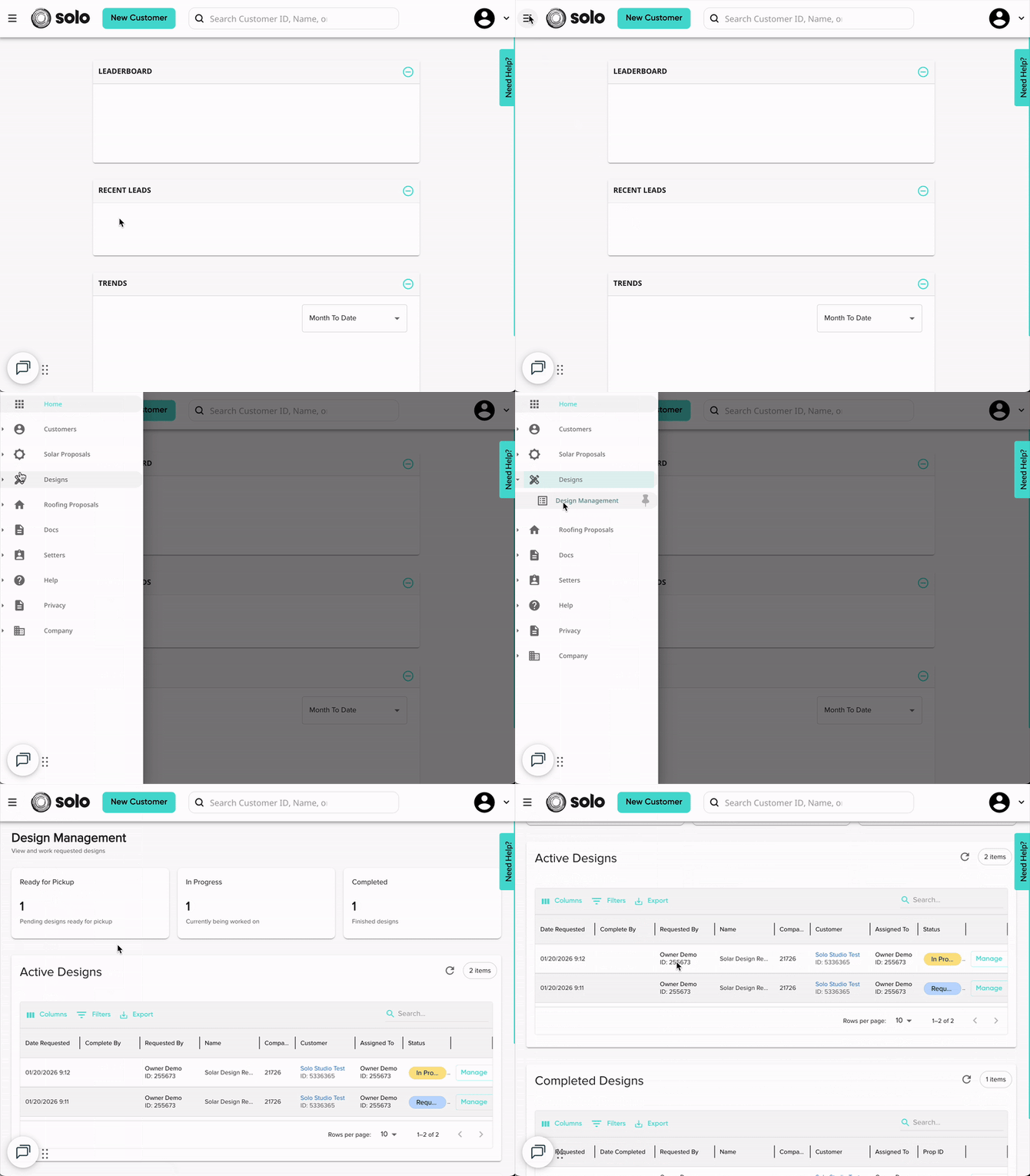
This page will act as your company's design request queue where all requests can be viewed and managed (excluding requests sent directly to Solo). This page will look different, depending on user permissions:
Users WITH Design Access
Users who have the 'Build New Designs' permission toggled on will have much more access than those that don't. Users will still only see their design requests*. With design access, users will have access to manage each design is different ways:
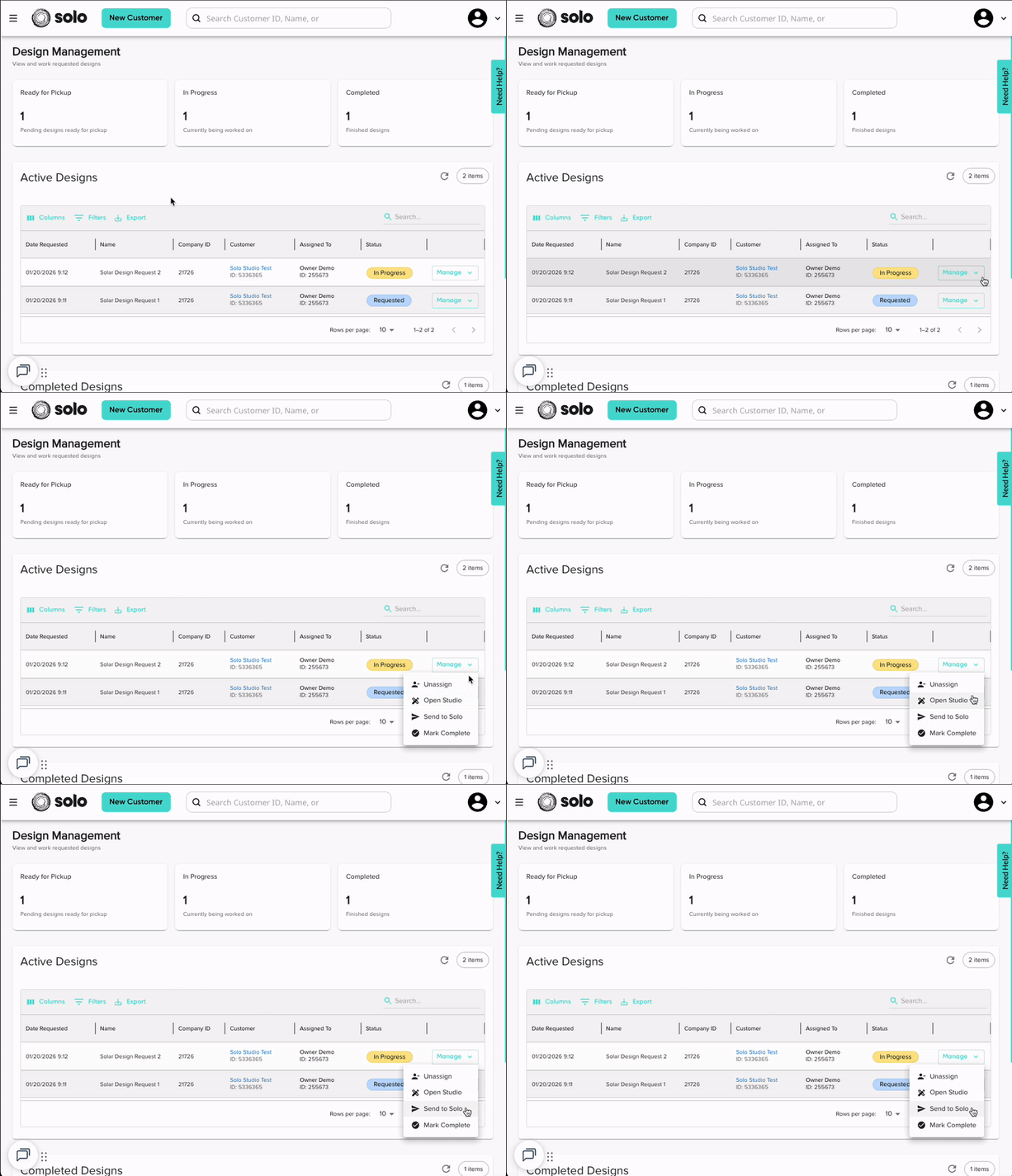
For active designs (have not yet been completed):
-
Assign/Unassign - This will assign the job to the person clicking it (self-assign). This indicates to the team that they will be completing the design request. The user name will be added to the 'Assigned To' column.
-
Open Studio - This will open the design tool for that request, allowing the user to build the design.
-
Send to Solo - This will send the request to the Solo proposal queue to be completed by a Solo designer. This will remove the request from the design management page.
-
Mark Complete - This will indicate that the design is finished and no other changes are needed. Marking this complete will move the design to the 'Completed Designs' list.
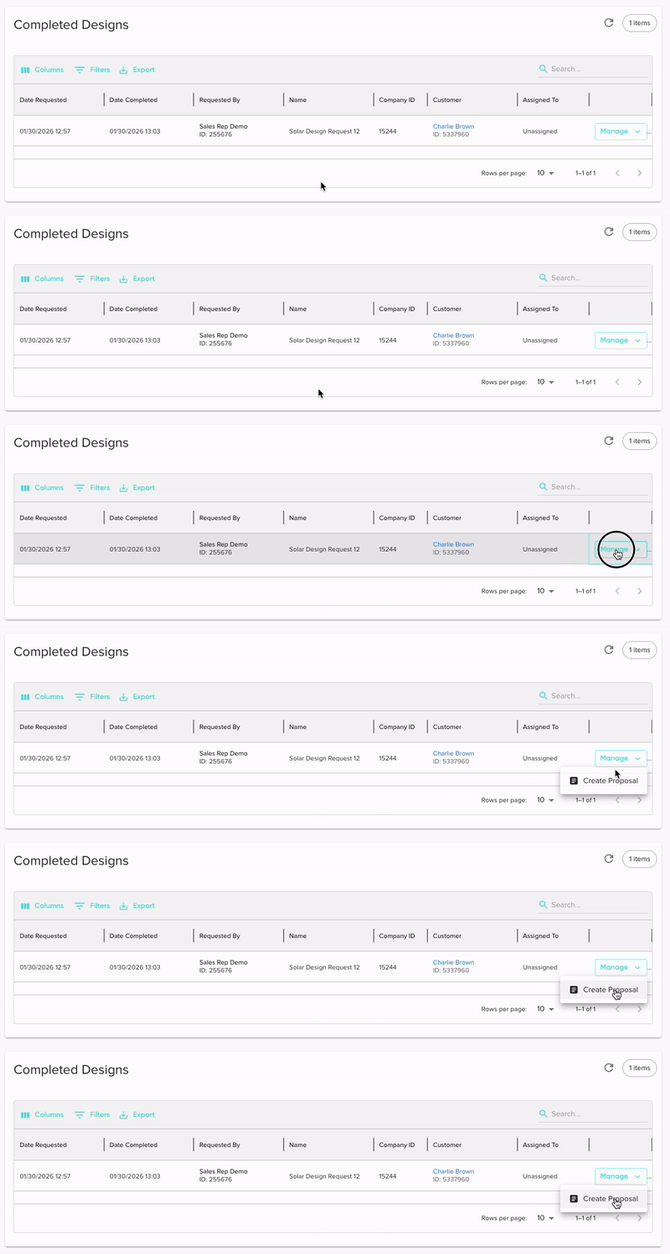
For completed designs (been marked complete):
-
Create Proposal - This will generate a proposal from the completed design. This can only occur once.
-
View Proposal - This means a proposal has already been created for the design. Clicking this will open the proposal that was created from that design.
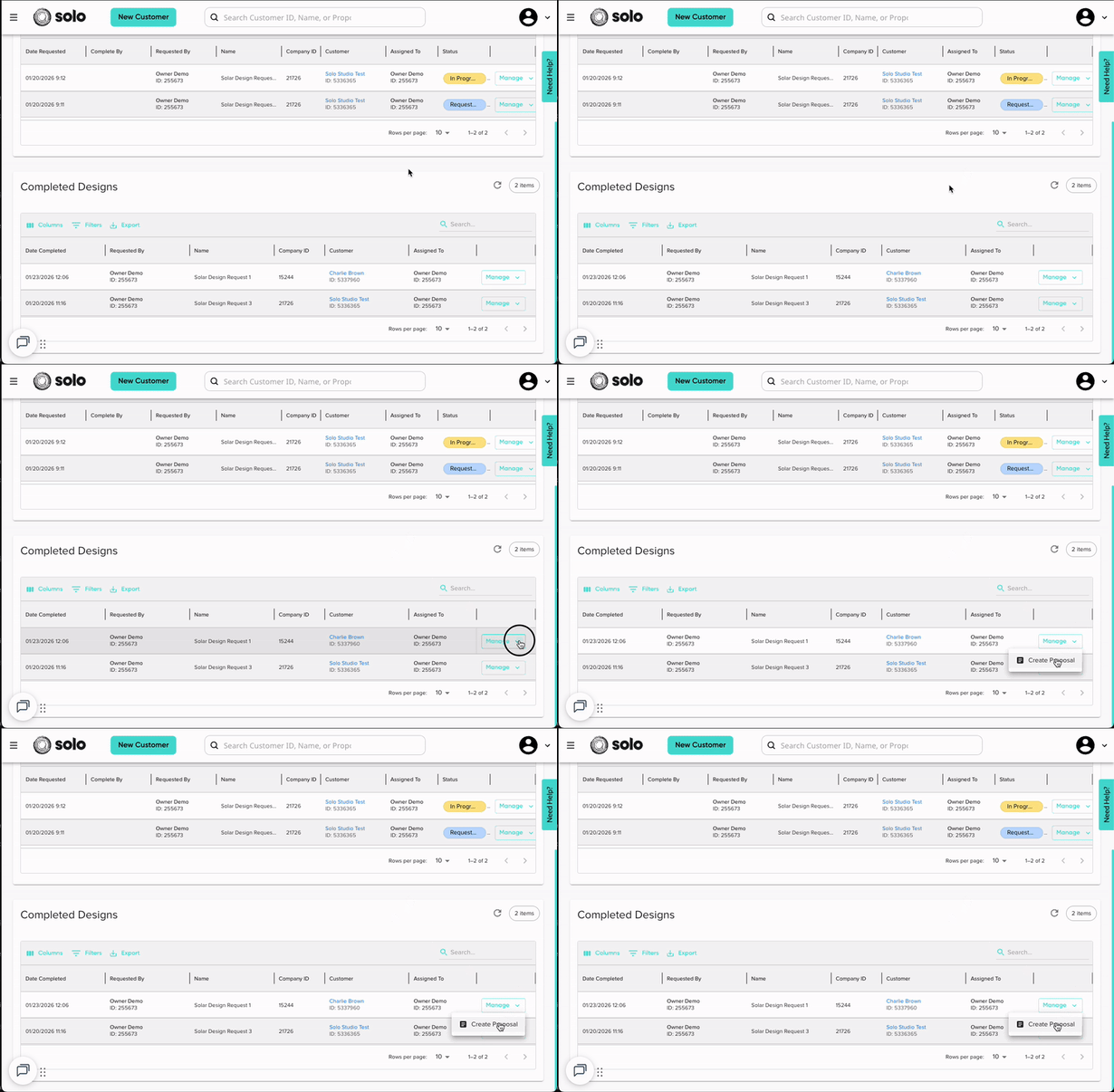
Users with the SAAS Owner and SAAS Admin roles will see ALL design requests associated to their company account.
Users WITHOUT Design Access
Users without build access will have limited access to this page. They will only be able to see design requests that they have submitted, but will not have the option to manage them.
For active designs (have not yet been completed):
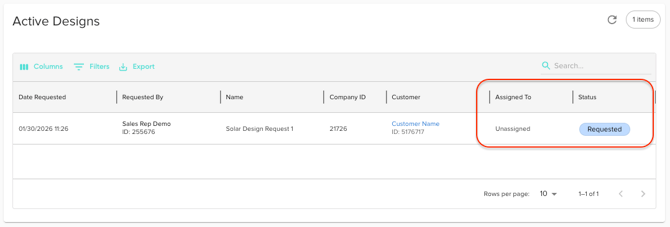
There will be no option to manage the design requests, but will still be able to see:
-
Design Status
-
Who the design is assigned to
For completed designs (been marked complete):
-
Create Proposal - This will generate a proposal from the completed design. This can only occur once.
-
View Proposal - This means a proposal has already been created for the design. Clicking this will open the proposal that was created from that design.