
In this article:
This feature is currently in Beta, and may not be live for all users. Please contact your account manager or Customer Support for assistance with managing Solo Studio permissions.
Setting Your Company Default
For each feature, there will be the option to set a Company Default. This will be the default access for any user without an override or custom role.
To set custom defaults for a permission, follow these steps:
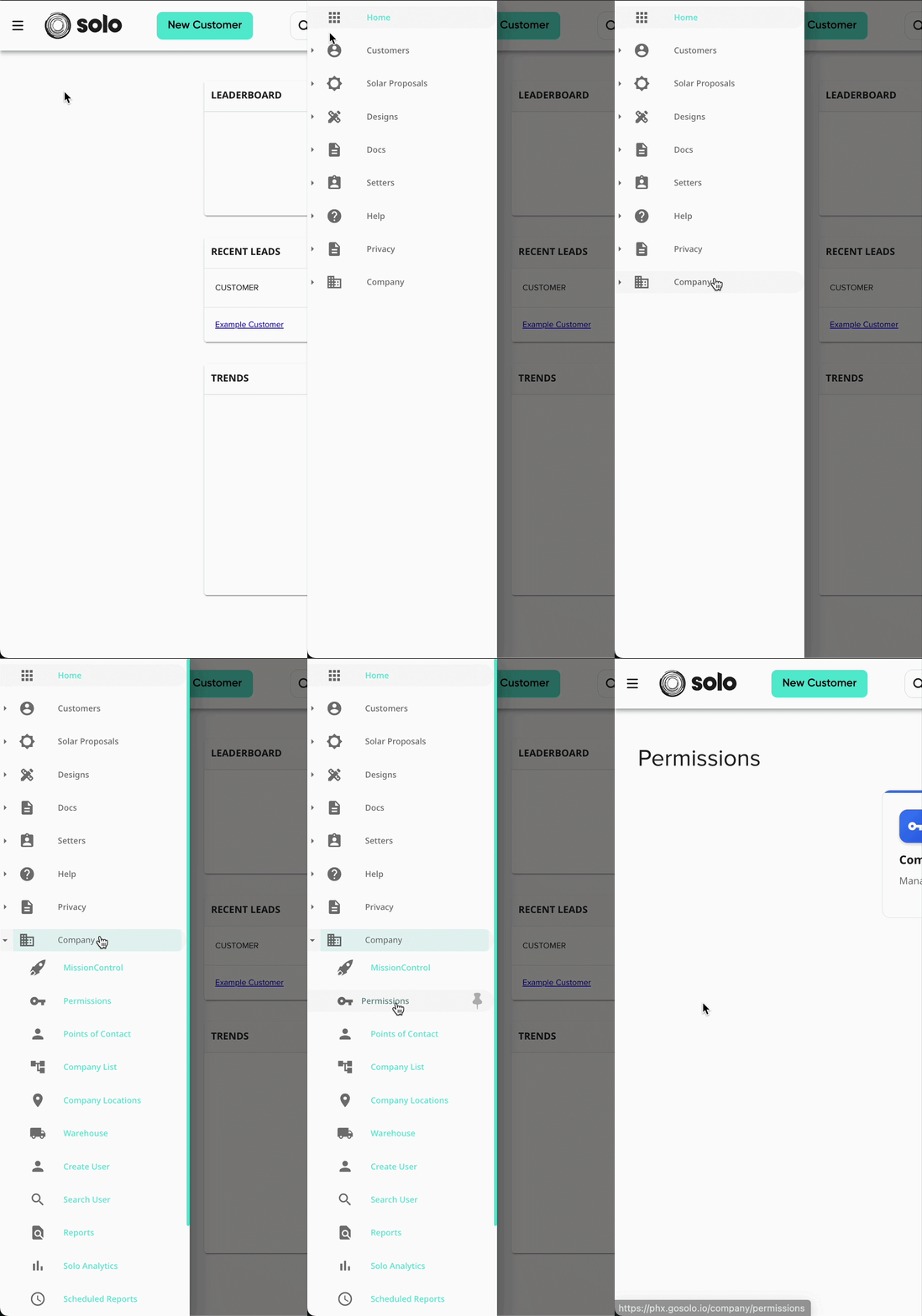
- In the left side navigation bar, tap into 'Company' and select 'Permissions'.
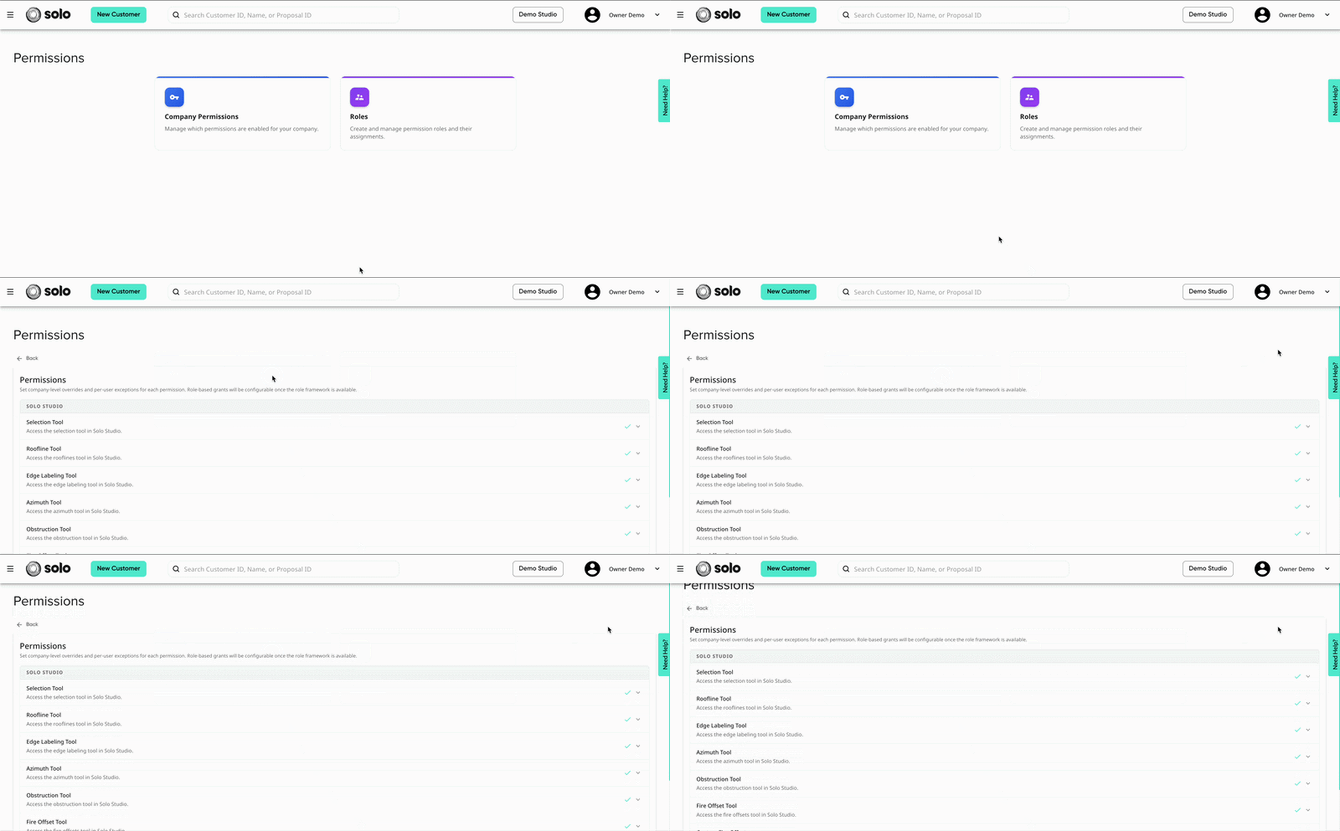
- Click 'Company Permissions' to open the list of available studio permissions.
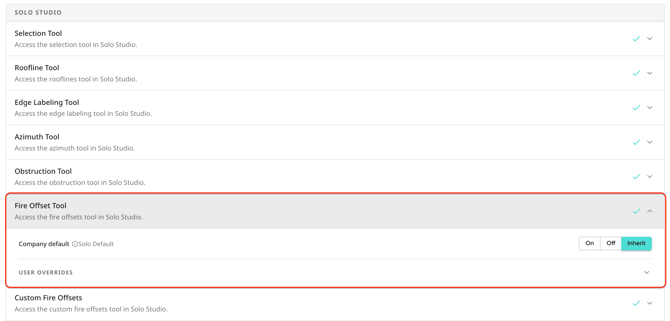
- Scroll down to the feature you'd like to adjust and open the dropdown.
- There are three options for setting a permission company default:
- On - All users will have access to use this feature by default, unless specific overrides or roles are applied.
- Off - All users will NOT have access to use this feature by default, unless specific overrides or roles are applied.
- Inherit - All users will refer to the Solo default* for permissions, unless specific overrides or roles are applied. The Solo default will differ depending on the feature.
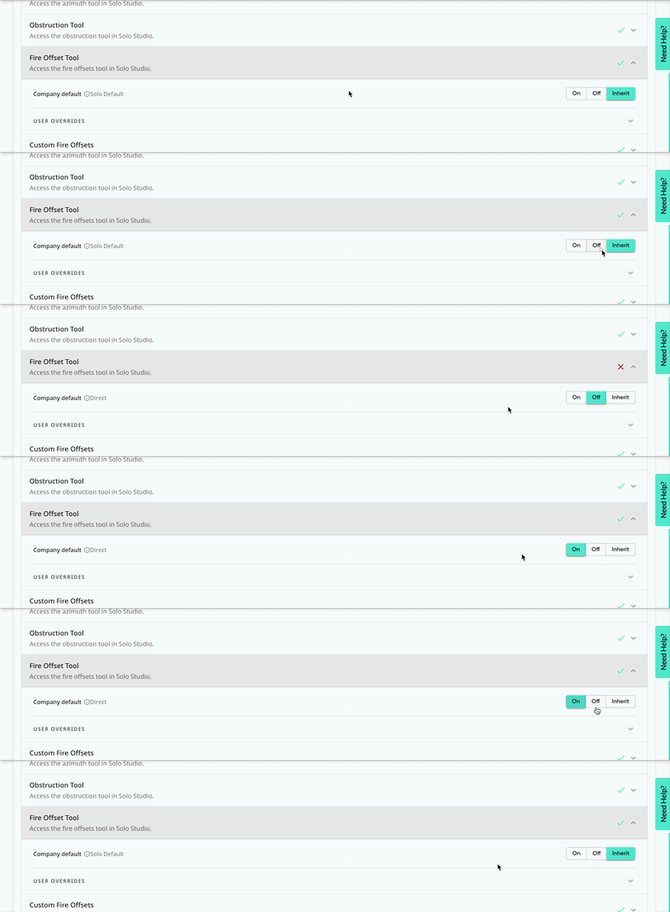
- All changes will be automatically saved.
*Solo Default is the permission that the feature will default to, for all users, when first added to your company.
User Overrides
If you'd like to change access for individual users, outside of company defaults, that can be configured from the Permissions tab. Just follow these steps:
- In the left side navigation bar, tap into 'Company' and select 'Permissions'.
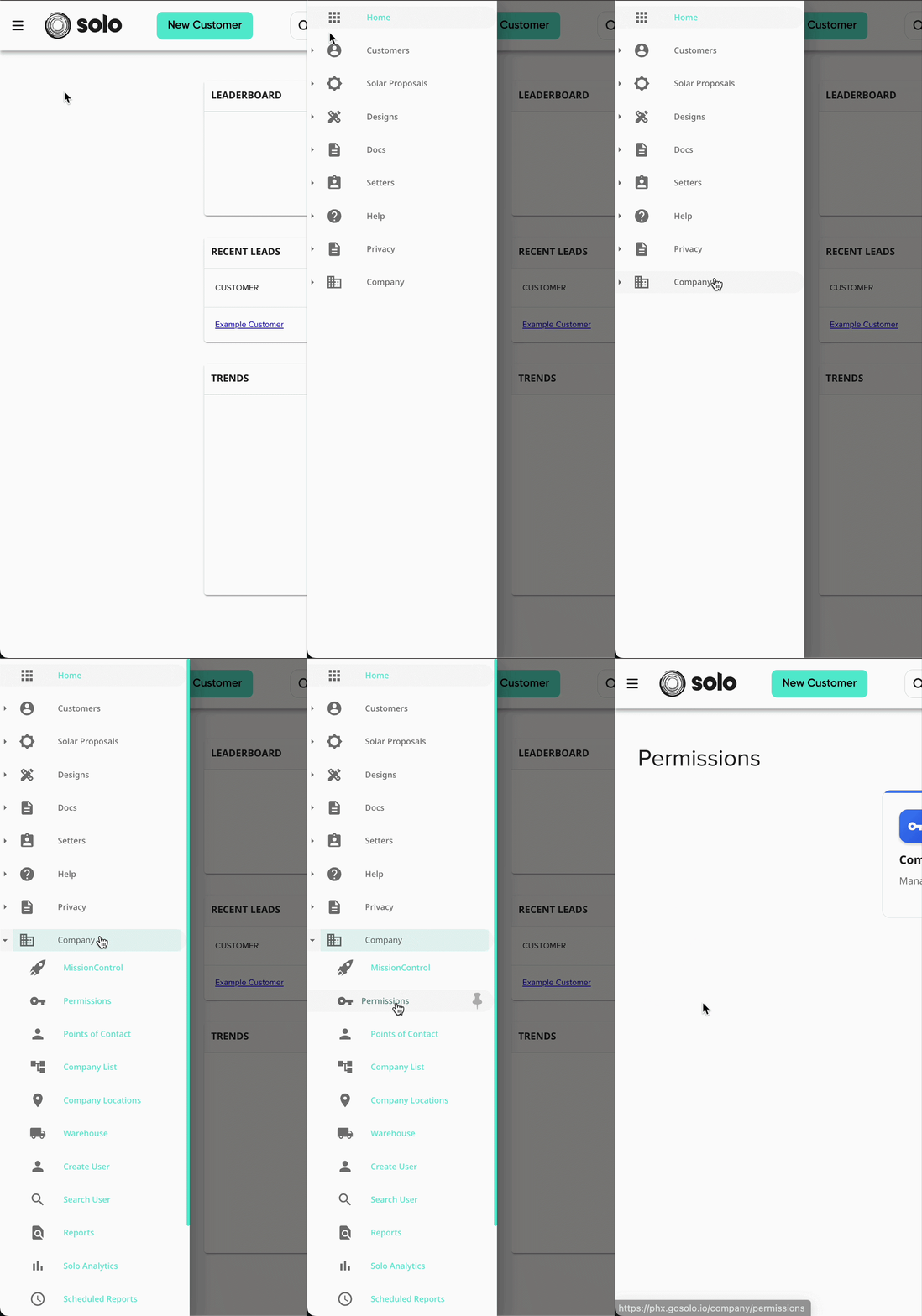
- Click 'Company Permissions' to open the list of available studio permissions.
- Scroll down to the feature you'd like to adjust and open the dropdown.
- Then, open the 'User Overrides' dropdown.
- Search the user whose permissions you'd like to adjust.
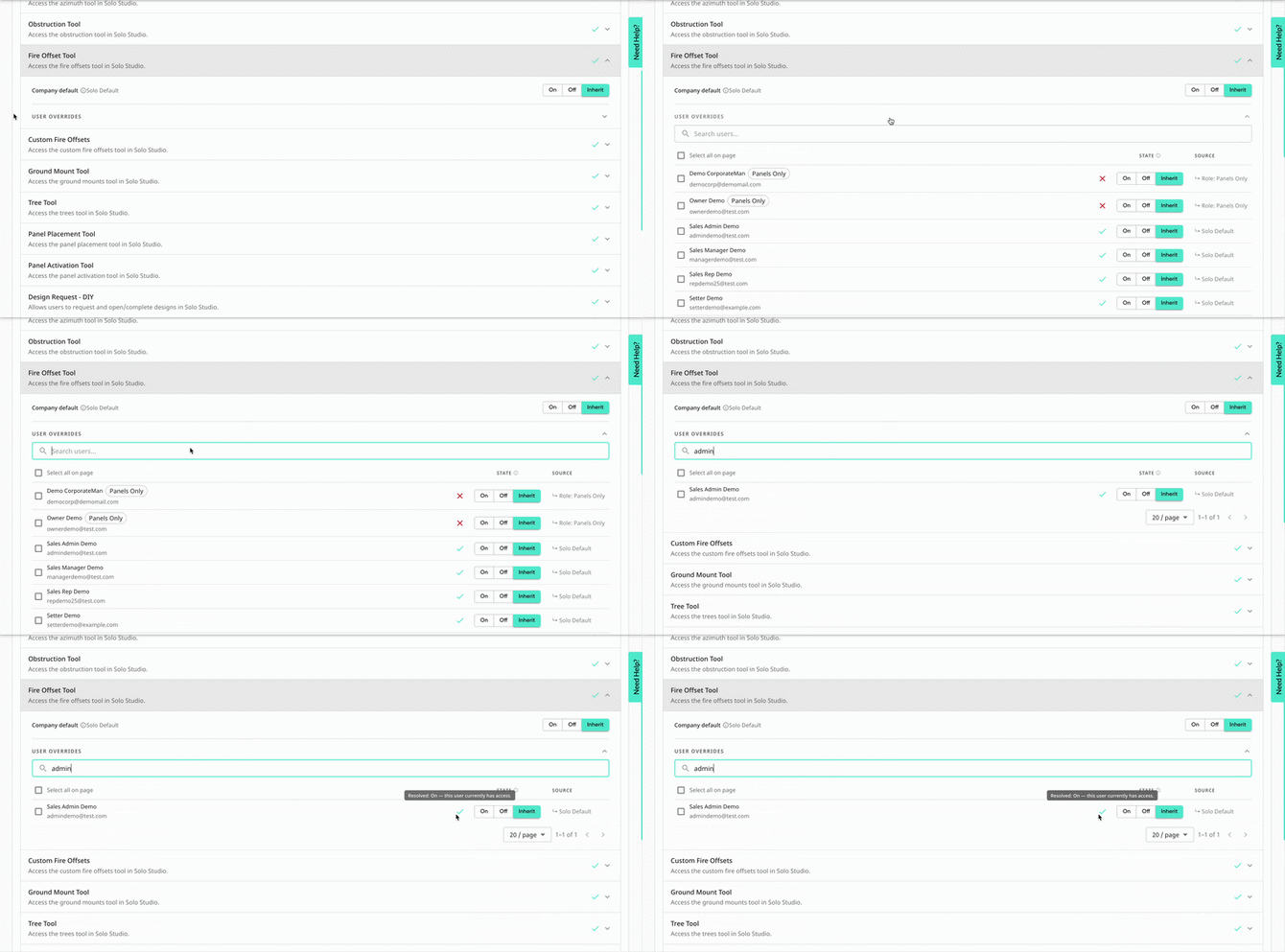
- There are three options for setting a user permission override:
- On - The user will have access to the feature/tool.
- Off - The user will NOT have access to the feature/tool.
- Inherit - The user's access to the tool will match the company default.
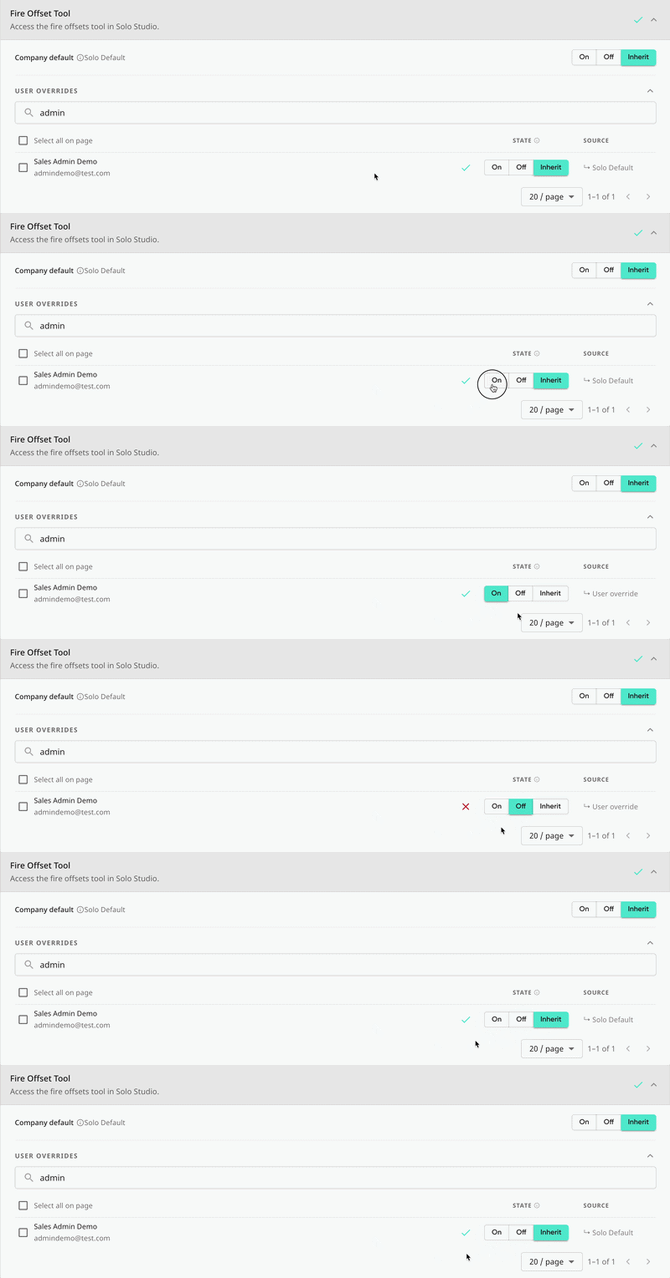
- All changes will be automatically saved.
Use the 'Source' column to review what permission the user will refer to.