
When building in Solo Studio, there are three offset strategies you can use for applying fire setbacks to the design:
These can be accessed in the 'Inspector' page of the fire setbacks tool. Click the links above to jump to more information about that strategy.
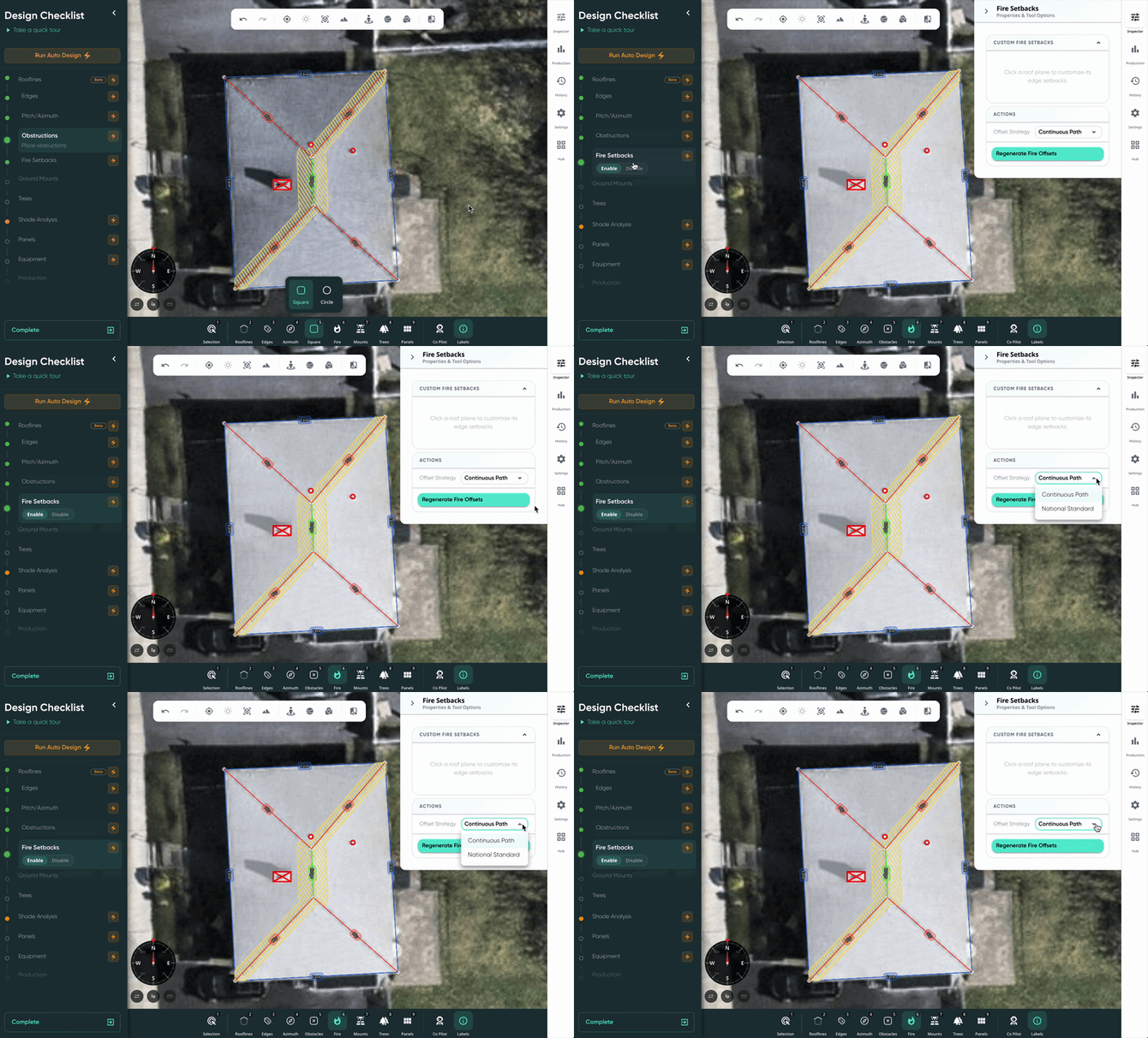
To use fire setbacks on your design, ensure that the toggle is set to 'Enable' in the design checklist. 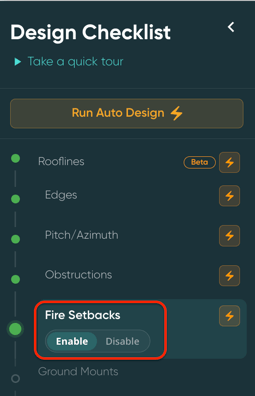
Solo's Continuous Path Method
In alignment with the 2018 and 2021 IFC requirements, this method requires at least one continuous 36" clear path from eave to ridge, on each side of the ridge. Our system will automatically determine the shortest valid path that touches all roof planes at least once. For example:
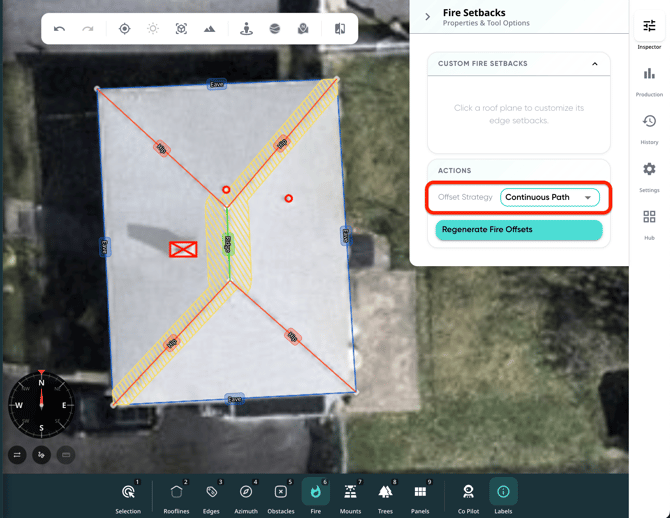
Note: Adjacent roof planes without panels may satisfy the path requirement.
Setbacks generated using this method will use the following measurements:
- Ridges - 36"
- Rakes - 18"
- Hips - 18"
- Valleys - 18"
- Eaves - 0"
National Standard
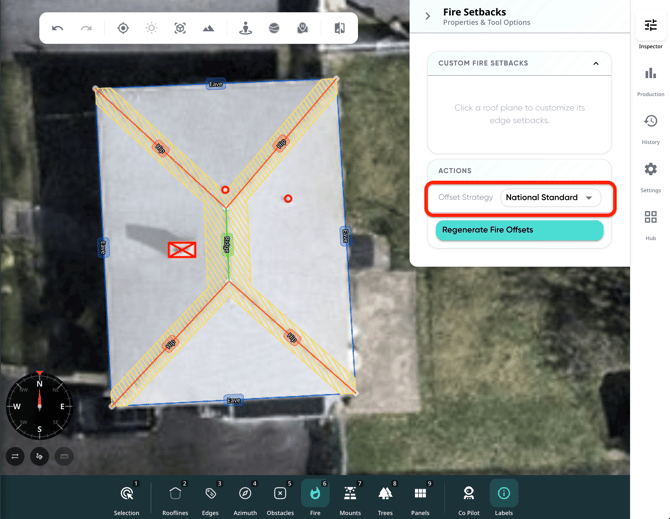
This method will apply the national standard of fire setbacks to all rooflines and roof planes. This means using these measurements in all areas applicable:
- Ridges - 36"
- Rakes - 18"
- Hips - 18"
- Valleys - 18"
- Eaves - 0"
For example:
Custom Setbacks by Roof Plane
This setting is only available to users who have the design permission 'Customize Fire Setbacks' toggled on. This can be toggled on in a user's profile by any other user with admin or owner permissions.
This method involves adding custom fire setbacks for each individual roofline, of each roof plane. Once in the 'Inspector' for the fire setbacks tool, follow these steps:
- Click the roof plane you'd like to add custom setbacks to.
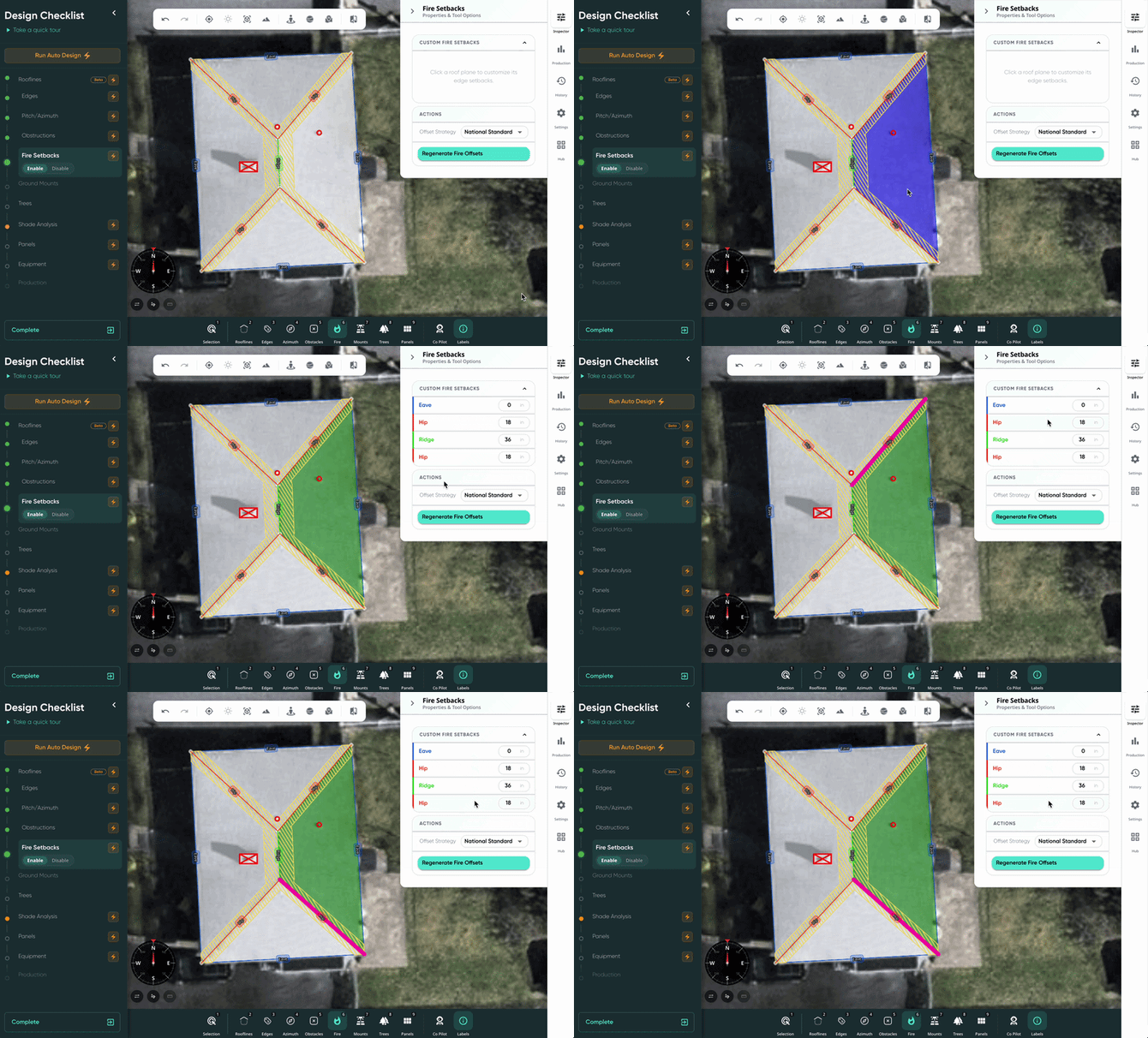
- Hover over each roof edge option to see the corresponding edge in the design.
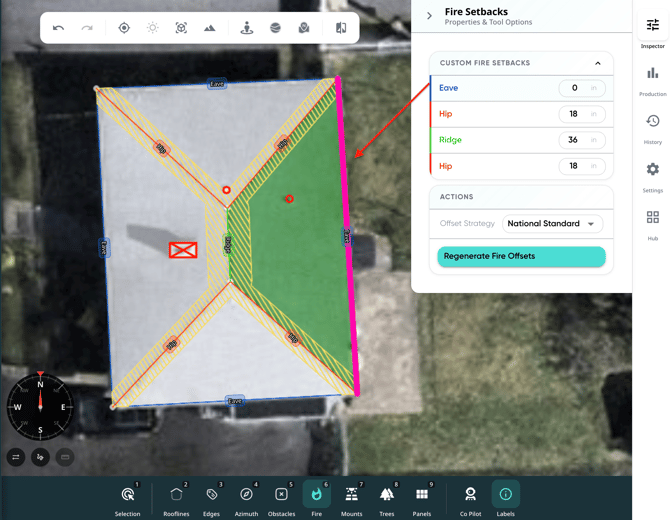
- Select the roof edge you'd like to edit, then input the desired setback measurement.
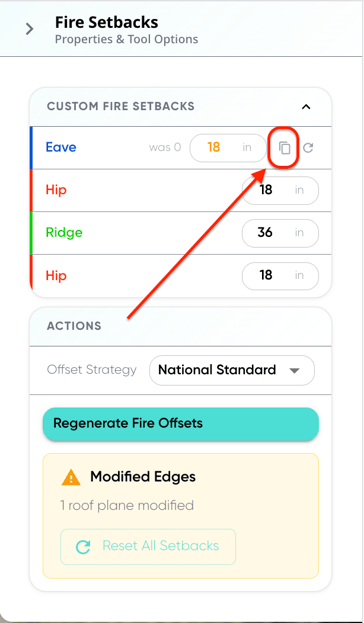
- Use the 'Apply to All' button to apply the custom measurement to all other rooflines of the same edge type.
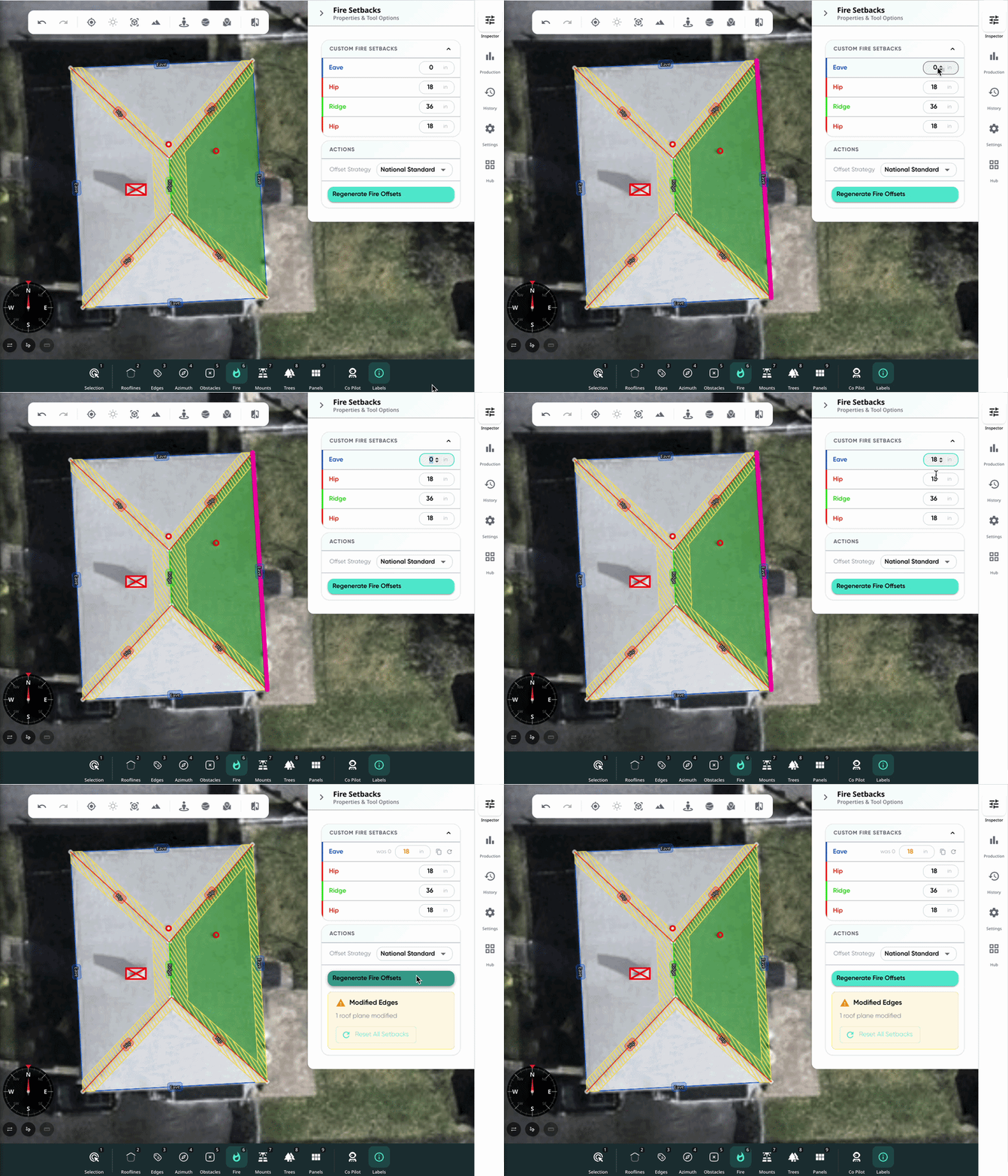
- To apply your setback modifications, scroll down and click "Regenerate Fire Offsets".
- To revert a change you've made, click the reset icon on the right.
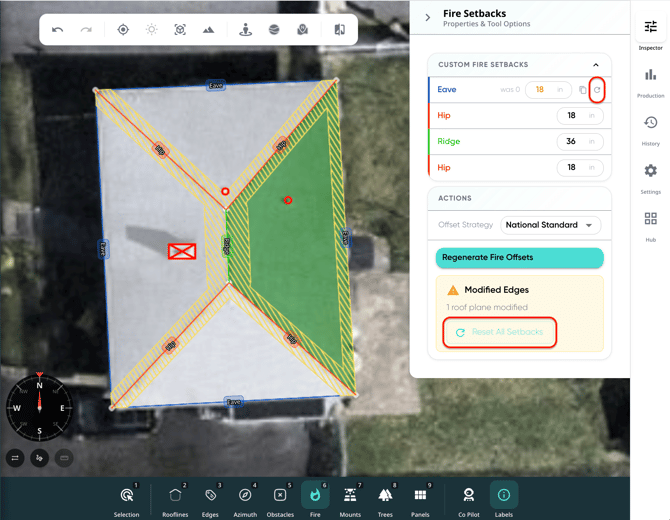
Any roof planes or roof edges that don't have custom settings applied will follow the overall offset strategy being used (continuous path or national standard).