
This process can be followed if you're using Participate Energy's options in conjunction with a financed deal.
For the process of using Participate Energy with CASH, please refer to this article here.
IMPORTANT NOTE: The Participate Prepaid Lease option was built out in Solo to be used for cash deals.
It is not primarily built out to be used for financed deals, however, the process below is a workaround that some of our customers use. Please keep in mind that this workaround does not represent the official Solo processes regarding finance deals with prepaid PPA's/Leases.
This process is broken into three parts:
- Select Participate Energy and send Participate documents
- Switch to the Lender and send second documents
- Qualify with the Lender
Click the links above to jump to the relevant section, but please keep in mind these should be completed in this order.
Select Participate Energy & Send Participate Documents
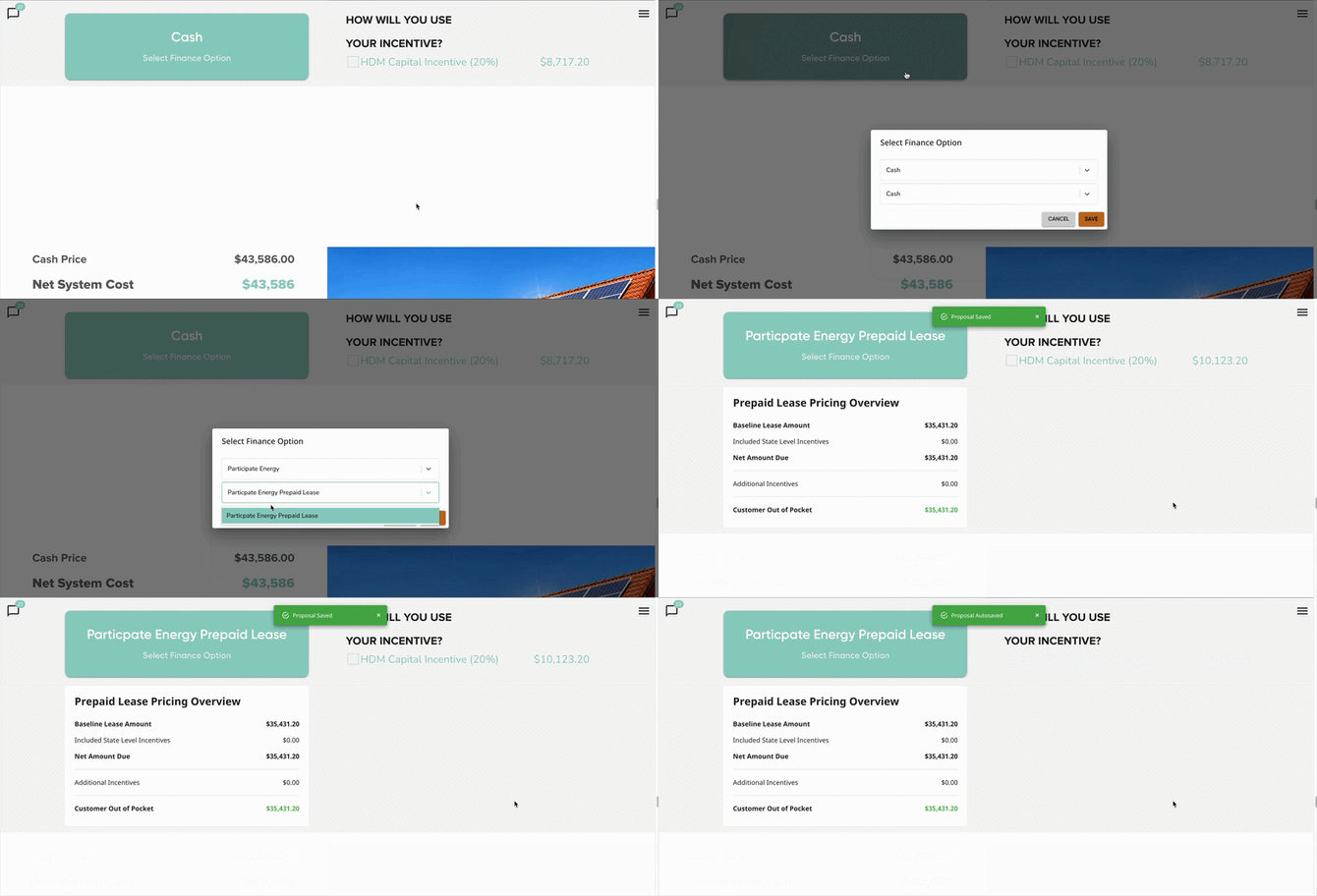
- In the proposal, on the finance page, select Participate Energy as your finance option.
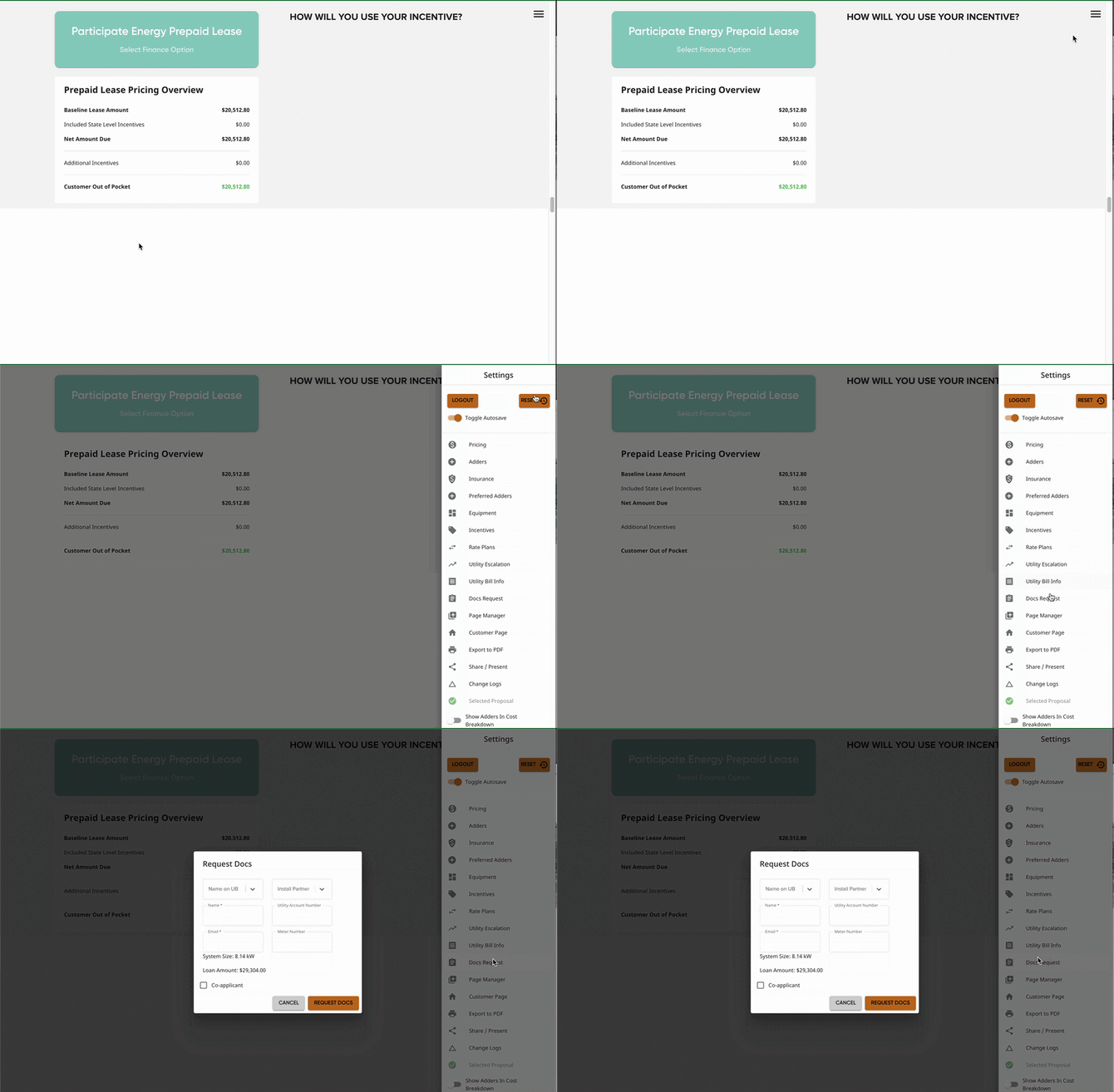
- In the sidebar, open the document request tab.
- Select 'Participate Energy' as the Install Partner.
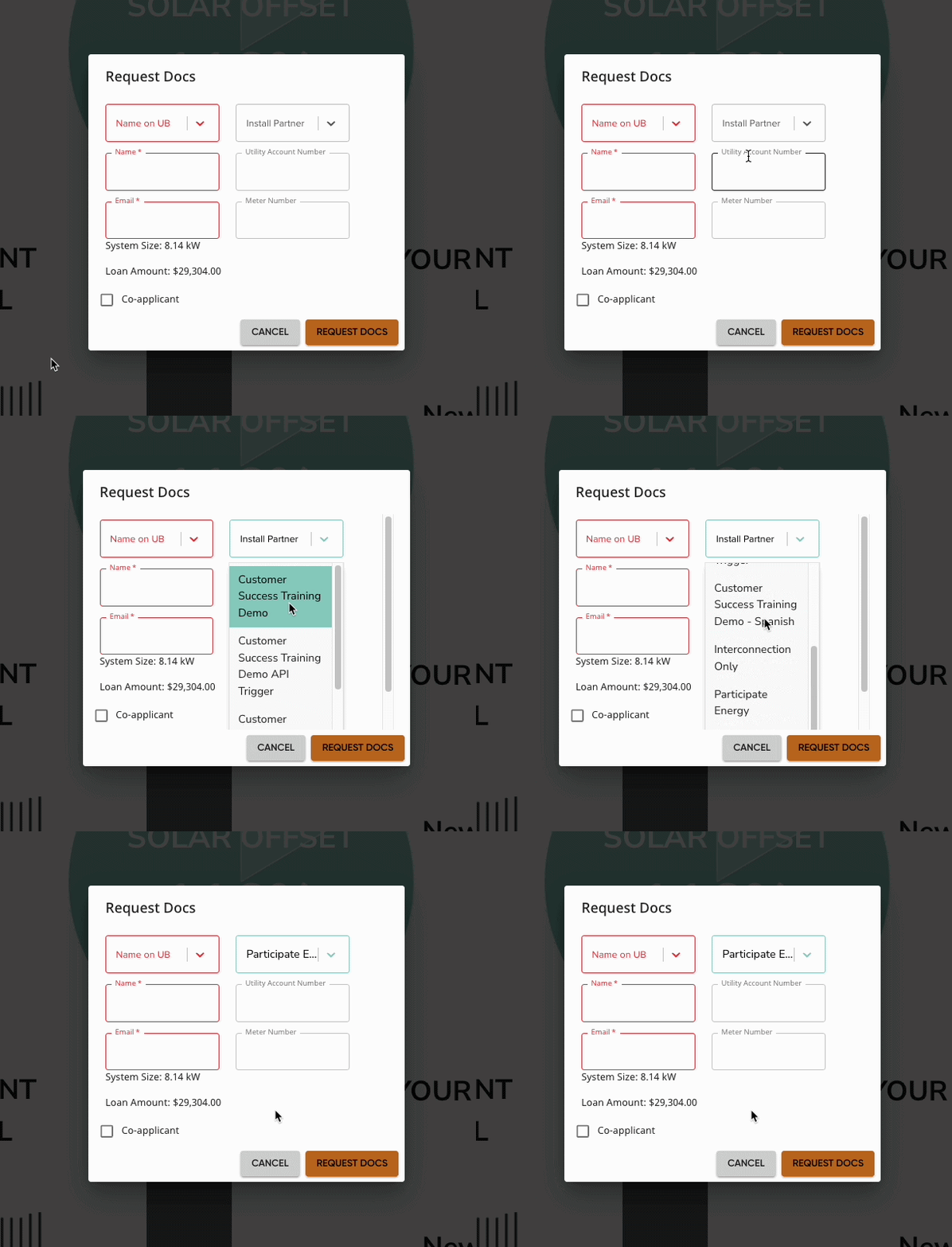
- Fill out the rest of the document request and submit for documents to be sent.
- Sign all Participate documents before moving on to the next steps.
Switch to the Lender and Send Second Documents
- On the finance page, change the selected finance option to the desired lending partner option.
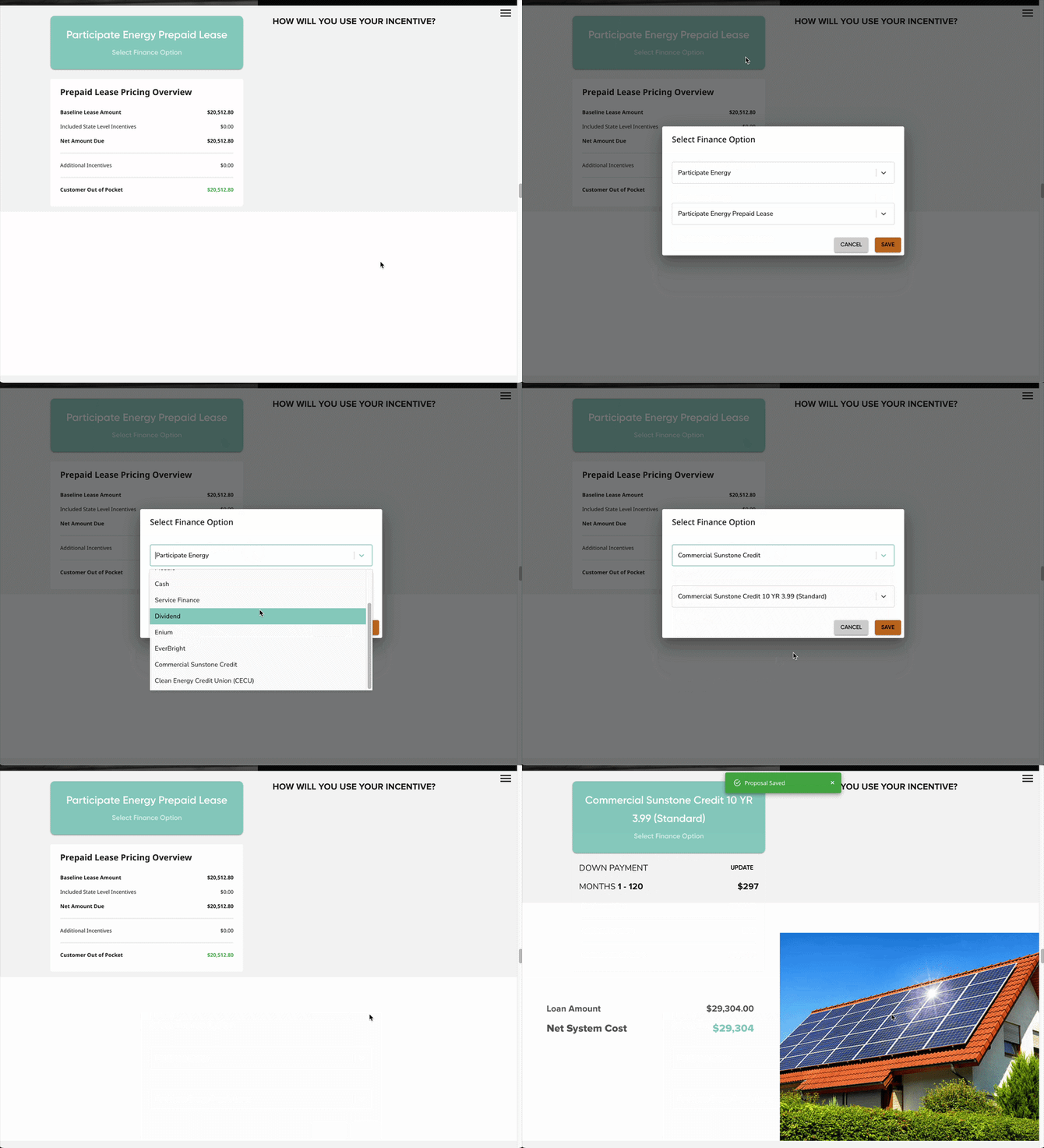
- This will populate the Participate Energy incentive option.
- Select the incentive to apply the 30% discount to the financing.
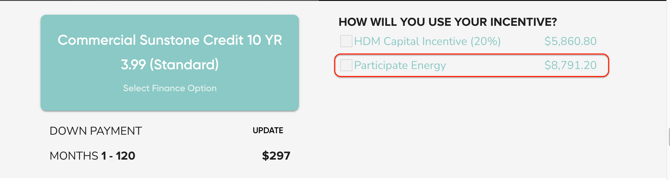
- Optional: Send any necessary install documents, as normal.
- This is dependent on your company's processes, if you're unsure if docs are needed, please reach out to your manager.
Qualify with the Lender
- Click the Qualify button for the lender's finance option. This will redirect you to the lender's application URL.
- If you're not seeing a Qualify button, please reach out to an admin or owner.
- If this is a non-integrated option, the qualify button can be added via portal link. Learn more HERE.
- Complete the qualification process directly on the lender's platform.