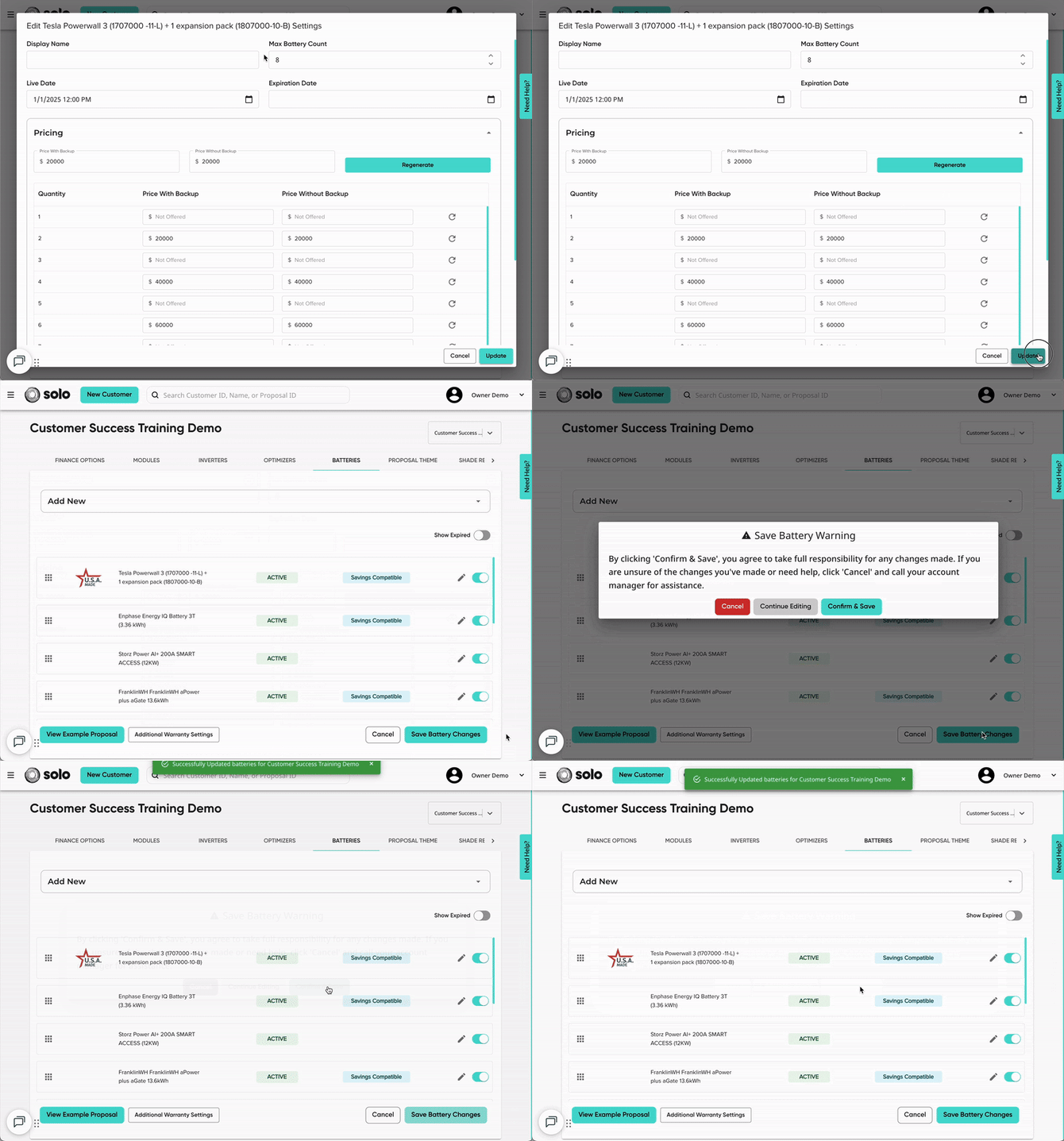
Promotional pricing allows you to temporarily apply a pricing matrix that is different from the battery's default pricing. This means you can set up pricing to only apply between two dates, for when you're running sales, temporary price increases, temporary discounts, etc.
To set up promotion pricing for your batteries, follow these steps:
- In MissionControl, navigate to the 'Batteries' section.

- Open the editor for the battery you'd like to apply promotion pricing to.
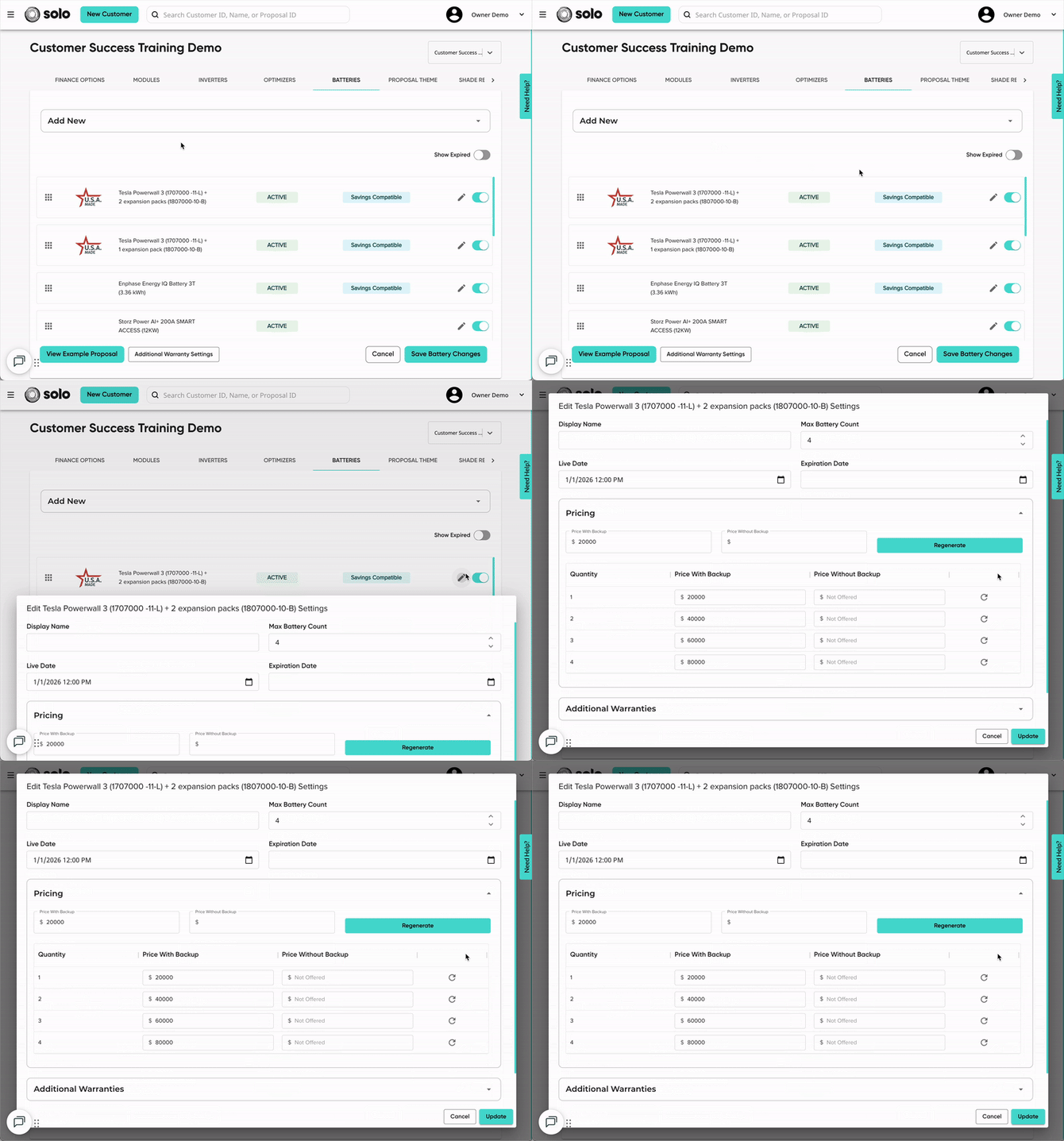
- Open the 'Promotion Pricing' dropdown.
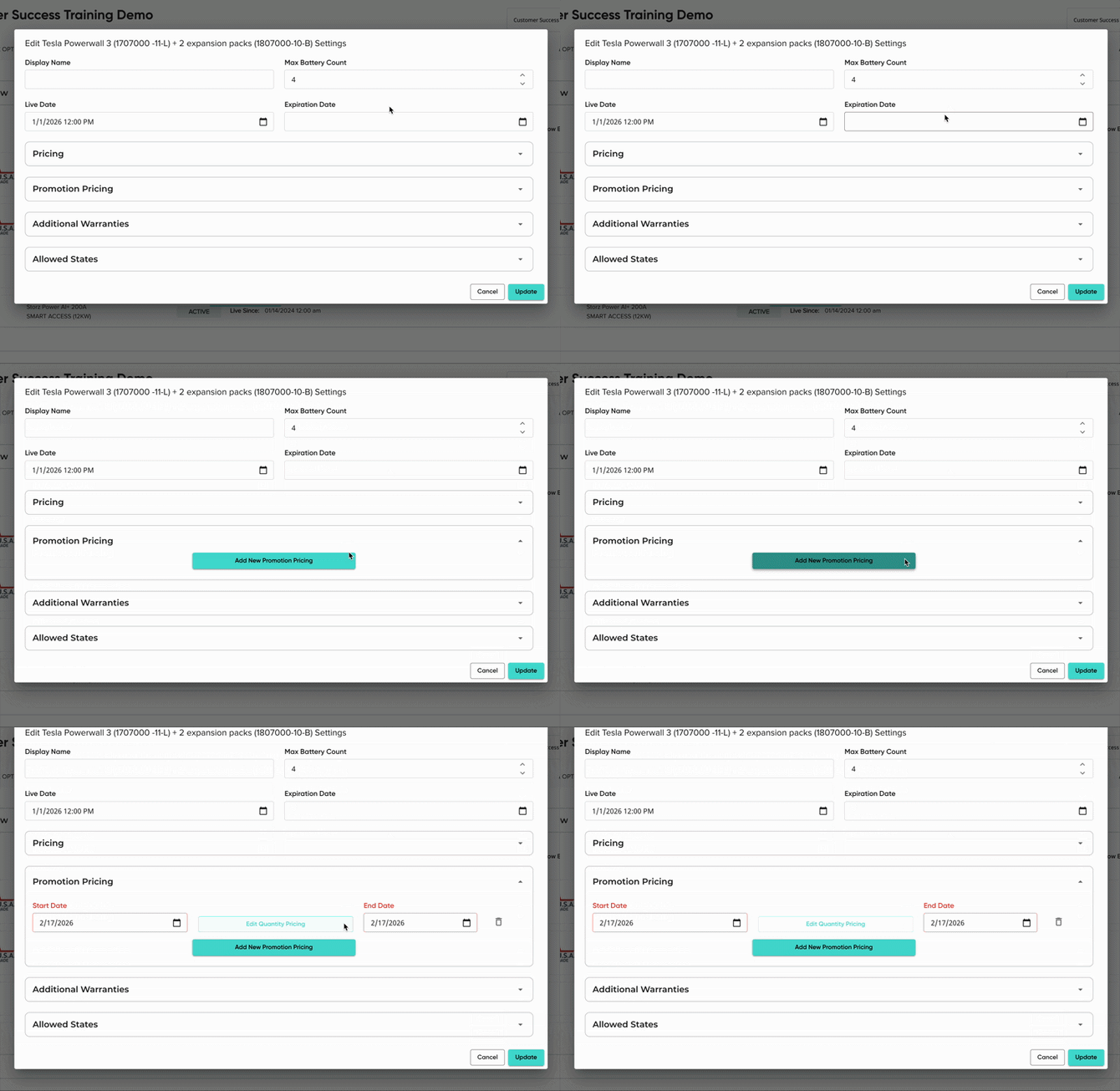
- Click 'Add Promotion Pricing'.
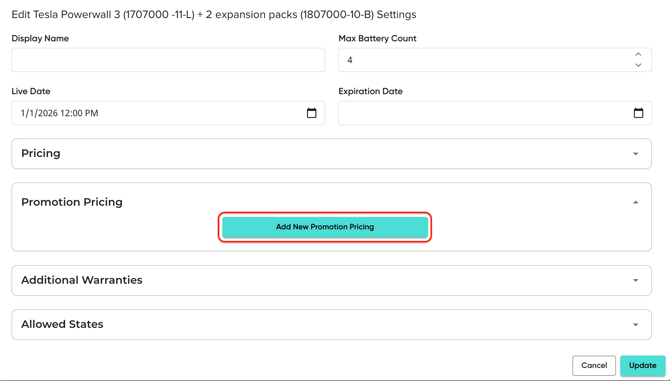
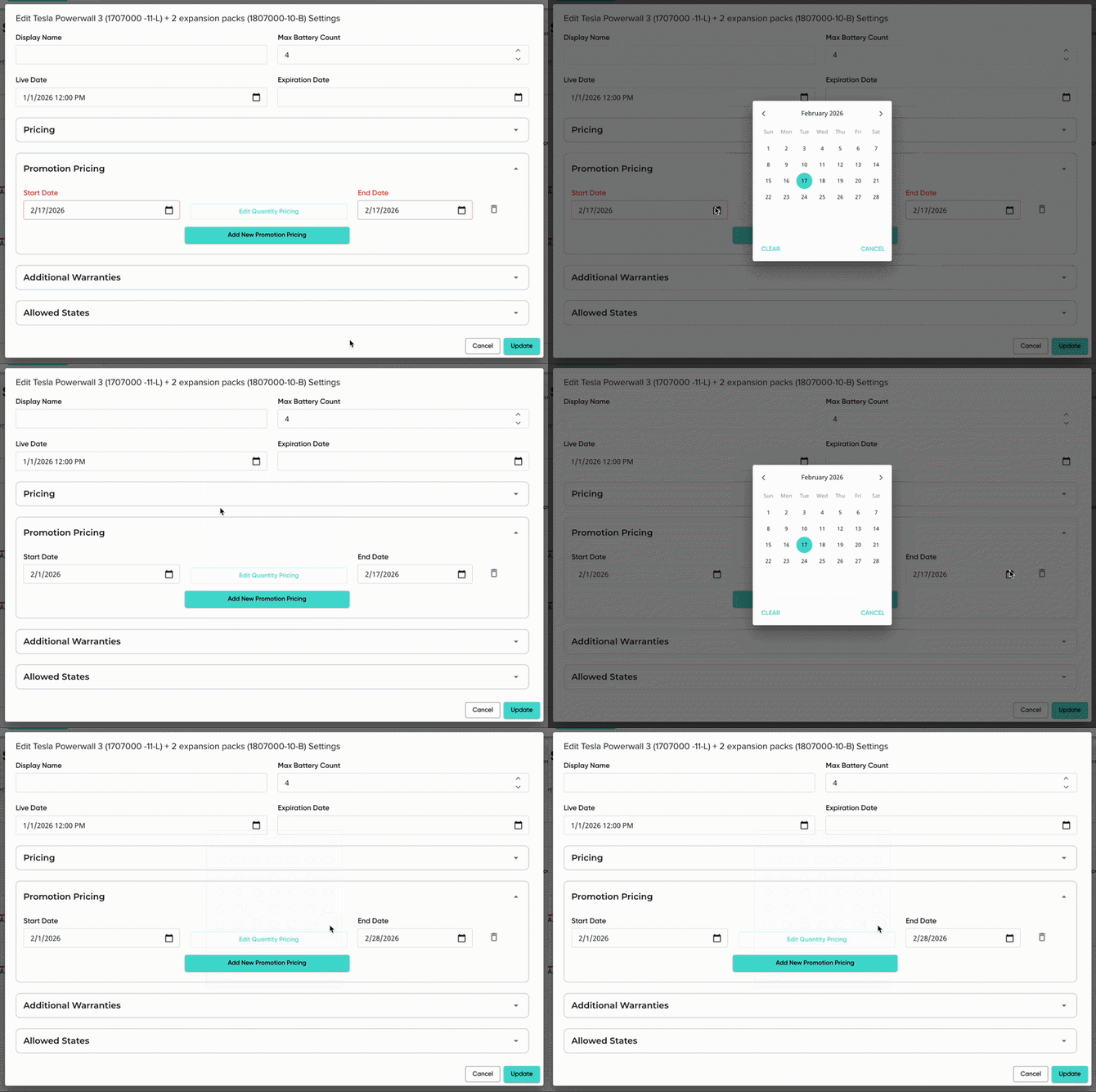
- Enter the 'Start Date' and 'End Date'. These will be the dates that the promotion pricing applies on proposals.
- Outside of these dates, the battery will use the default pricing, as listed in the 'Pricing' dropdown.
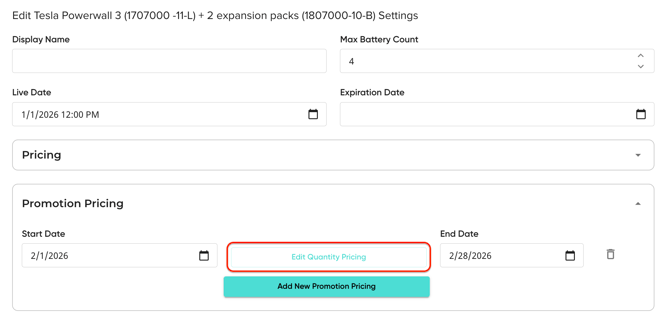
- Click 'Edit Quantity Pricing' to begin adding pricing for the promotional period.
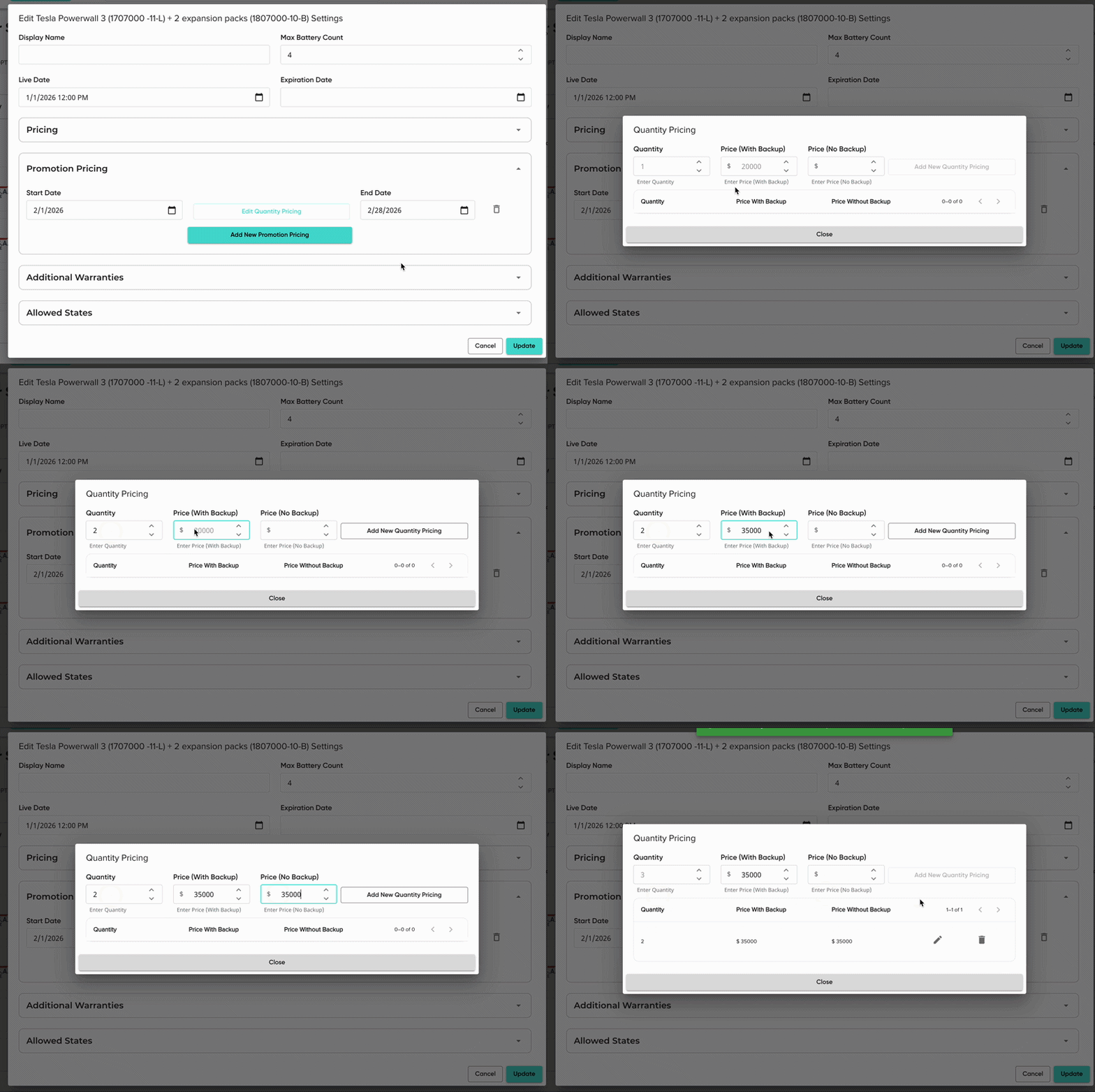
- For each battery quantity, add the Quantity and the associated pricing, both With Backup and No Backup as needed. Then click 'Add New Quantity Pricing'.
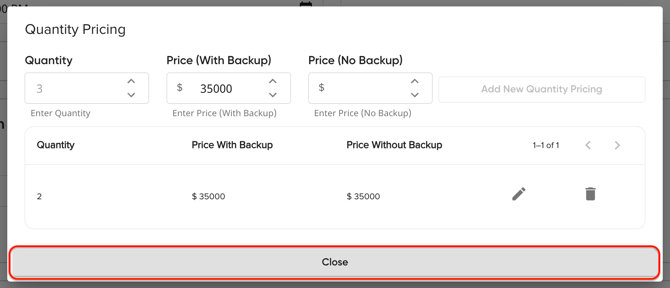
- Once all of your pricing is added, click 'Close'.
- 'Update' the battery, then make sure to 'Save Battery Changes'!