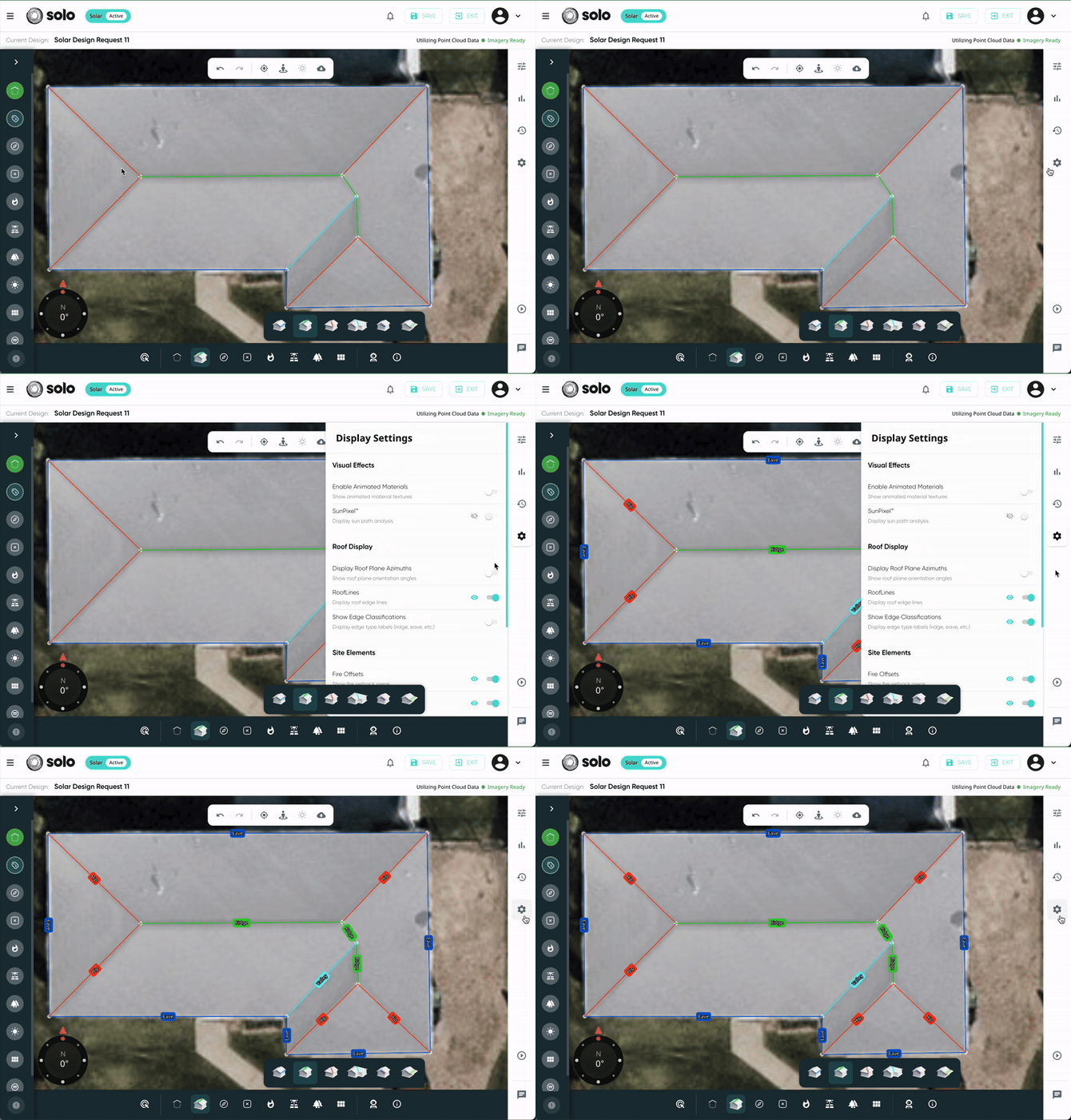
Step two of building your design in Solo Studio is to label each roofline. It is important that the rooflines are labeled correctly, as they are used to determine fire setbacks later in the design process.
After drawing the rooflines, our tool will run an automation to automatically label them with the following classification. Click the links below to learn more about each roof label:
Using the "Labels" tool, you're able to make adjustments to these labels, as needed. Just select the label you'd like to use, then click the roofline you'd like to label!
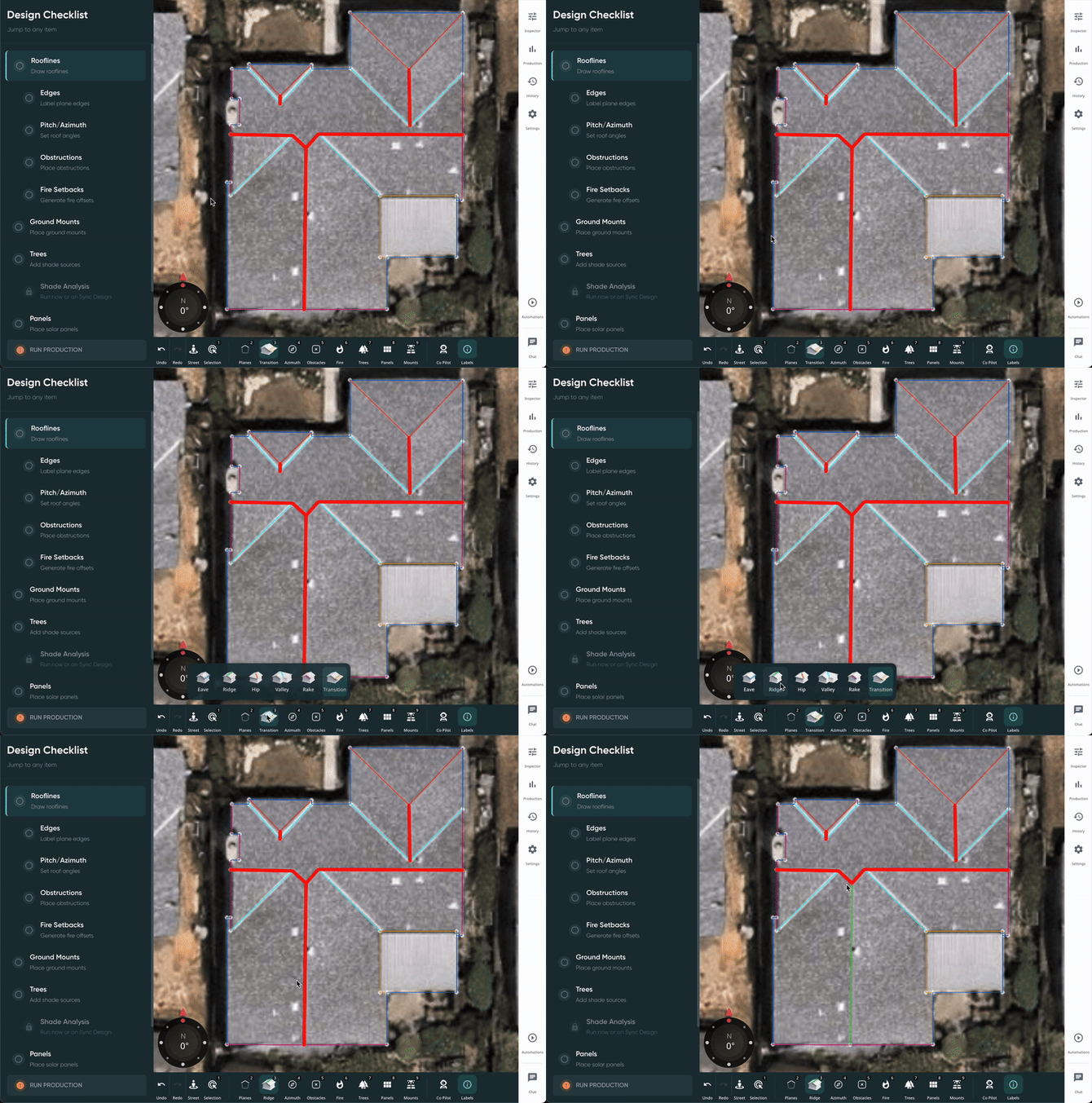
Before moving on, you must label all rooflines. Unlabeled rooflines will be highlighted in red.
Edge Labels Classifications
Eave
The eave is the part of the roof that meets or overhangs the walls of the home. In Solo, these will be labeled in a dark blue color. 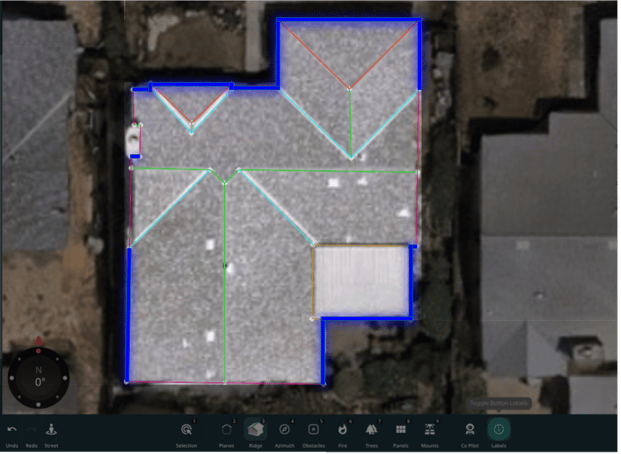
Ridge
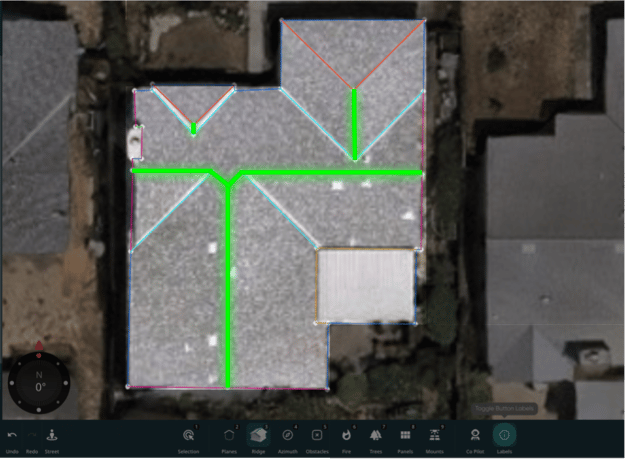
The ridge is the highest point of the roof, where two roof planes meet. In Solo, these lines are labeled in green.
Hip
A hipped roof is a type of roof where the sides slope downwards toward the walls. A hip is the external angle where those sloped sides meet. In Solo, these lines are labeled in orange.
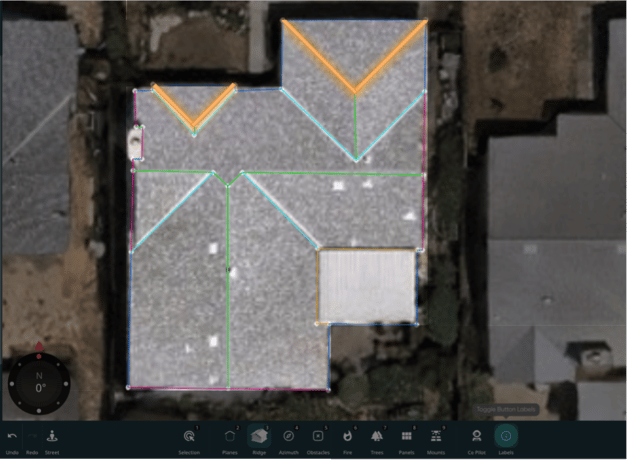
Valley
A valley is when two roof planes meet at a slope to form an interior angle. In Solo, these are labeled in light blue.
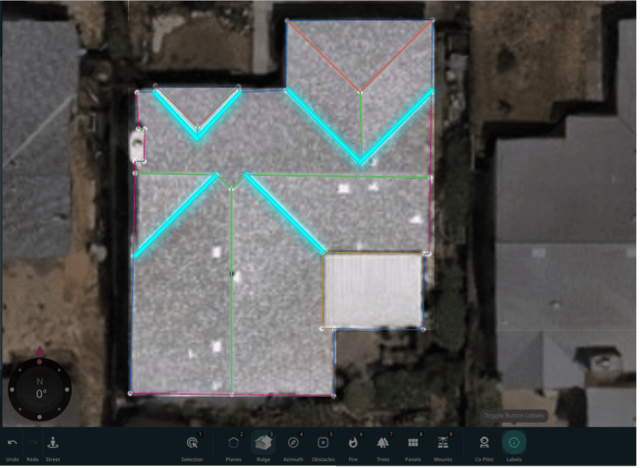
Rake
A rake is the angled edge of a roof that runs from the eave to the ridge. In Solo, these are labeled in magenta.
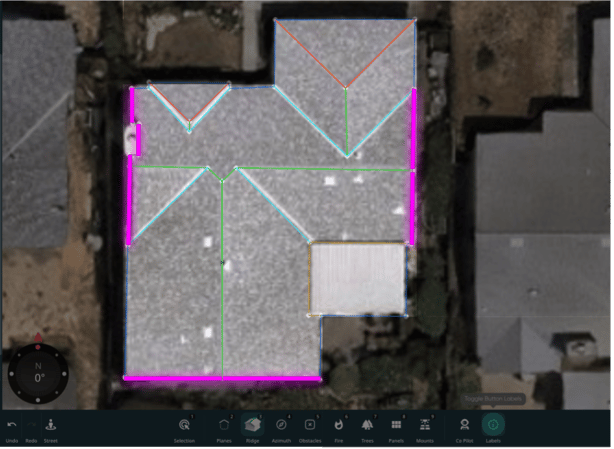
Transition
A transition is a part of the roof where two roof planes with differing pitches meet. For example, where a sloped roof meets a flat roof. In Solo, these are labeled in Yellow.
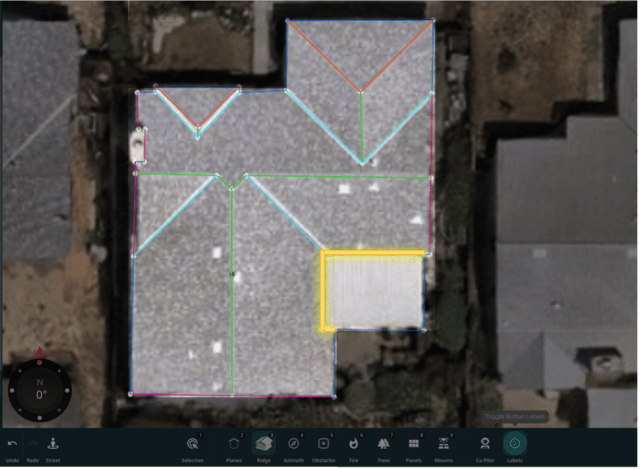
Tip: In settings there are 'Edge Classifications' which help you see more clearly which edge type your rooflines have been labeled as. This can be turned on or off in the settings, under 'Roof Display'.