
Before reviewing battery savings, double check that the correct post-solar utility rate is selected, to ensure accurate savings estimates. Learn more HERE!
On the Battery Optimization Hub page on the proposal, you're able to model energy savings, usage, and efficiency of the battery you've selected. Depending on how your customer is planning on using their battery, you can change the operation mode, which will change how the battery prioritizes charging and discharging.
To select the operation mode, open the page settings from the top toolbar:
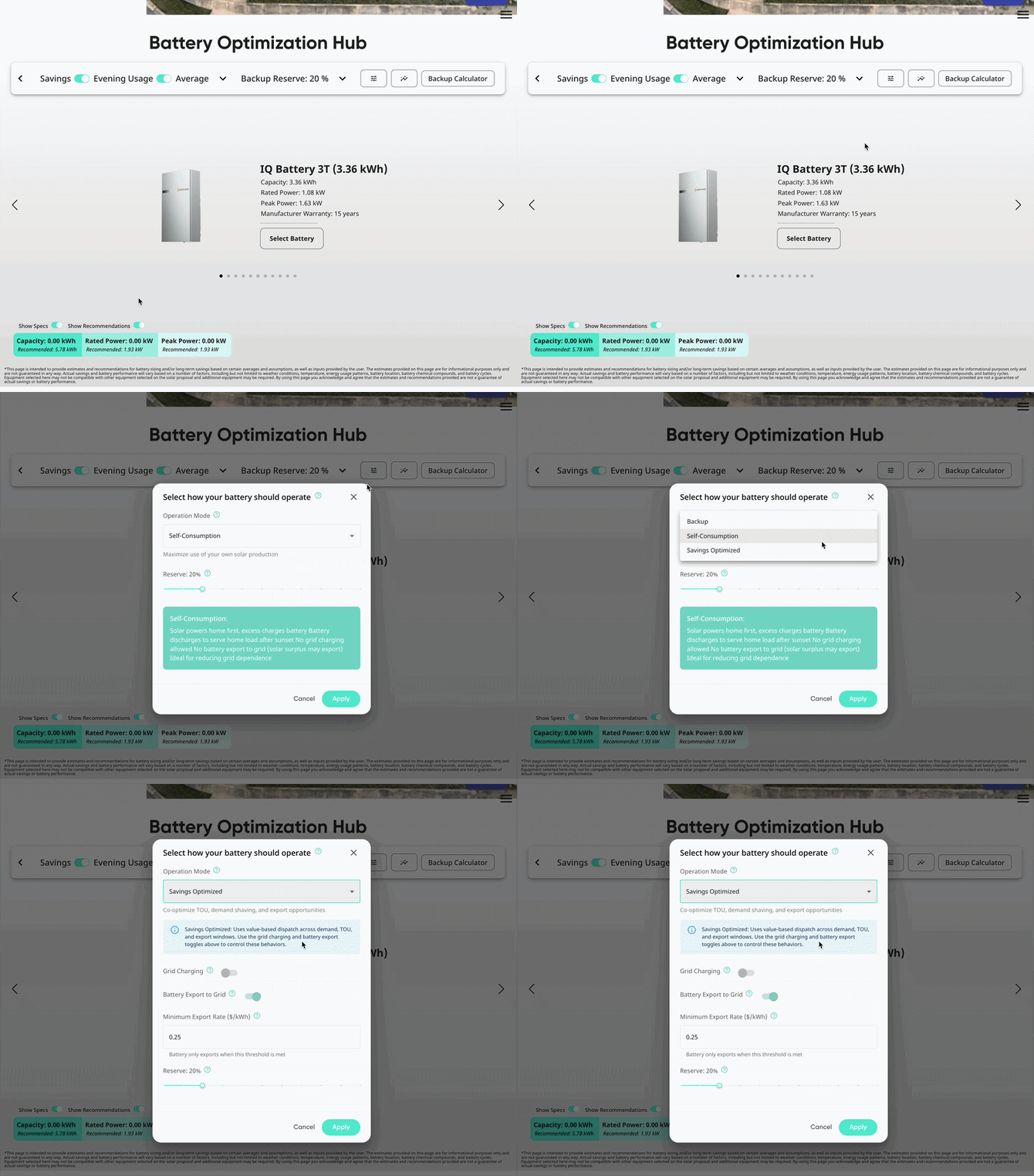
The modes available to you include:
Use the links above to jump to the relevant section to learn more about each mode.
✨ Savings Optimized
This mode uses value-based dispatch across demand, time-of-use, and export windows. Solo recommends using this mode as a primary mode if your customer is looking to lower demand charges, use less grid energy during high-cost hours, and take advantage of windows of higher export credits. This mode will look to optimize savings as much as possible for the customer, based on their utility rates.
In this mode, the battery will prioritize discharge during demand or peak hours, with the intention of lowering the amount of energy the customer is importing from the grid during those high-cost windows.
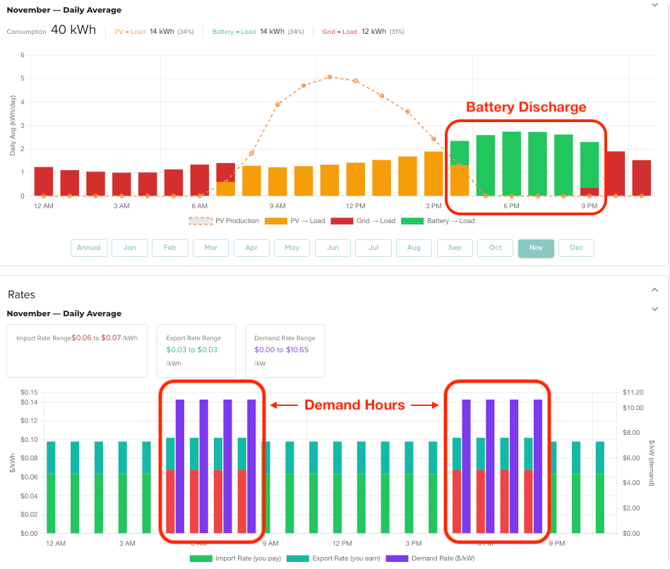
This mode will first target demand hours, prioritizing these times for battery discharge. If the rate plan has demand hours, you can view them on the 'Rates' graph. Demand hours will display in purple:
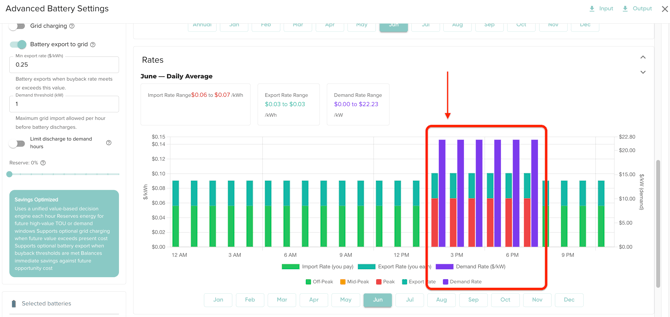
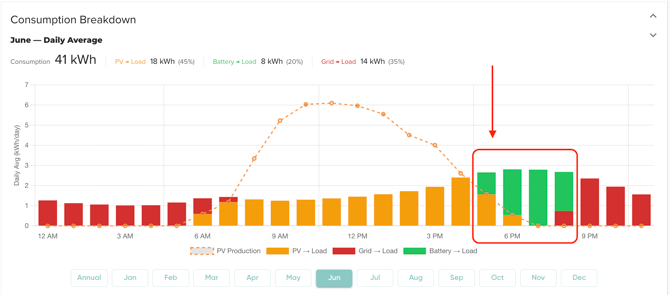
In the image below, you'll notice that the battery is being discharged during demand hours, covering the consumption that the solar could not. This will then reduce their demand charge:
Once demand hours are covered, or if no demand hours exist, the battery will prioritize Time-Of-Use peak hours. You can view the rate plan's peak, mid-peak, and off-peak hours on the 'Rates' graph:
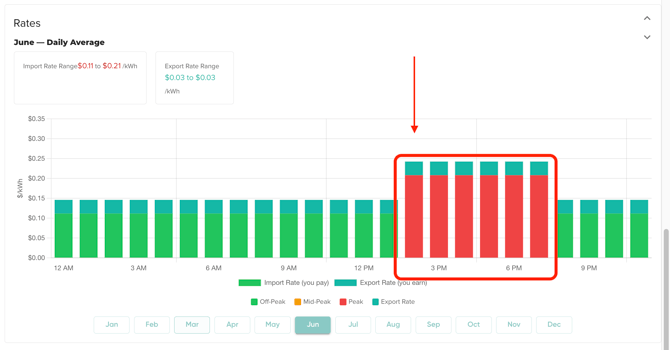
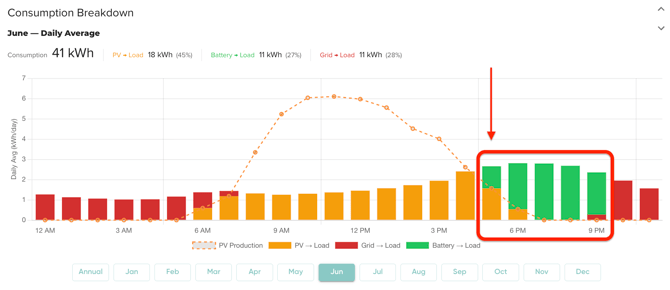
In the images above, the battery is being discharged during these peak hours to offset the high costs where solar could not, since no demand hours are present.
If Time-Of-Use hours are satisfied by the battery, it will discharge as if the mode is self-consumption. This means that it will discharge after sunset, to reduce dependency on the grid during those hours. This will only happen in savings optimized mode if demand hours and TOU peak hours don't exist or are already covered by battery discharge.
Key takeaways:
-
Savings Optimized will prioritize battery discharge during high-cost windows like demand hours or peak TOU hours.
- The battery discharge targeting hierarchy is as follows:
- Demand Hours → Time-of-Use Peak Hours → self-consumption
- This mode is operating to optimize savings for the customer, to determine the highest value of the battery with the customer's utility rate plans.
- Additional settings can be configured to customize battery savings and estimates to your customer's needs. These are listed below.
Customizable Settings for Savings Optimized
Grid Charging
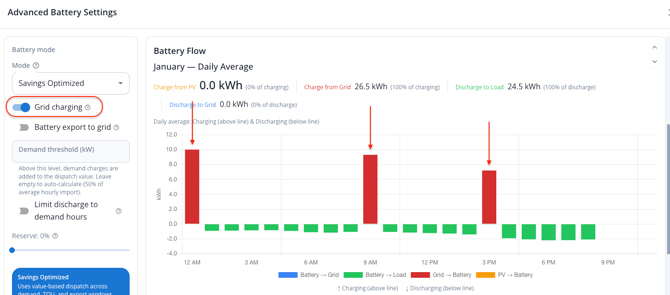
Toggling this on will allow the battery to be charged by the grid.
Keep in mind that this will not show the battery as constantly being charged from grid imports. Instead, the battery will only be charged by the grid during the lowest cost hours of the night, and only when it is needed to satisfy the battery's goals (to reduce grid imports during demand or high-cost windows).
The battery will never be charged from the grid during demand hours.
Battery Export to Grid
Toggling this on will allow the battery to export energy to the grid when profitable. This will reference the 'Min. Export Rate' to determine when the battery should export energy to the grid.
This setting does not affect solar exporting.
Min. Export Rate ($/kWh)
This setting will default to $0.25 and will only be available if 'Battery Export to Grid' is toggled on.
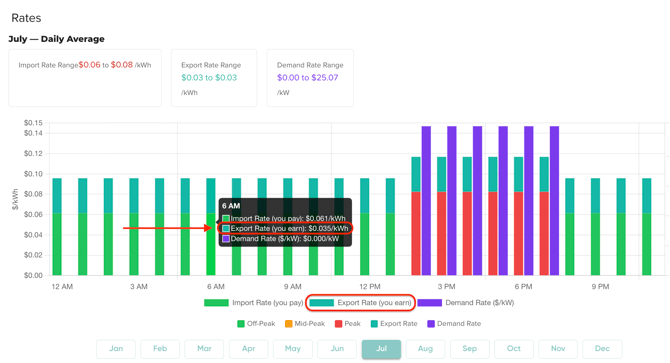
This value refers to the minimum buyback rate that the battery exports at. If the utility's energy buyback rate is lower than the value added in this field, the page will not show the battery exporting during those times.
For example, if this value is set at $0.25/kWh, the battery will only export energy to the grid during hours where the utility's export rate is $0.25 or higher.
Utility export rates can be viewed on the 'Rates' graph:
This setting does not affect solar exporting.
Demand Threshold
This setting will only appear if the selected rate plan uses demand charges.
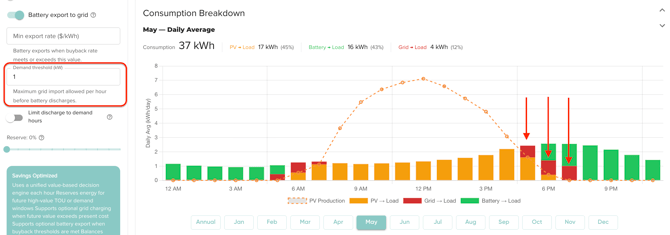
This value will control the amount of energy (in kW) that the customer will import from the grid each hour before the battery begins discharging, specifically during demand windows.
Suppose you enter 2kW for this field. For each hour within the demand window, the battery would only begin discharging once the customer had used 2kW from the grid. If that threshold is not hit, then the battery would not discharge that hour.
Limit Discharge to Demand Hours
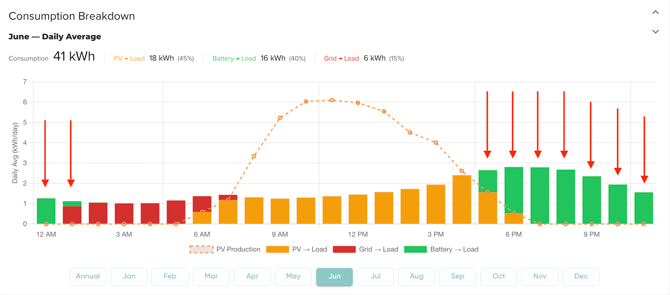
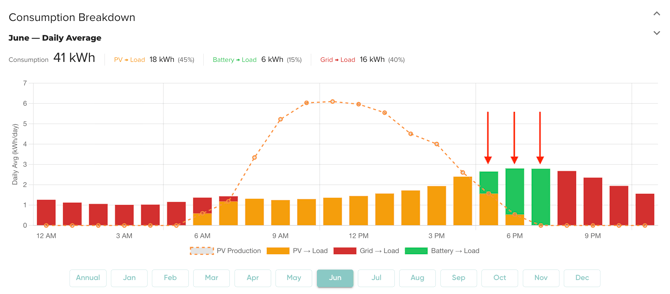
Toggling this on will prevent the battery from discharging during non-demand hours. You would only see Battery → Load values during the rate plan's set demand hours. Battery capacity not used during demand hours would either be exported to the grid (if allowed, and if rates exceed min. export rate) or remain in reserve.
With this setting off:
With this setting on:
Want to learn more about demand charges? Refer to our Demand Charges article!
Reserve %
The 'Reserve' setting will also be available while using Savings Optimized. This value refers to the percentage of battery capacity that the customer would like to hold for backup. When used with this mode, estimations will be using only the remaining, non-reserve capacity.
For example, if reserve is 20%, then estimations will be based off of 80% of the battery's capacity.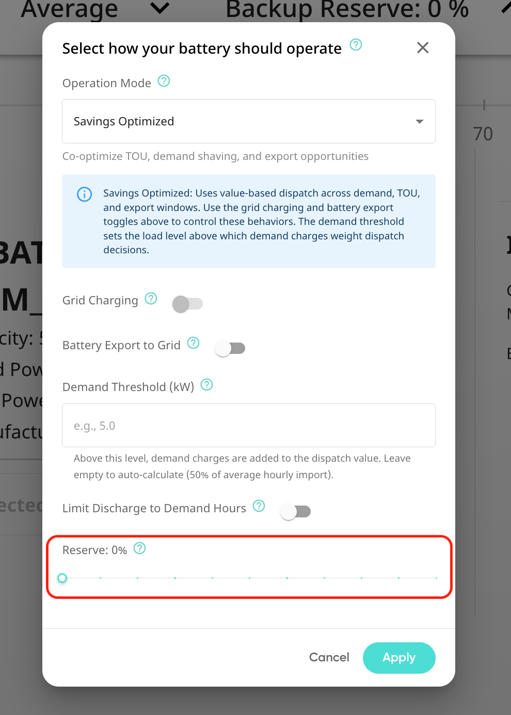
🏡 Self-Consumption
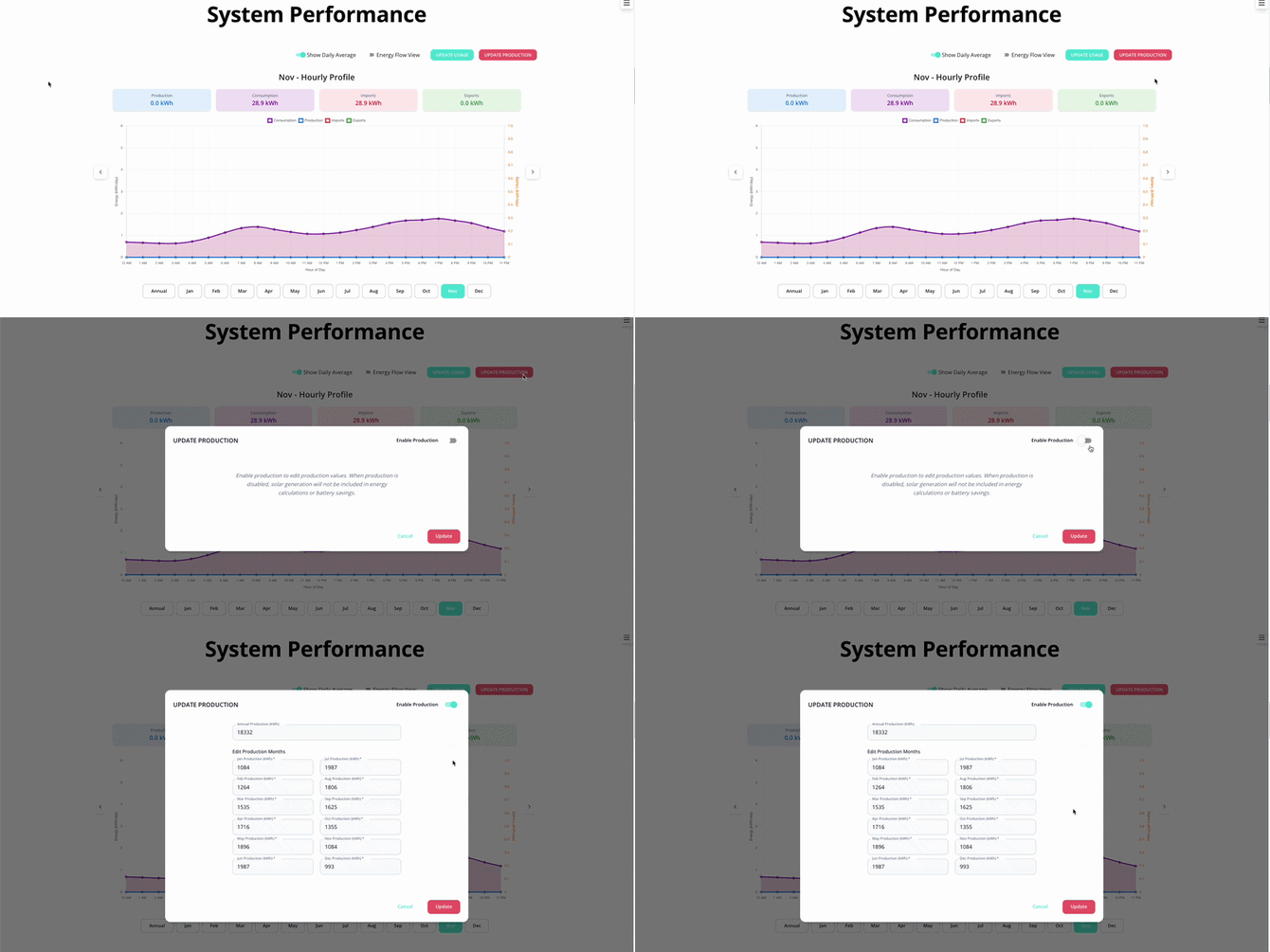
For battery-only proposals: if your customer has an existing solar system, you can input the production for that system on the Graph page. This will help ensure the estimations in this mode are accurate to your customer's consumption and production:
This mode is ideal for customers who want to reduce their dependency on the grid. In this mode, the battery will discharge as much as it can to the home after sunset, and will not prioritize demand or TOU peak hours.
The battery will be charged by excess solar energy. Grid charging will not be allowed, and the battery will not export to the grid:
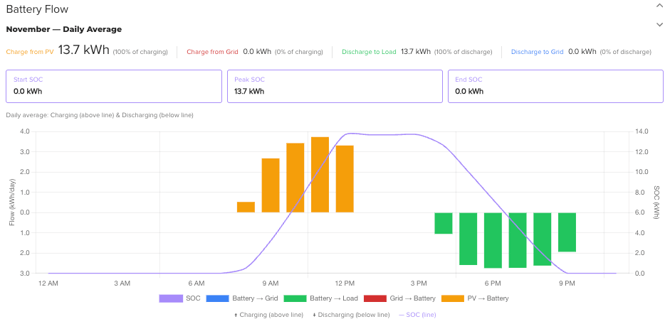
Solar will power the home first, then excess solar will charge the battery, then any energy left will be exported to the grid.
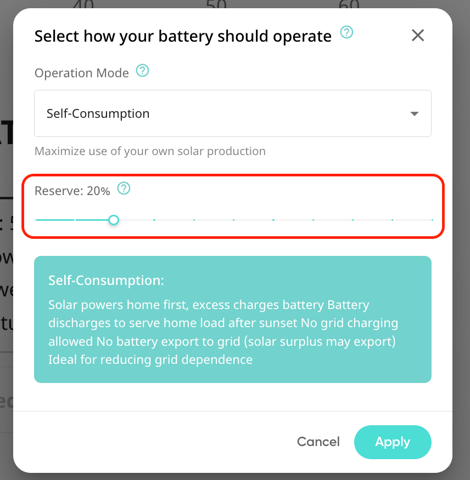
The 'Reserve' setting will also be available while using Self-Consumption. This value refers to the percentage of battery capacity that the customer would like to hold for backup. When used with this mode, estimations will be using only the remaining, non-reserve capacity.
For example, if reserve is 20%, then estimations will be based off of 80% of the battery's capacity.
Key Takeaways:
-
Self-Consumption prioritizes discharging the battery after sunset to reduce grid dependency, rather than focusing on demand or TOU peak hours.
- Grid charging is not allowed with this mode. The battery will be charged by excess solar.
- When solar production is modeled with the battery, it will follow this flow:
- Power the home → Charge the battery → Export to grid
🔋 Backup
This mode is only available if the selected battery allows battery backup.
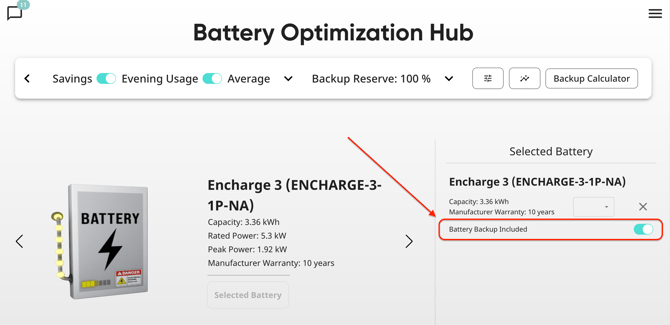
In this mode, the customer's battery is only used for grid outages. This mode will not calculate or display any discharge optimization or utility bill impact, like it would with savings optimized or self-consumption.
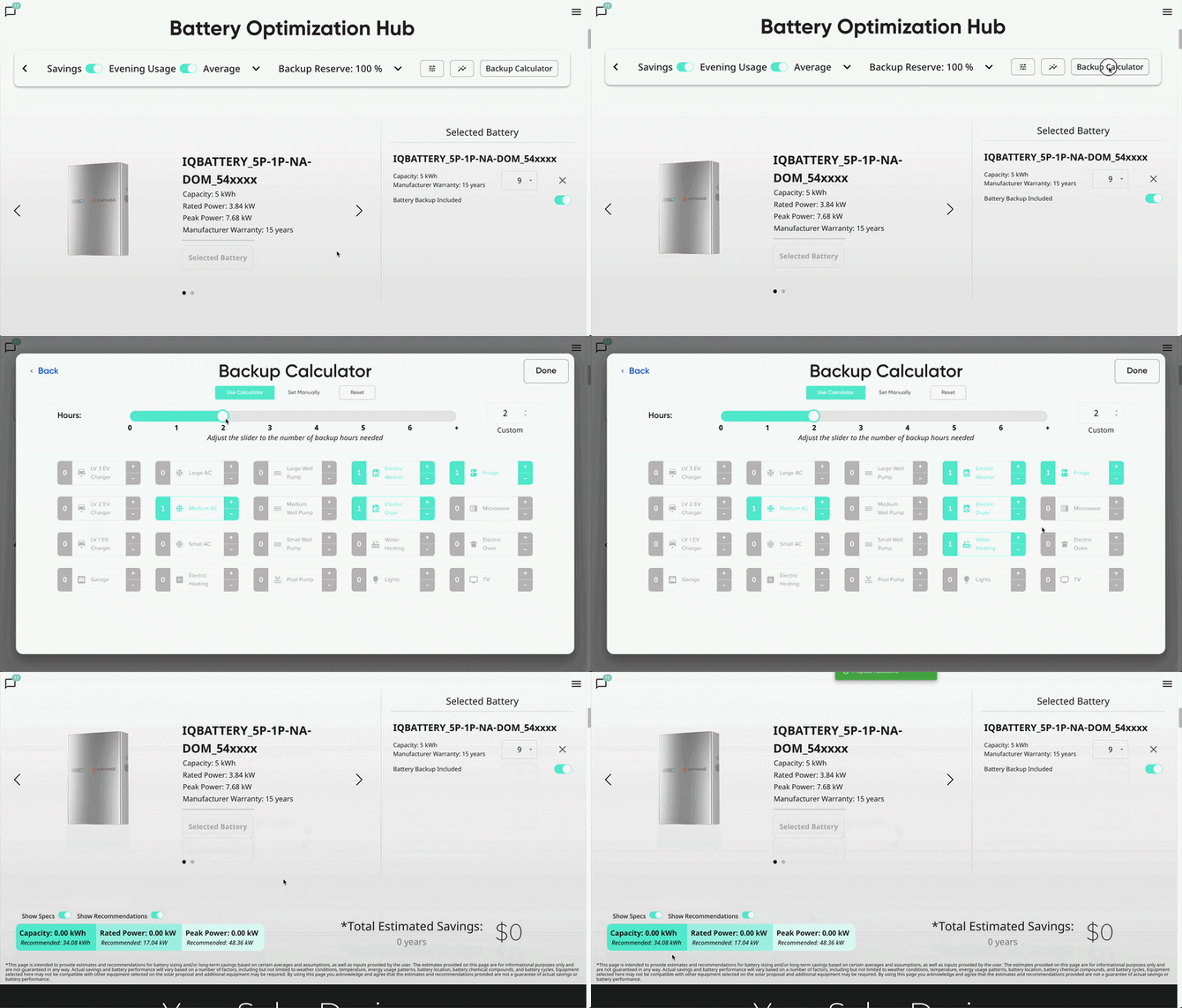
With this mode you can use the Backup Calculator to select the number of backup hours your customer needs and what appliances should have access to power during outages.
Based off of these selections, you'll be given a recommended capacity to help you select the best battery for your customer.
Reserve %
This value refers to the percentage of battery capacity that the customer would like to hold for backup. In backup mode, this will default to 100% but can be adjusted on the page's toolbar:
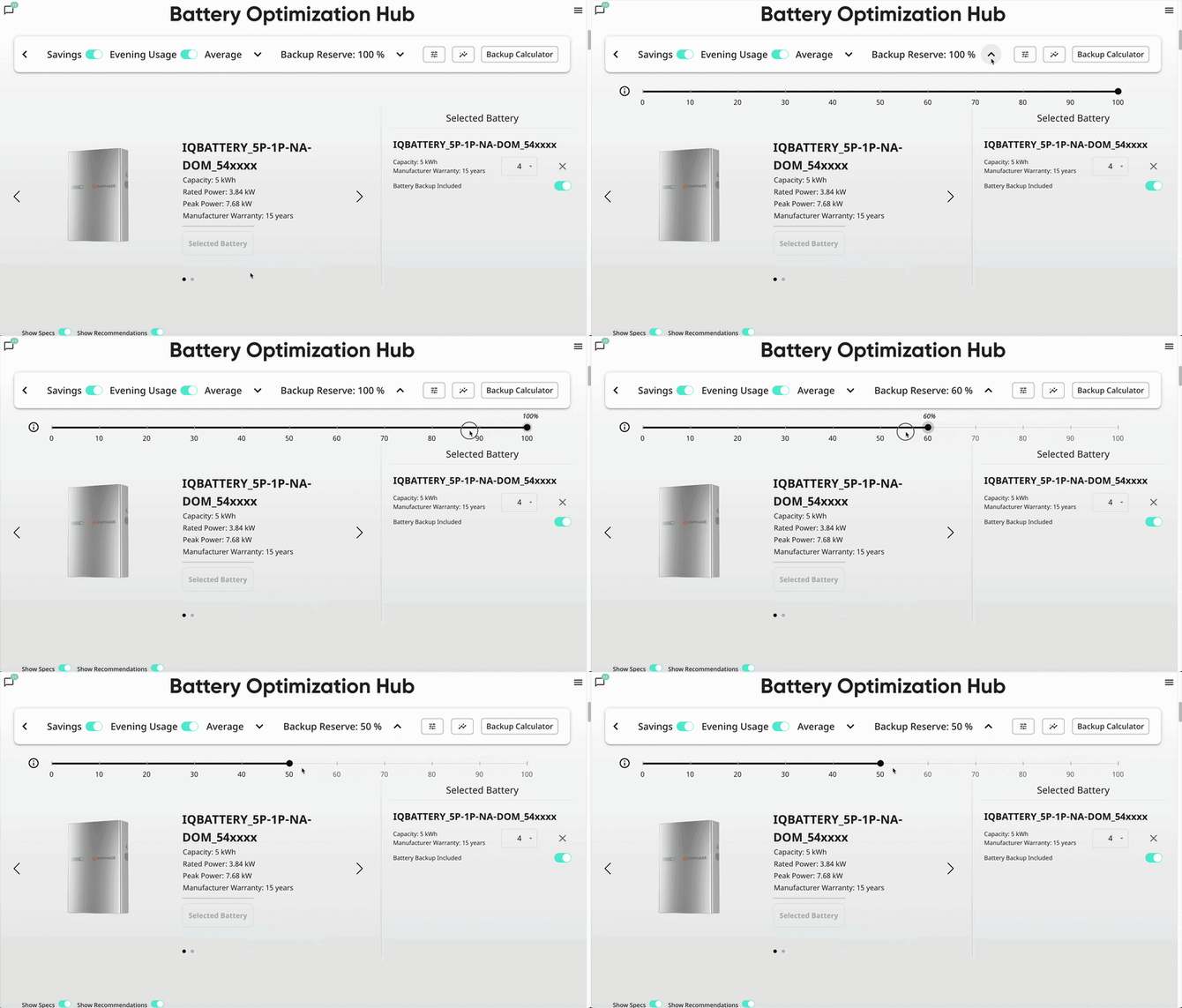
For example, if this is set at 20% for a 10kW battery, then the reserve would be 2kW (0.2 x 10 = 2). This means that 2kW of that battery capacity will not be considered in daily discharge breakdowns. Instead, it will be considered in reserve, to be used in situations like a grid outage.
The reserve % will persist even if you are not using the backup mode. If you're using the Savings Optimized or Self-Consumption modes, those estimations will be using only the battery capacity that is not set for reserve.
Key Takeaways:
-
Backup mode is for customers who only want to use their battery as backup, to be available during outages.
- This is only available when the selected battery allows backup.
- Use the backup calculator to determine a recommended battery capacity for your customer's needs.
- A portion of battery capacity can be set for reserve while using other battery modes (Savings Optimized and Self-Consumption).