
Currently, information updated on this page will only affect FUTURE proposals. It will not retroactively update existing proposals.*
* The utility & rate selection fields will affect existing proposals.
This article covers changing your customer's utility information from the customer page. To learn more about updating this information from within the proposal, see the following articles:
In this article
- Uploading a Utility Bill
- Changing the Utility and Rate Plans
- Updating a Customer's Usage and Billing Data
- Using the kWh Graph Tool
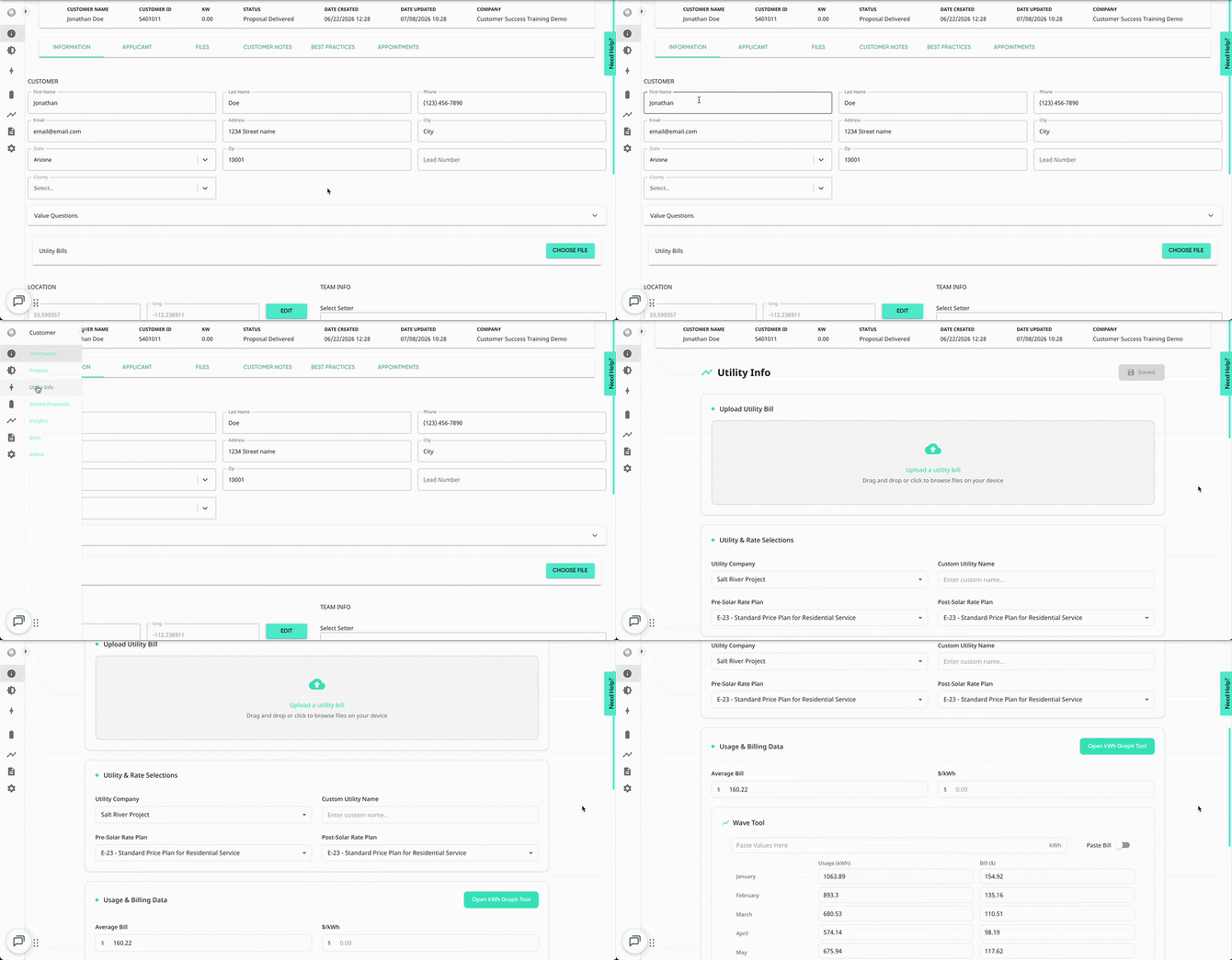
Your customer's utility information can be found in the 'Utility Info' tab of the customer page:
Uploading a Utility Bill
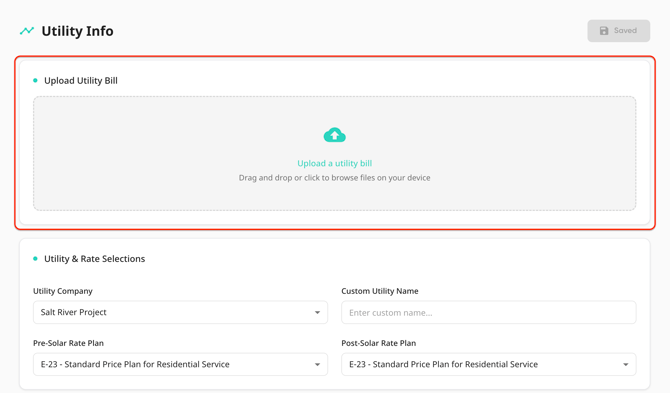
In the Utility Info tab, you're able to upload an image of the utility bill which can be used by the Solo design team to determine your customer's energy usage. These can be uploaded from your device by clicking the box:
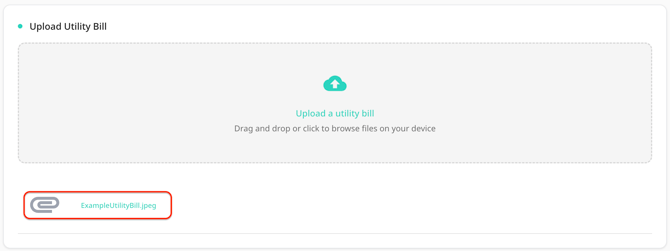
Once the utility bill is uploaded, it will appear on this page and in your customer files.
Changing the Utility Company and Rate Plans
The utility company selected for your customer will change what savings and rates you see on the proposal. To make changes to these selections, follow these steps:
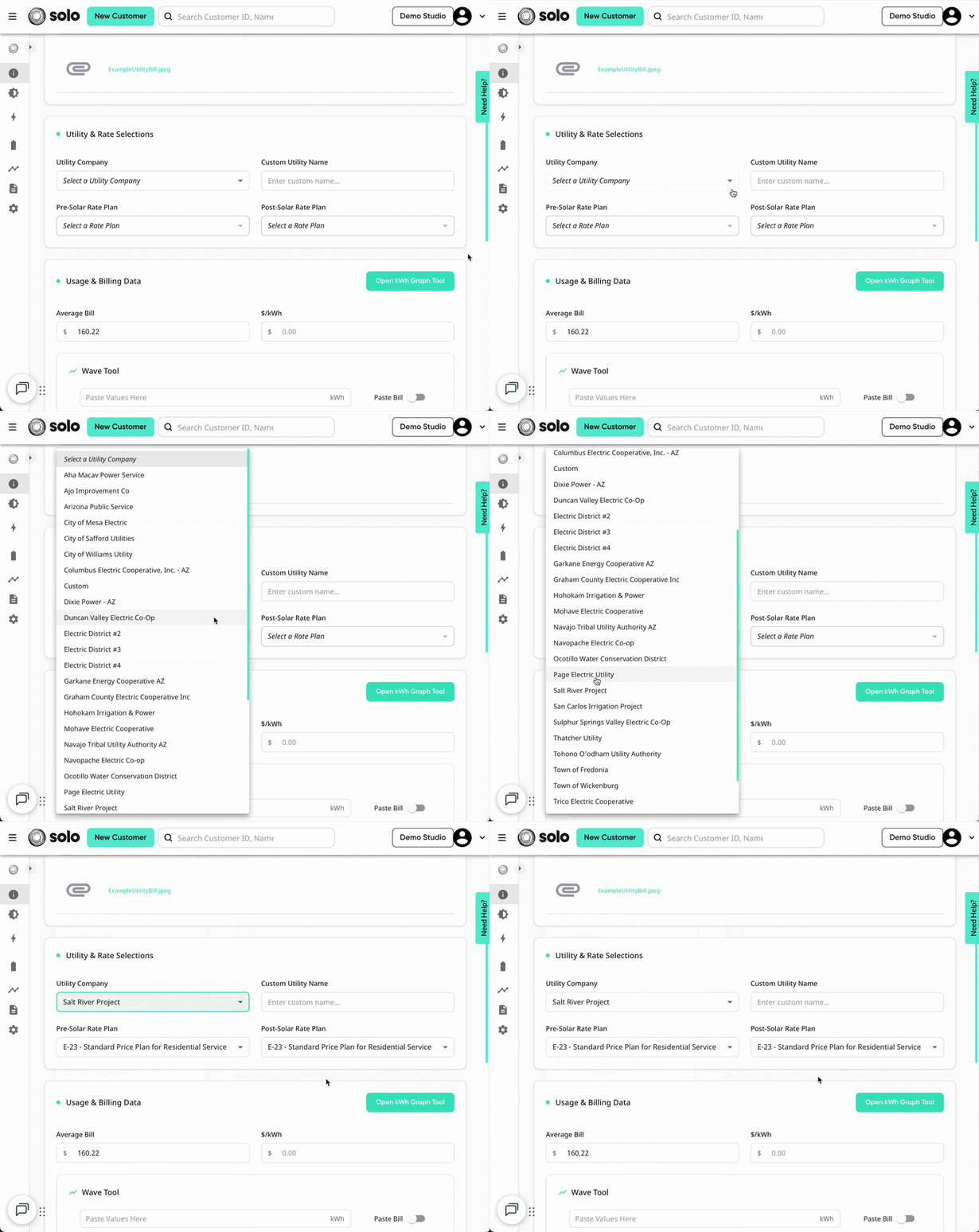
- Scroll down to the 'Utility & Rate Selections' section of the Utility Info tab.
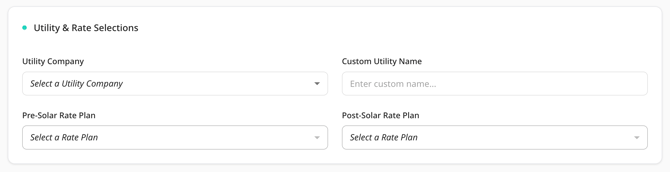
- In the 'Utility Company' dropdown, select which company your customer uses.
- These options are state specific, please ensure your customer's state is set correctly before selecting/changing the utility company.
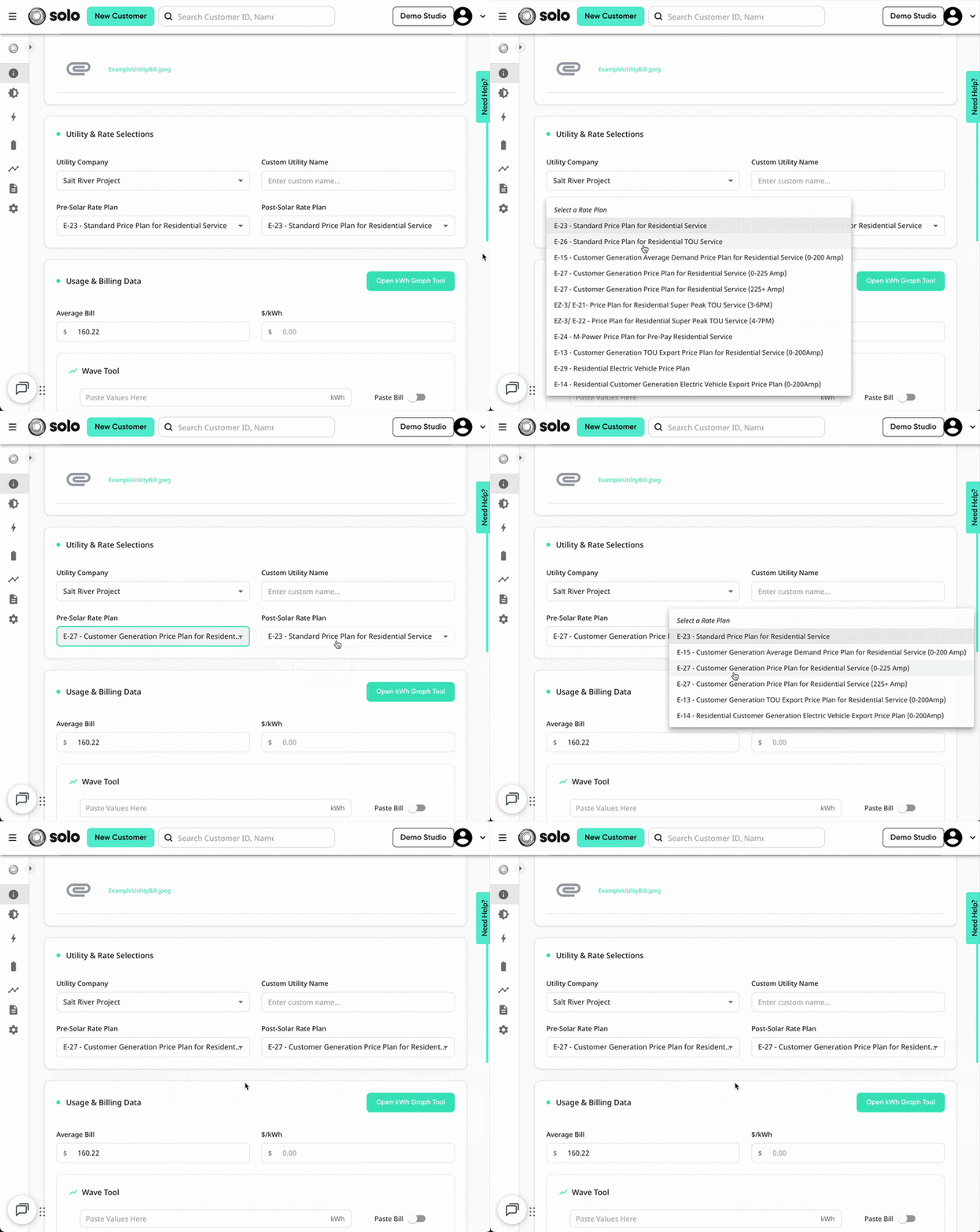
- Once the utility company is selected, choose the customer's pre-solar and post-solar rate plans.
- These can be changed on the proposal as well, see this article here.
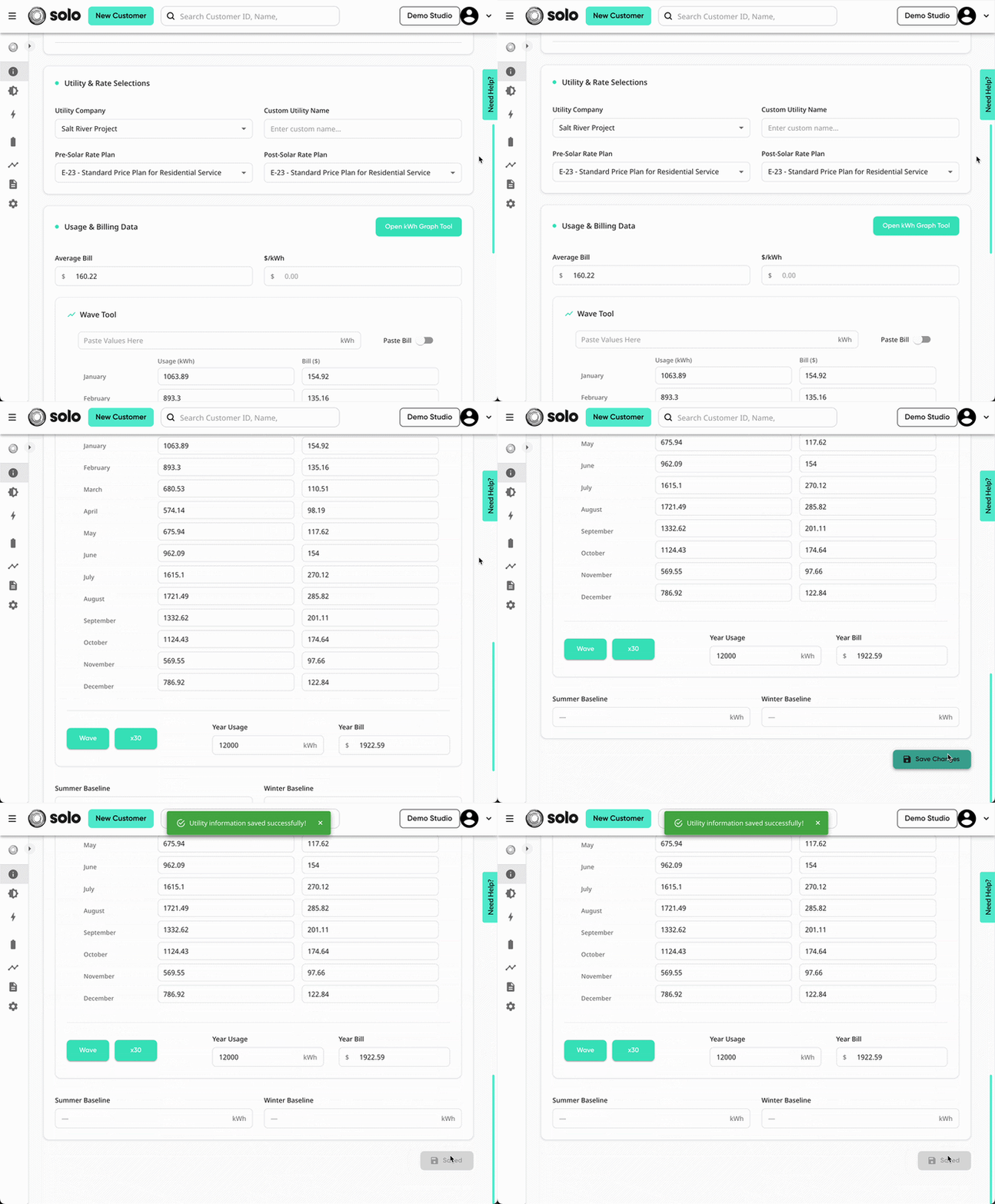
- Scroll down and click 'Save Changes'.
If you do not see the utility company you’re looking for, please reach out to our Utility Research Department at utilityresearch@gosolo.io.
Updating a Customer's Usage and Billing Data
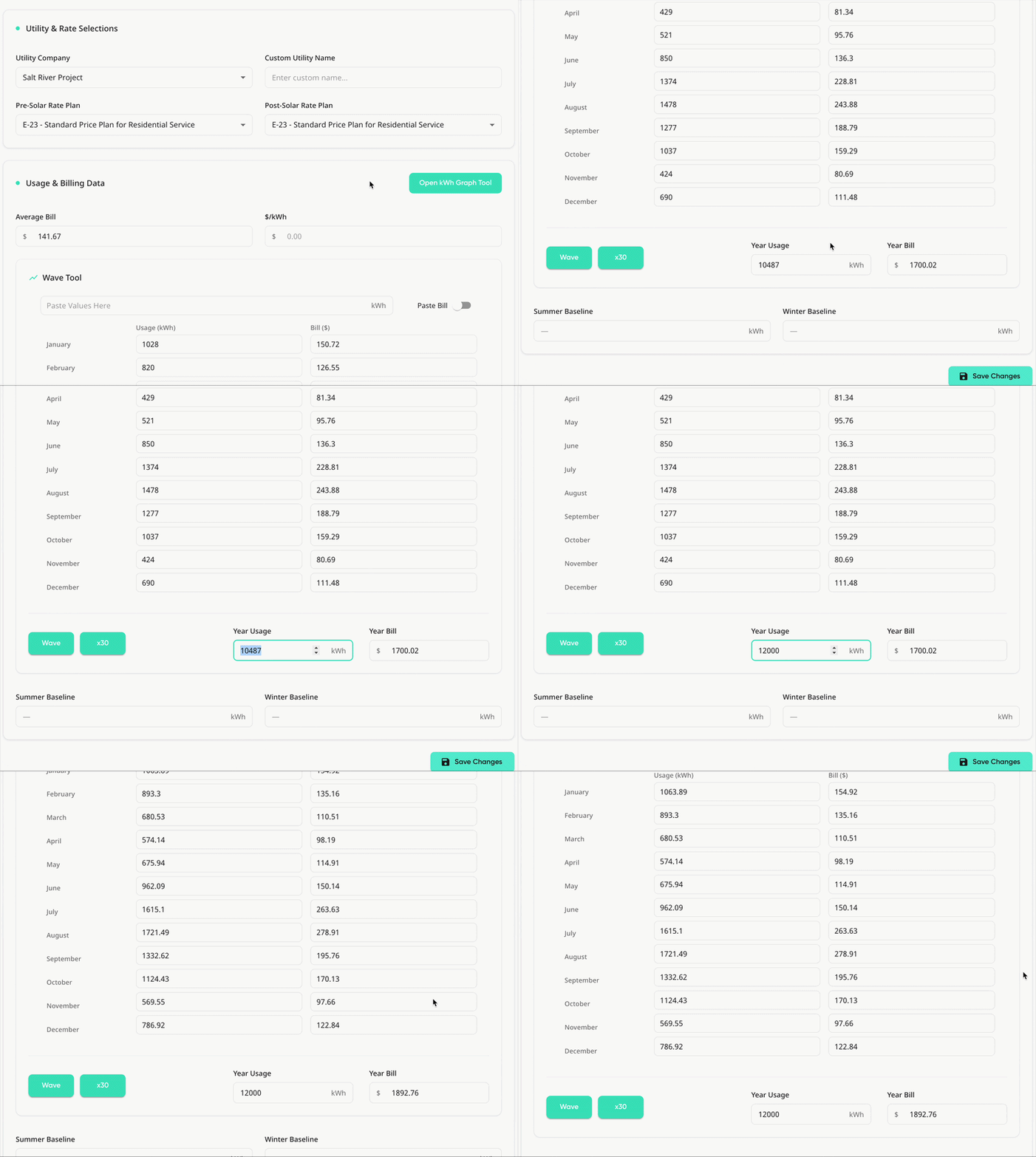
On the Utility Info tab there are a few ways you're able to update your customer's usage. Updating one field will automatically calculate the others, making it easy to update your customer's consumption information with any type of data the homeowner or utility company provide. This includes the following fields:
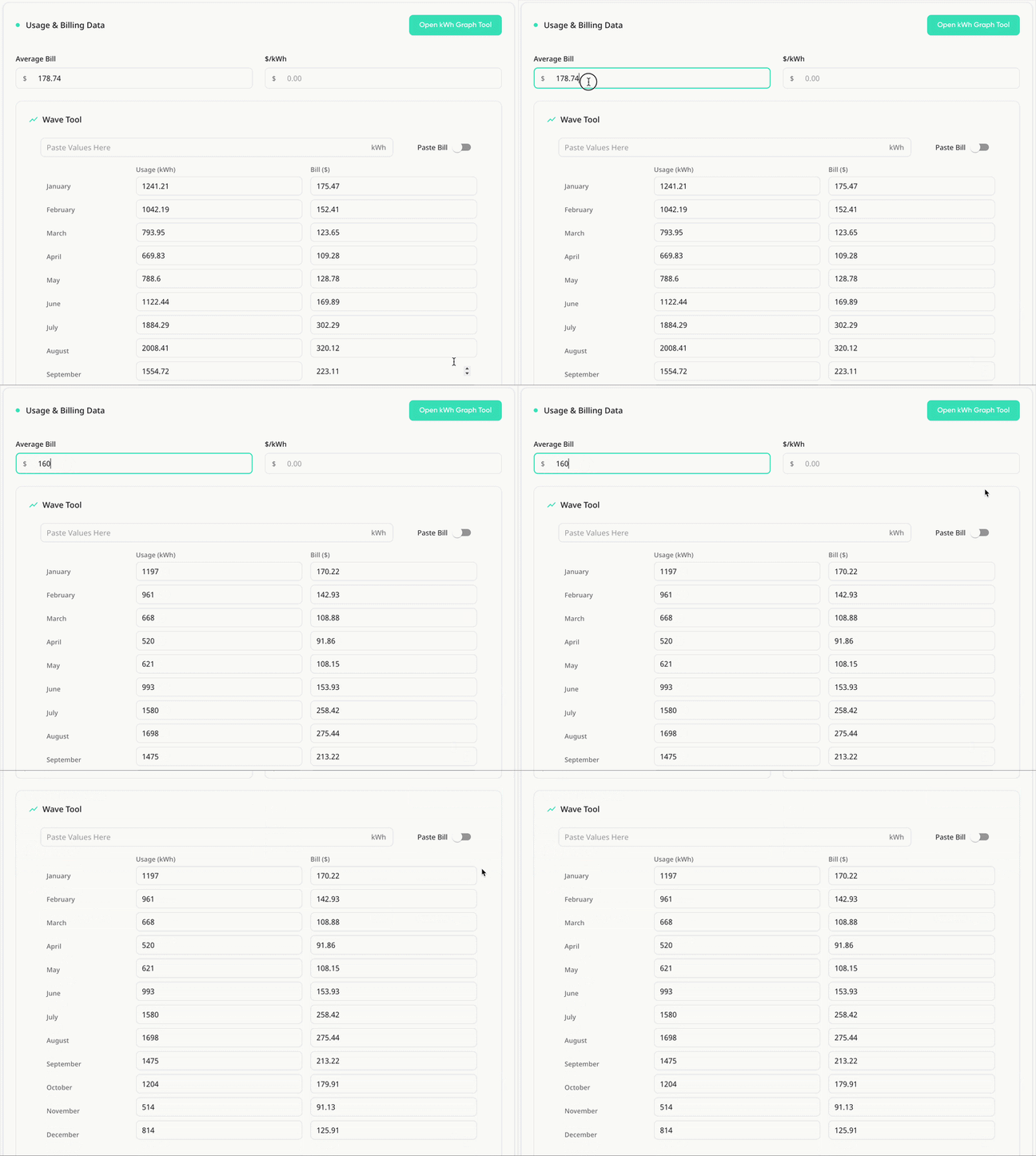
Average Bill
If your customer only has their average utility bill amount, this can be entered and used to estimate their usage. The value entered in this field will be compared to the rate data that our utility database has for the utility company and rate plan that is selected.
Year Usage/Year Bill
If you have the customer's total yearly usage, you can enter that into the 'Year Usage' field. This will then estimate the average monthly values to add up to the yearly usage you've entered. This will not split the values evenly across the 12 months, but instead will wave the values according to the seasons and regional data.
Similarly, the 'Year Bill' field will estimate the customer's yearly usage based of their yearly bill and the data that our utility database has for their utility company and and rate plan. Then, the yearly usage estimated from the bill will be waved across the months to produce estimated monthly usage values.
Wave Tool
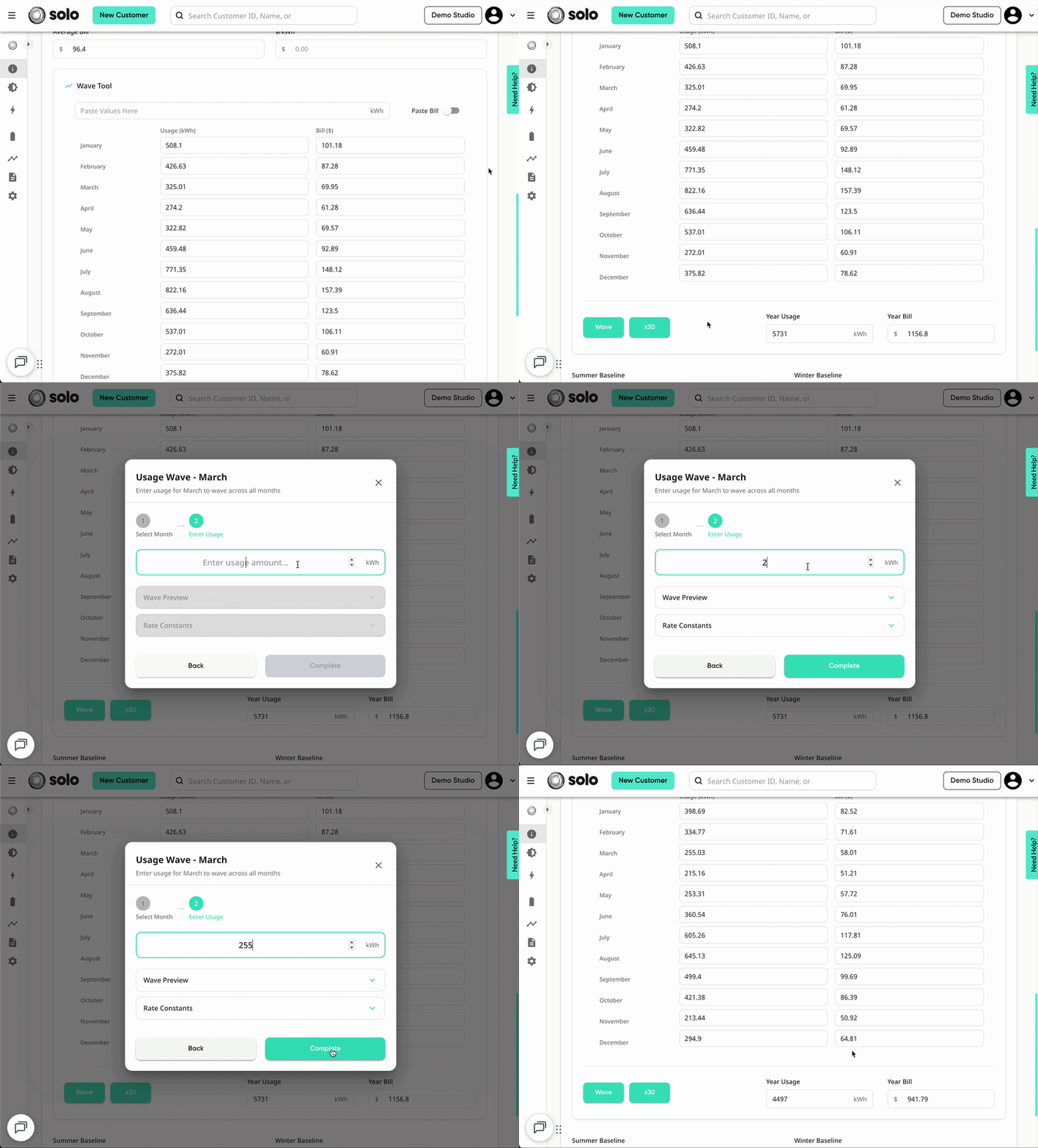
This tool is useful if you only have usage data for one or a few months. This will estimate the customer's energy usage for all twelve months of the year, based off of the usage of one month. This uses data from the region the home is located in. To use this tool:
- In the Utility Info tab, scroll down to the 'Wave' button.
- Select one month that you have usage for.
- Enter the usage that you have for that month.
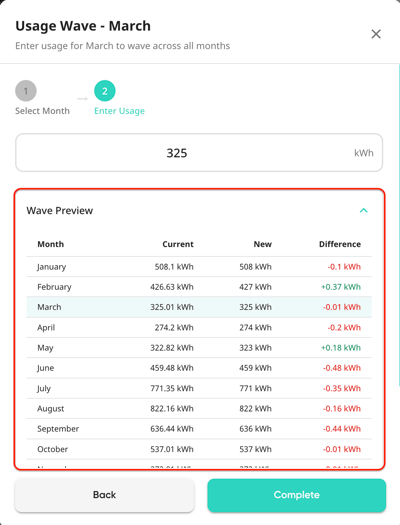
- Review the estimated values using the 'Wave Preview'.
- If you're curious about how each value is determined, review the 'Rate Constants' dropdown.
- Click 'Complete'.
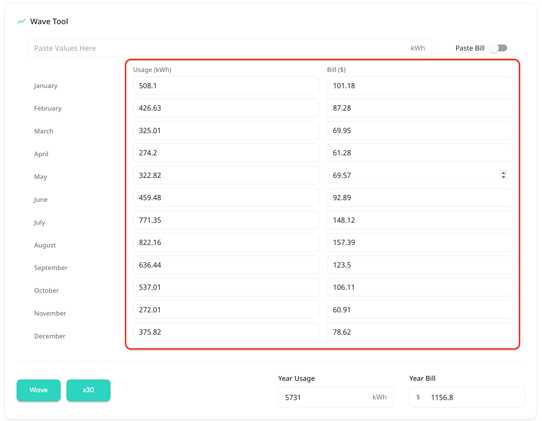
- You can adjust any value that was estimated, in the fields above.
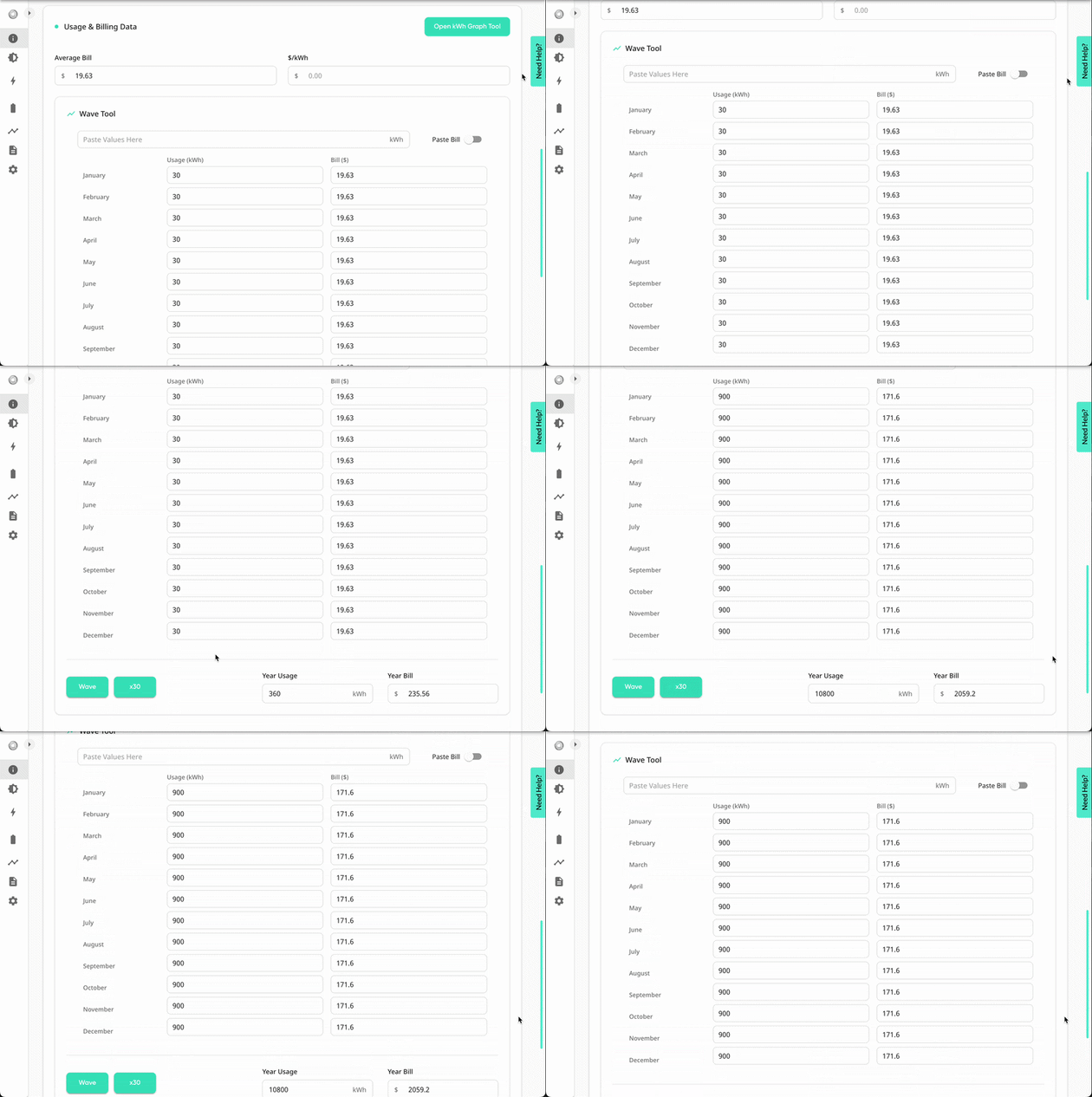
x30 Tool
This tool is useful if your customer's usage is provided in daily averages for each month, rather than the monthly usage. This tool will multiply the values in the 'Wave Tool' section by 30 to get monthly averages based on the daily usage entered.
To use this tool, ensure that the usage data you've entered is for daily averages. Then, scroll down and click 'x30'.
Using the kWh Graph Tool
The kWh Graph Tool allows you to estimate the customer's usage or bill data using a picture of their usage graph provided by the utility company. To use the tool, follow these steps:
- Copy the image of your customer's usage graph to your devices clipboard.
- On the Utility Info tab of the customer page, scroll down to 'Usage & Billing Data'.
- Click 'Open kWh Graph Tool'.
- Using ctrl+v or command+v, paste the image of your customer's utility usage graph.
- If you need to rotate the graph, use the rotate button in the top left.
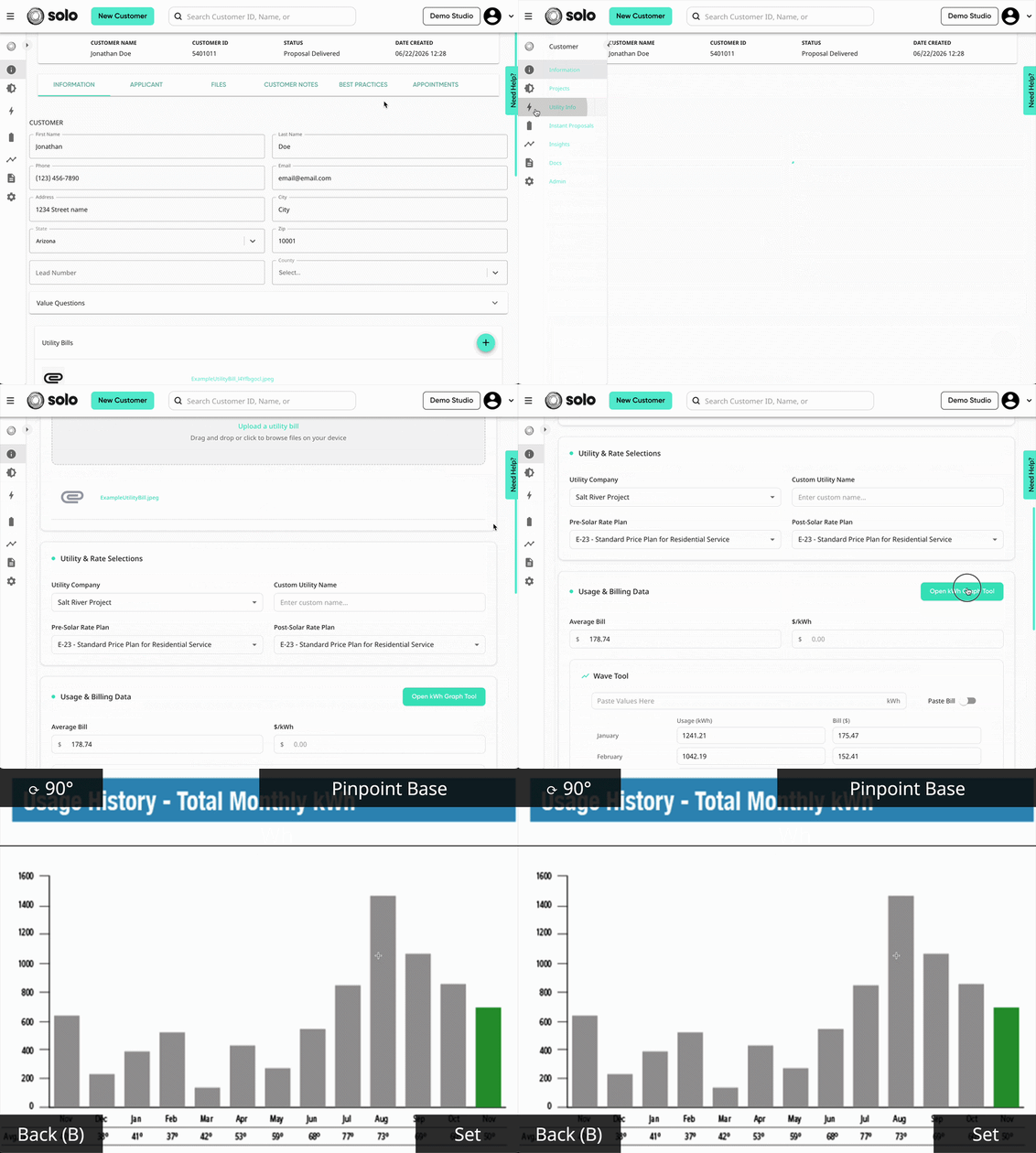
- You'll see a black line on your image that moves with your mouse. Align this with the bottom of your graph.
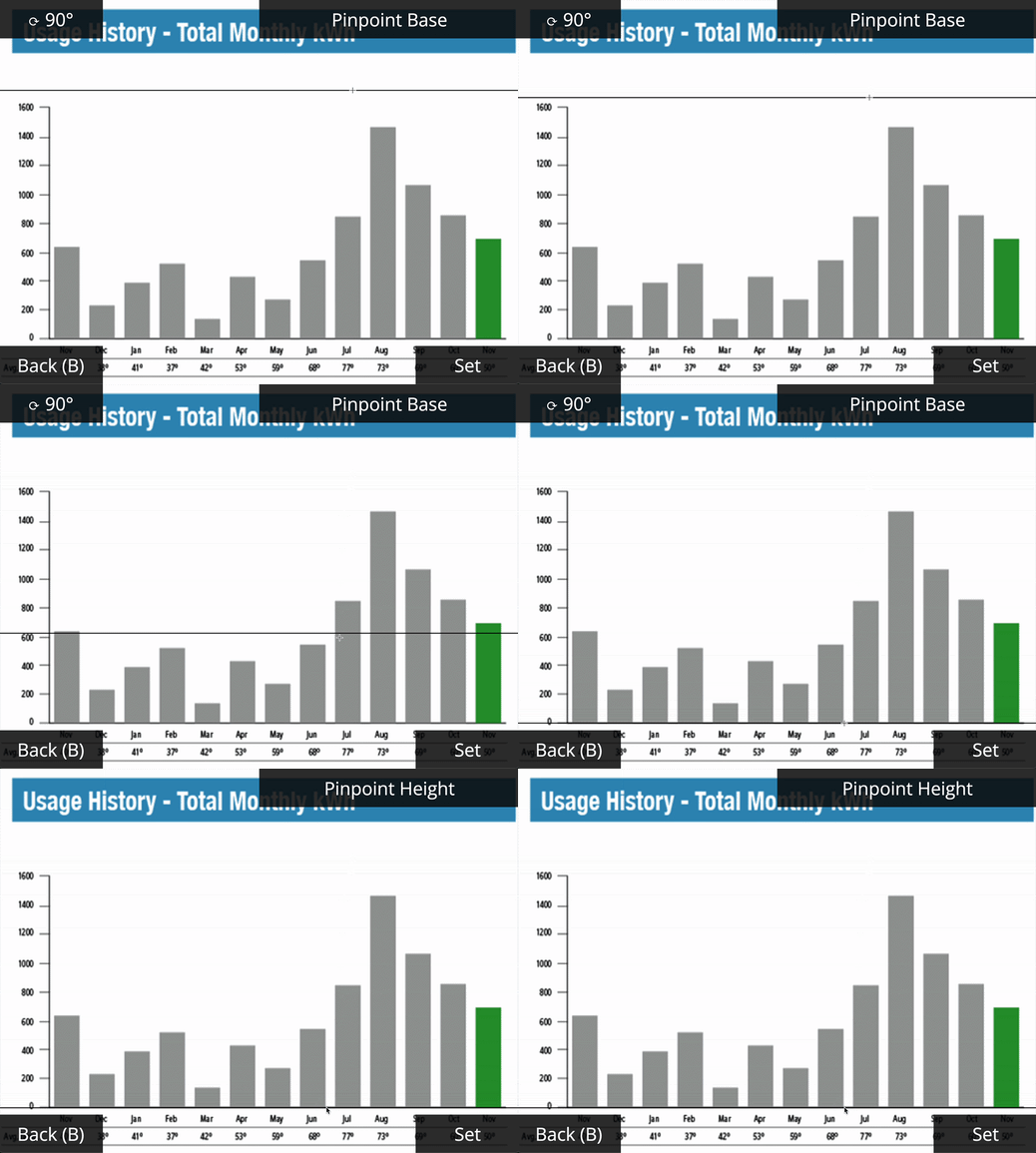
- Next, align the line with height of the graph.
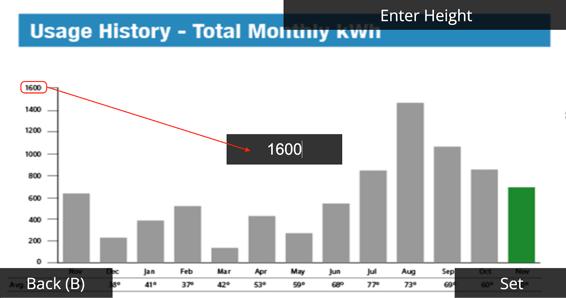
- This should be the highest point on the graph, NOT the highest usage bar.
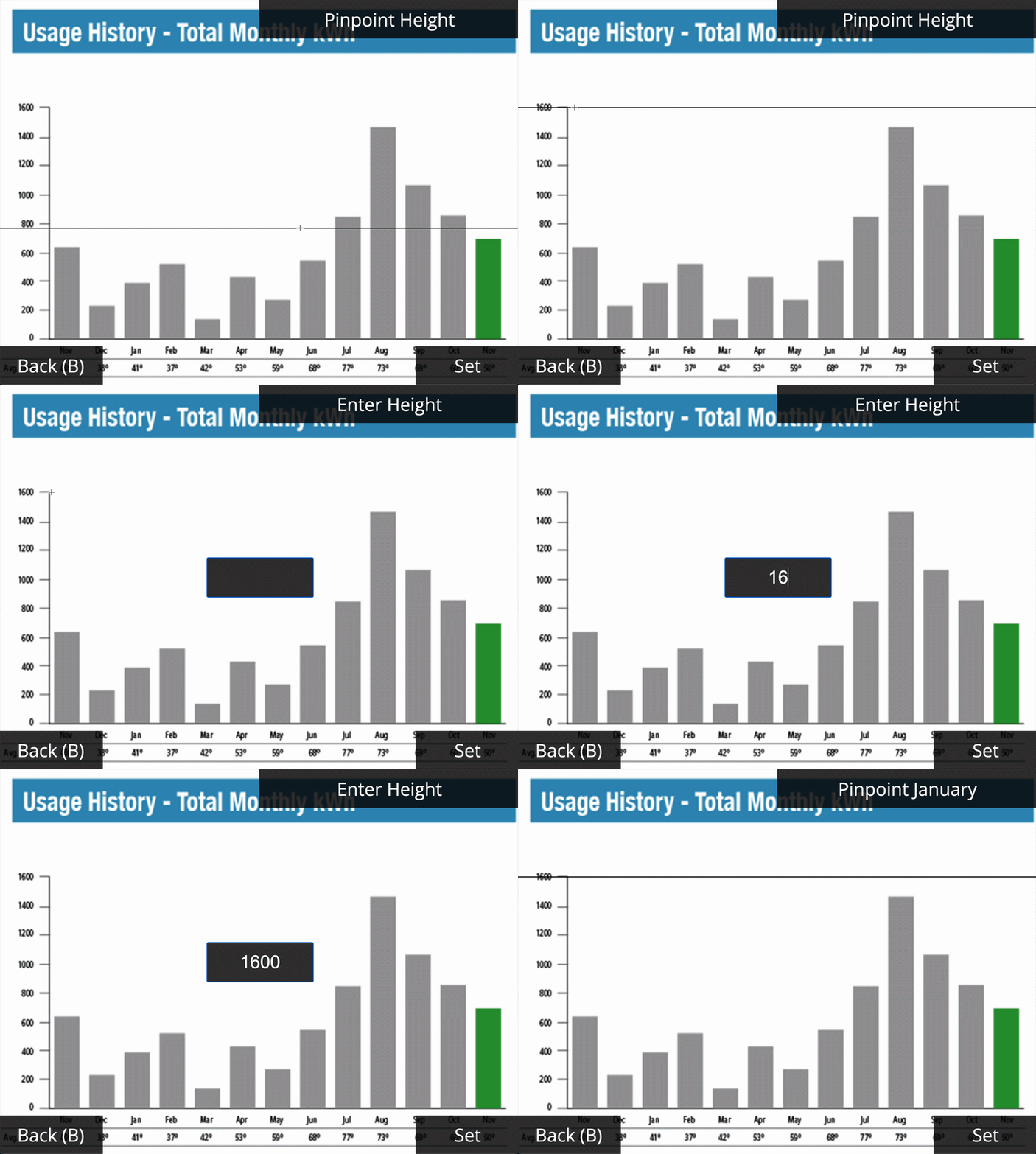
- You'll then be prompted to enter the numerical value that the top of the graph represents. This will help determine the scale of the graph and is vital in accurately estimating the rest of the values.
- Align the line with the top of each month’s usage bar, starting with January.
- Some graphs will not start with January on the left, make sure to note which bar is January before starting.
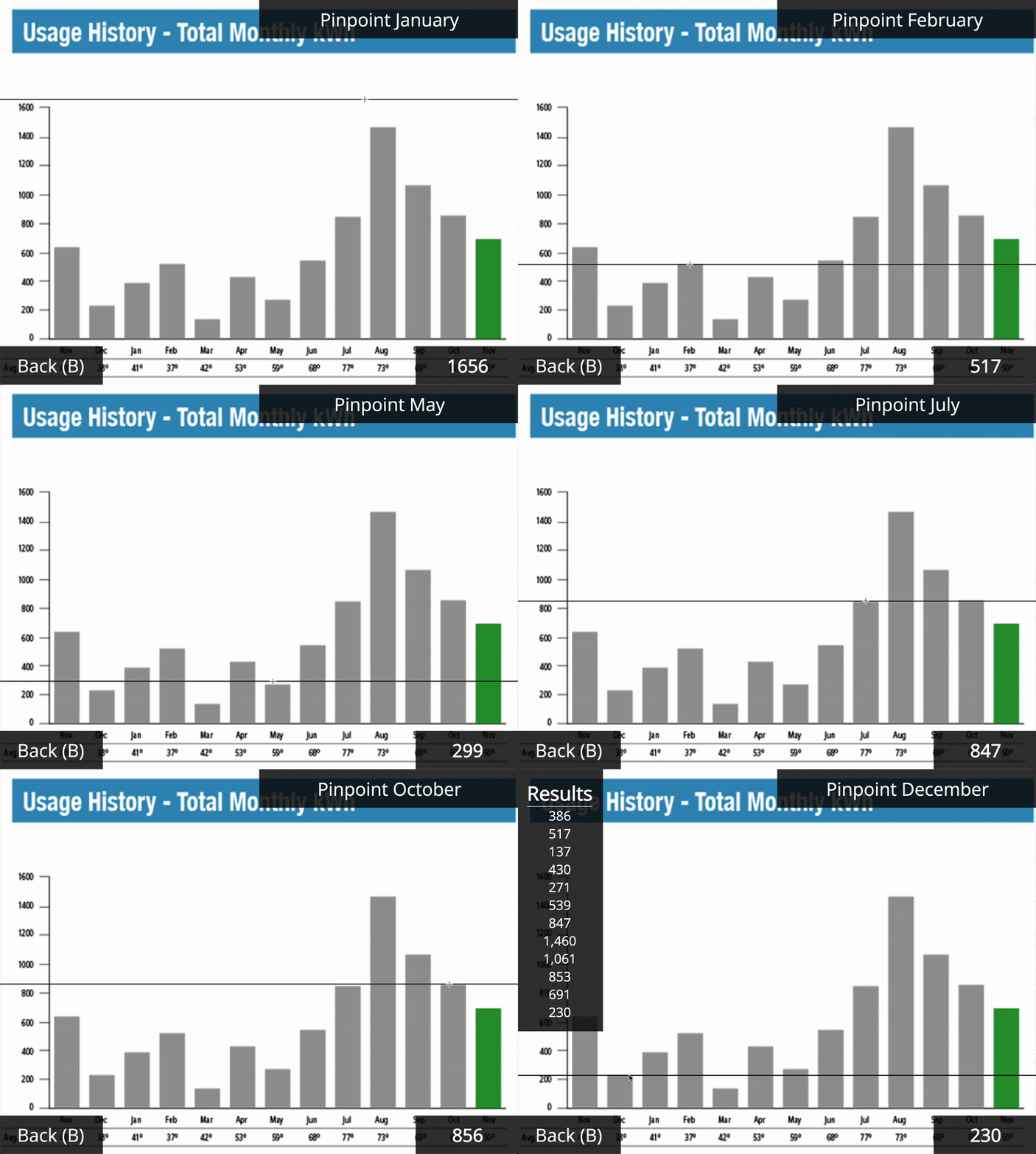
- Once you’ve set all months, the results will populate in the corner. These will automatically be copied to your keyboard.
- Back in the Utility Info tab, scroll down to the 'Wave Tool' section. Then, paste the values into the usage field.
- If the graph you were using was bill values, make sure to toggle 'Paste Bill'.
- If the values you pasted represented daily values, you can use the 'x30' tool to convert them to monthly values.
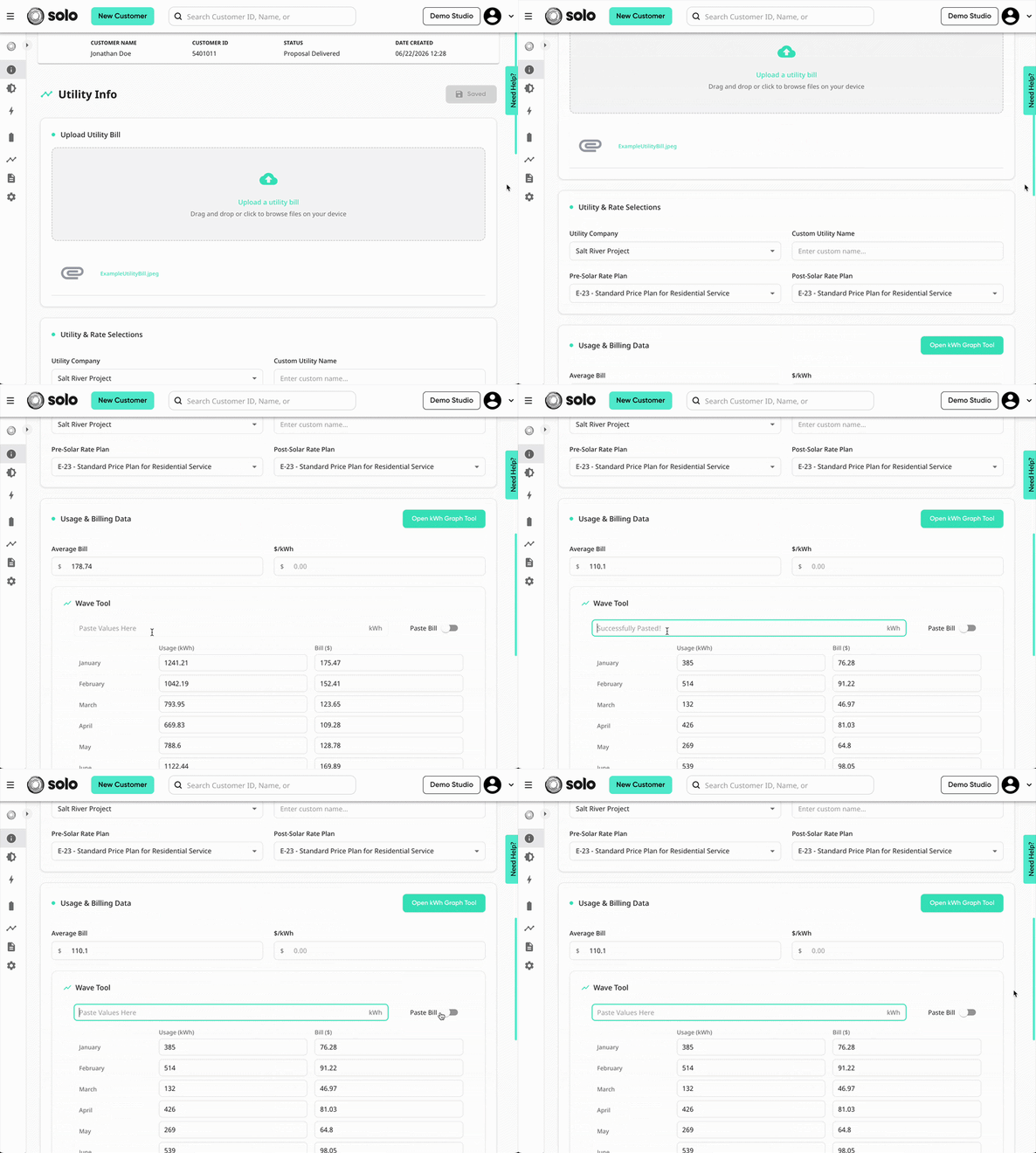
- Scroll down and click 'Save Changes'!