
This article covers the design permission toggles on a user account. For more information on user roles and the permissions associated with each role, please see this article HERE.
Design Permissions can be managed from the user account, by going to the 'Permissions' tab.
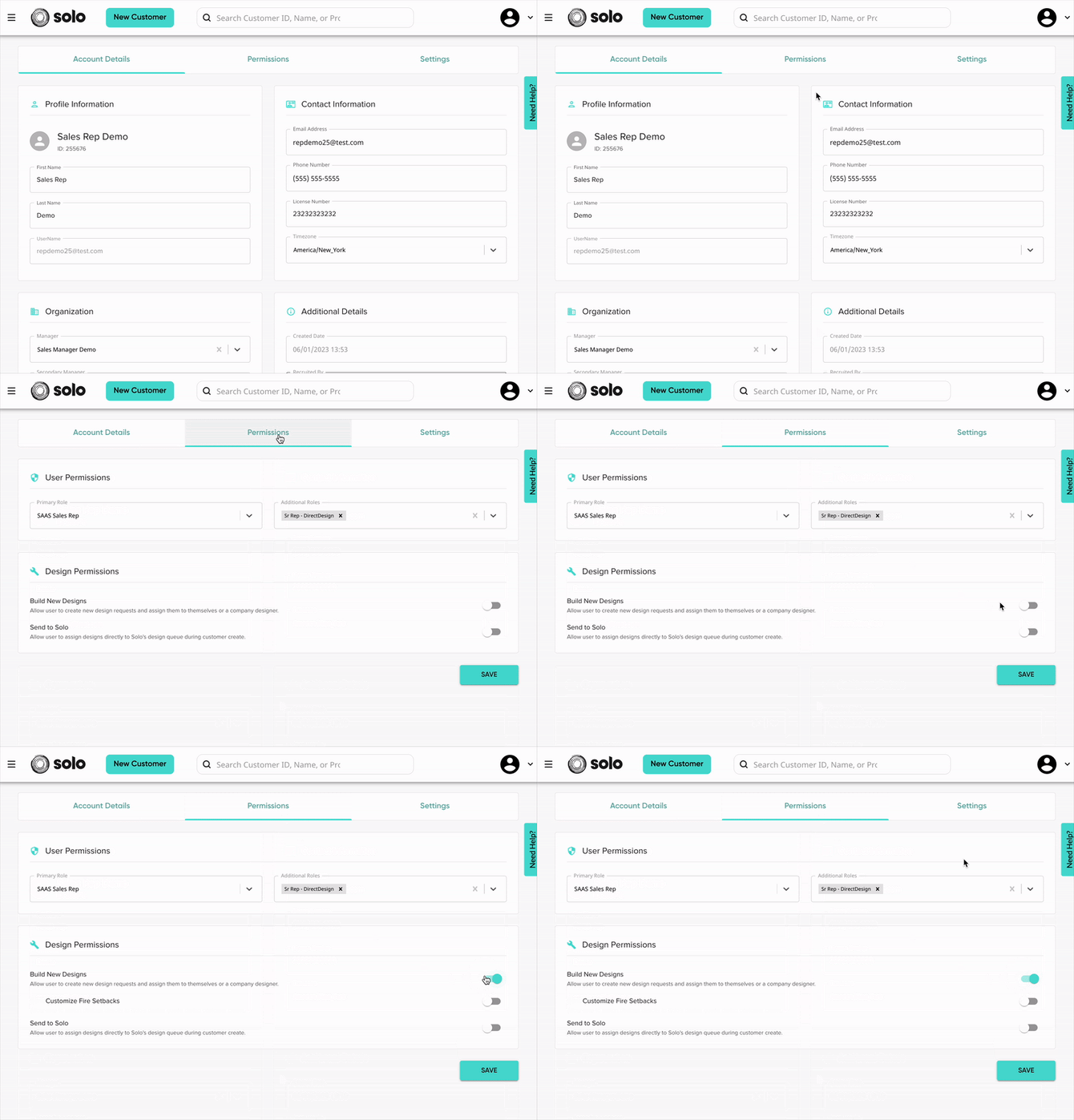
There are three available design permissions. Included in the sections below are more information on what each permission includes and best practices on allowing these permissions:
Click the links above to jump to the relevant section.
Build New Designs
This permission gives users to use the Solo Studio tool to create designs and manage design requests in your company's design management page. Access associated with this permission includes:
-
View all design requests made within their company, on the Design Management page (without this permission, users will only see their requests on that page).
- Assign design requests to themselves in the Design Management page.
- Use the Solo Studio tool to build and complete design requests.
- Create a proposal from a completed design.
Who should have access to build designs?
The Solo Studio tool can be used by any user, regardless of design experience. Access to the design tool is best given to users:
- With a good understanding of your company's design preferences (available from within the tool).
- Who can be trusted to assign and design jobs within your desired timeline.
- Who can be responsible for building designs that are compliant with jurisdiction and TPO requirements.
Before sending the completed design, users should ensure:
-
The design follows any notes provided in the request
-
Their design follows all company, jurisdiction, and TPO (if applicable) requirements
-
That the most optimal design is being used, by reviewing the production center.
Customize Fire Setbacks
This permission is conditional. To have permission to customize setbacks, the user must first have access to build designs (see above).
This permission gives users who already have access to Solo Studio the ability to add custom fire setback parameters on the design. When this permission is toggled on, the user will have access to modify fire setbacks per roofline/roof plane on their design:
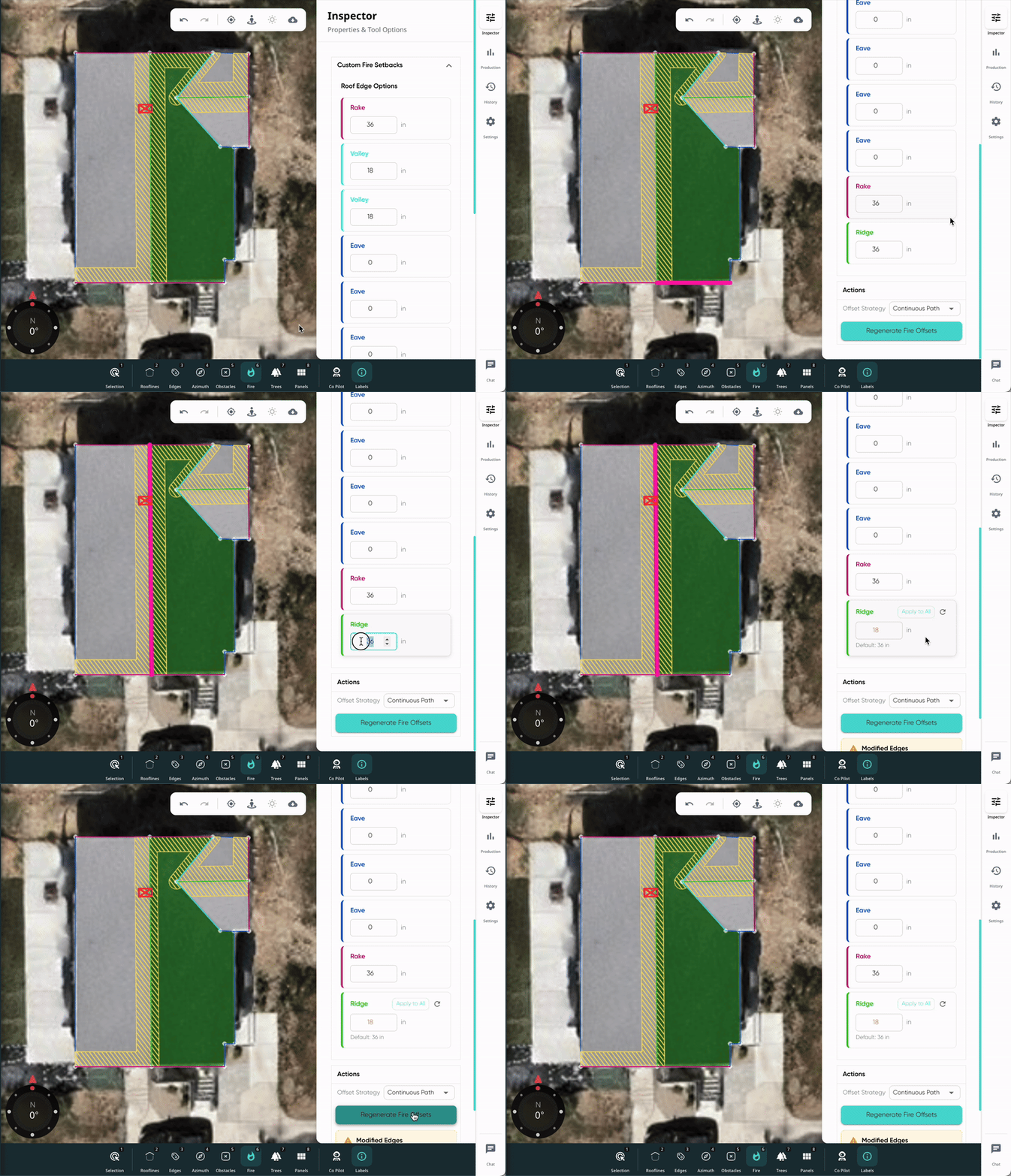
Learn more about managing design setbacks HERE.
Who should have access to customize fire setbacks?
Having the ability to add custom fire setbacks can be useful when operating in areas with non-standard setback requirements, when working on more complex roof layouts that require more precise control, or when the requirements have exceptions/amendments or unique interpretations. This is best given to users who:
-
Who are familiar with local fire code
-
Who can be trusted to be responsible for ensuring their designs are compliant with the jurisdiction requirements
-
Who understand how fire setbacks can affect access and safety.
Before applying custom fire setbacks to designs, users should confirm requirements with local jurisdictions and fire codes. Applying custom setbacks should be done intentionally, always ensuring that a clear path remains accessible in the design.
Send to Solo
This permission allows a user to send a design request to the Solo queue to be completed by a Solo designer. Users with this permission will see an additional option when requesting a design:
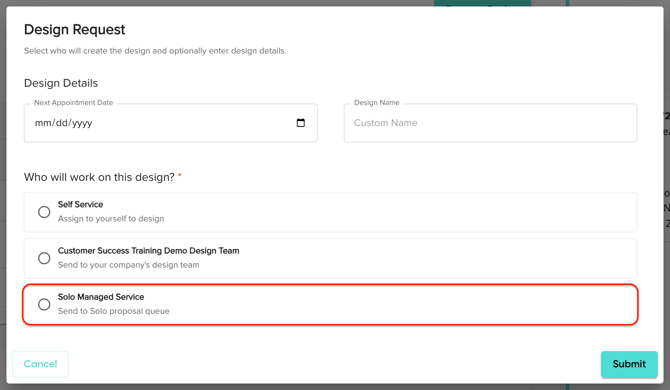
Who should have access to Send to Solo?
Having the option to send designs to Solo can be helpful for instances where one of our expert designers is needed to complete a design, for example, when dealing with a complicated roof layout.
Designs created by a Solo designer will have a different cost associated compared to designs created via Solo Studio. Access to send designs to the Solo queue is best given to users who are aware of the additional costs and who know their company's expectations for when a design should be sent to Solo.