
Please Note: Creating a customer does NOT automatically submit a project request.
Solar, roofing, battery, and generator proposal requests must be made separately on the customer Projects page, once the customer account is created.
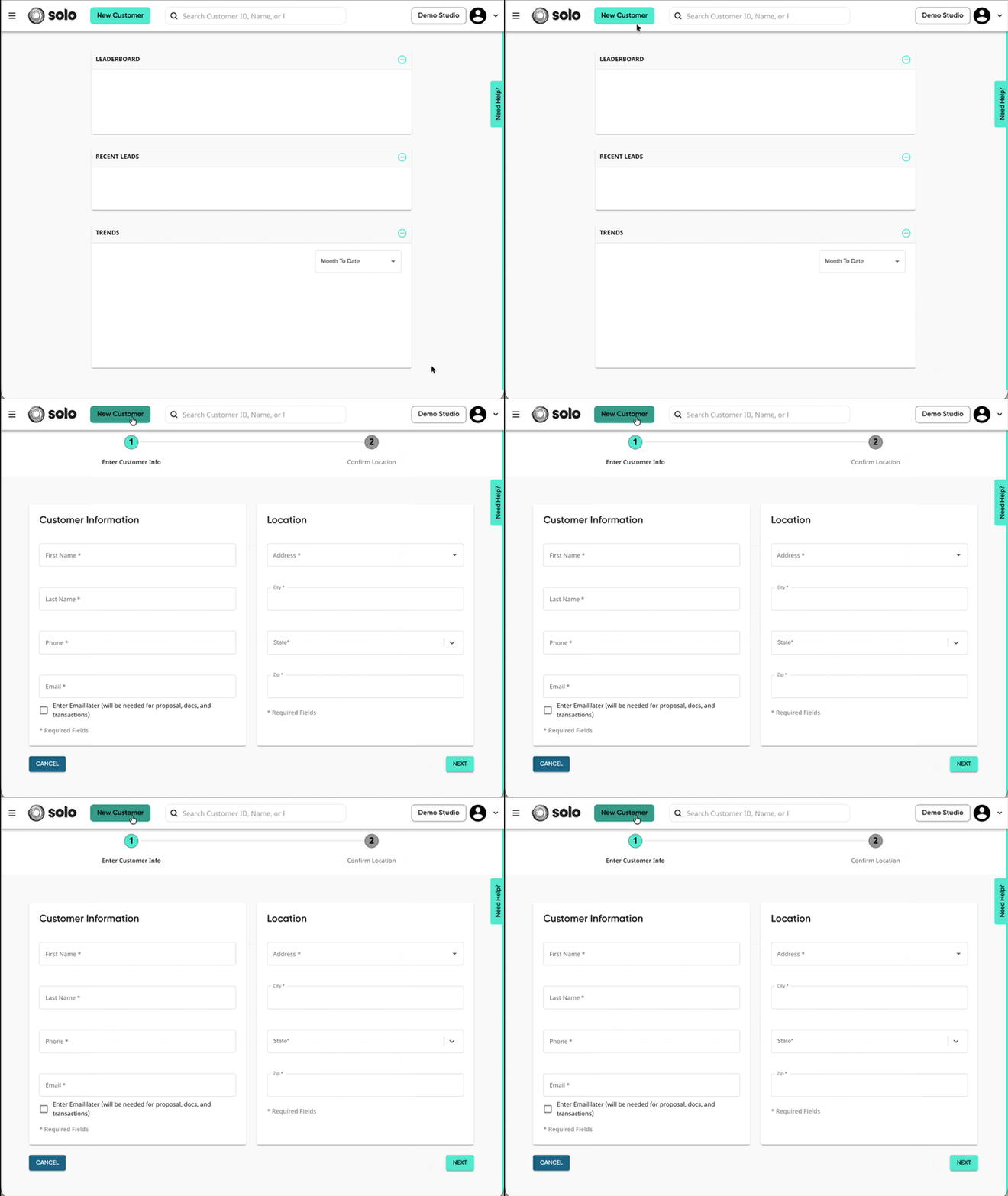
- You can begin creating a customer from one of two places:
- Clicking 'New Customer' in the top left of Solo toolbar:
- Within the sidebar, under 'Customers':
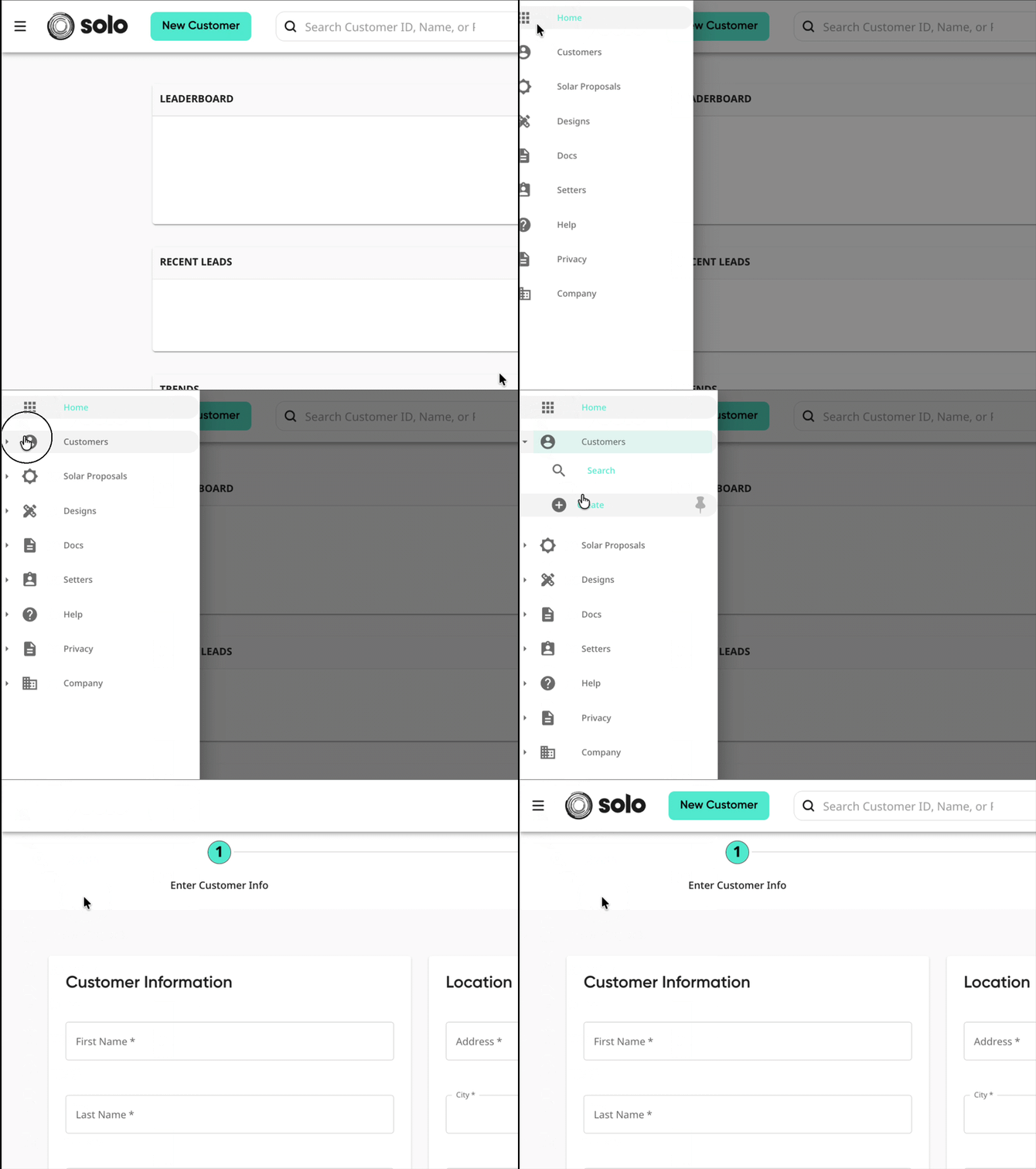
- Clicking 'New Customer' in the top left of Solo toolbar:
- Fill out the customer's information (name and contact info), then fill out their Location information (address).
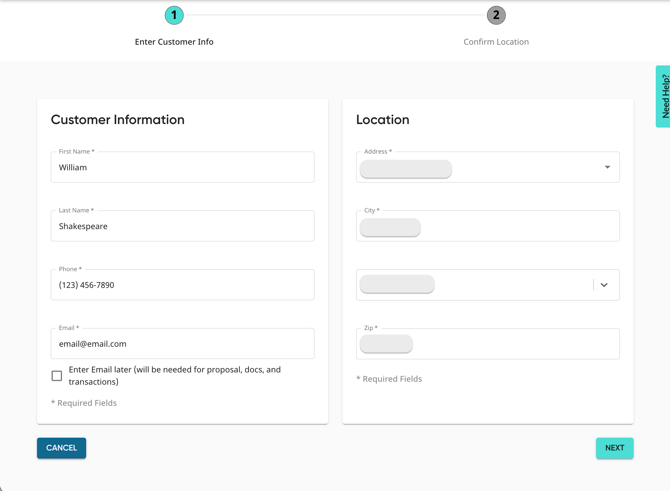
- Click 'Next' in the bottom right.
- Ensure that the location and imagery for the address you have entered is correct. For accurate framing, make sure the blue pin mark is centered on the home.
- If imagery is out of date or unavailable, you can upload your own image to be used on the proposal using the 'Upload Custom Build Image button'. Learn more about this tool here.
- If you know the exact coordinates of the home, you can enter that at the top. To ensure the address is pulled correctly, ensure that there are only 5 numbers placed to the right of the decimal point.

- Click 'Verify Address'. Then click 'Submit'.
- You will be taken to the newly created customer page, into the 'New Project Request' modal. From here, you can select which project you'd like create for this customer.
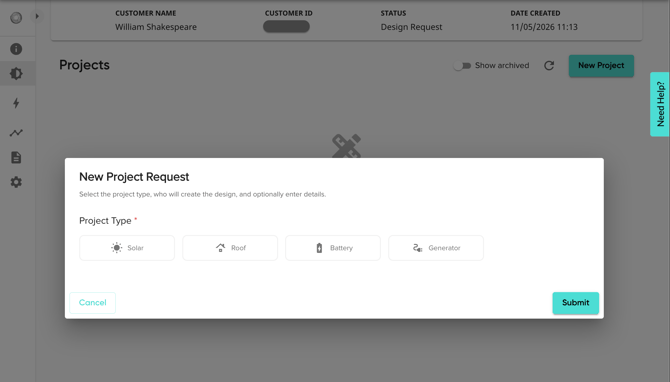
Depending on which project you create, additional information may be needed. Click the links below to learn more about creating each project type: